No items found.

Golf Pad Events has added a feature to help you plan, calculate, and display payout results.
Events Pro feature
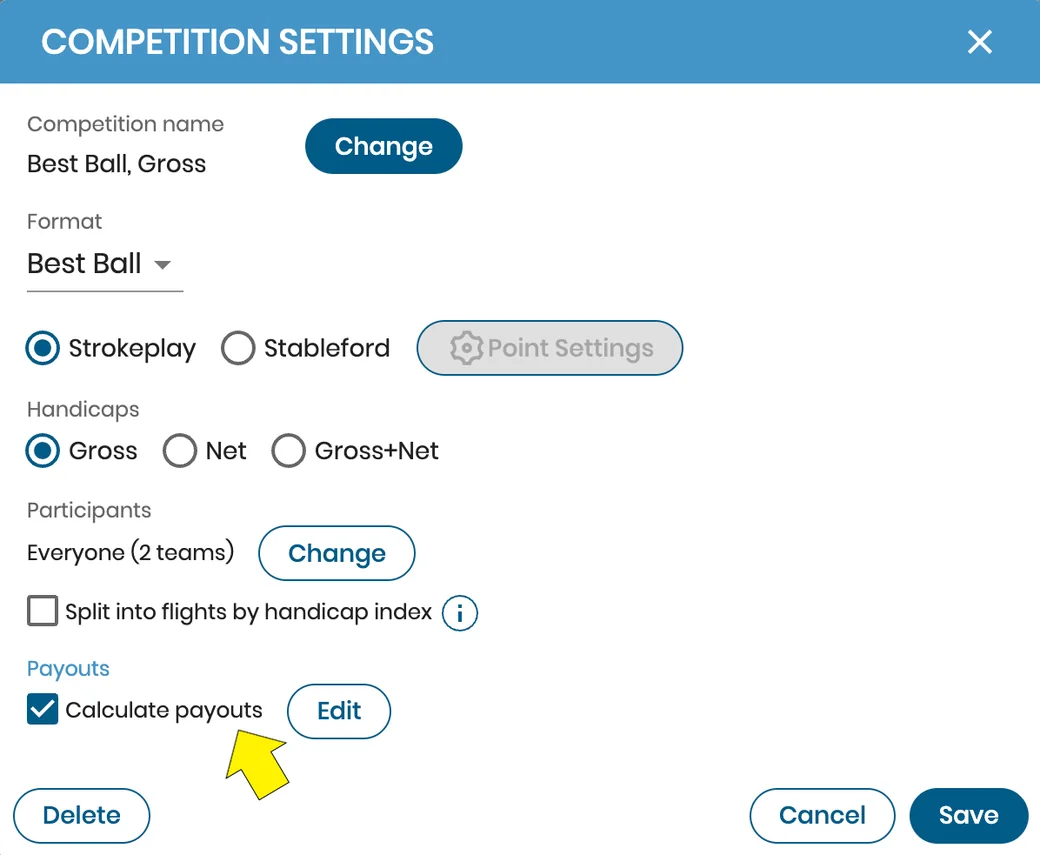
Competition payouts - When setting up a competition the payout option can be found in the lower left-hand corner of the settings window. When the payouts option is checked, click the edit button to open the competition payout settings window.
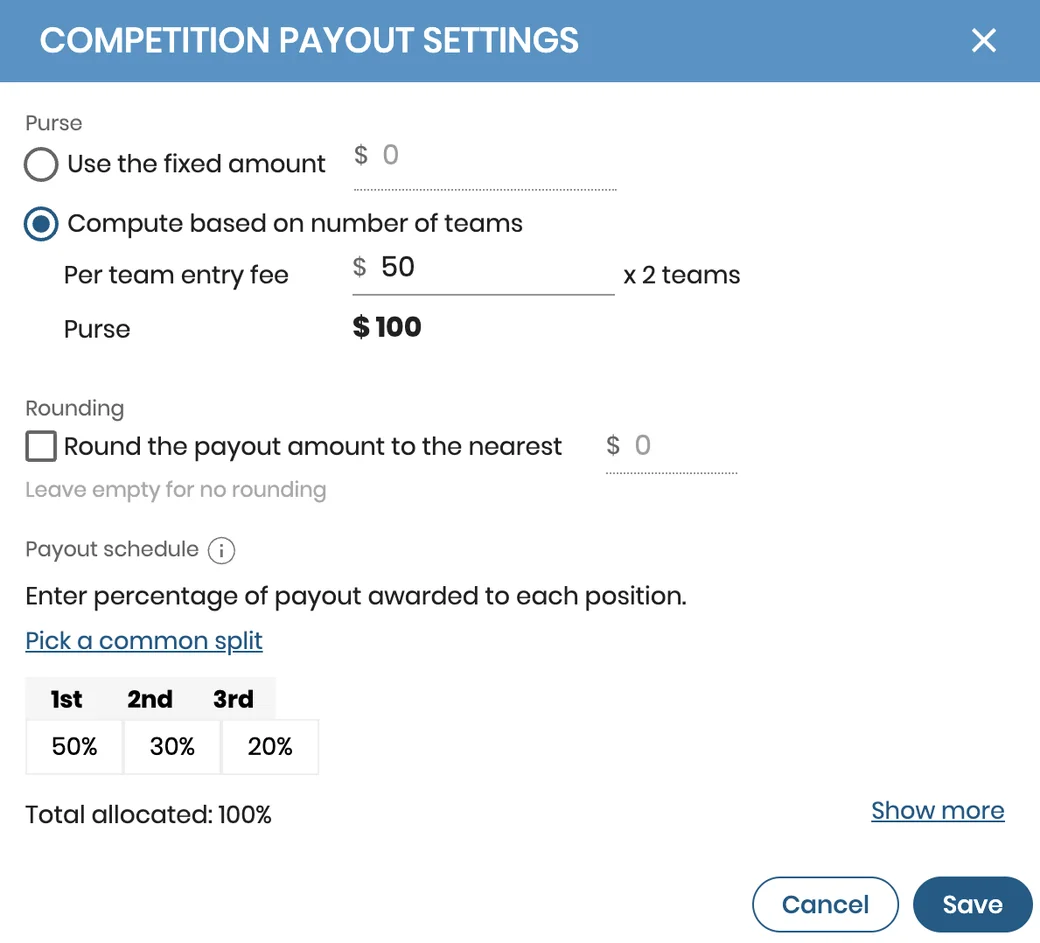
In the competition payout settings window, there are two options to determine the purse. You can enter a fixed amount for the total purse, or have it calculated based on the number of golfers (or teams) in the competition. Rounding is also an option to help simplify uneven numbers.
Select the "show more" option to add more places or rows. Within each cell you can edit and customize the percentage values for each place. Golf Pad Events will alert you if the percentages allocated do not total 100%.
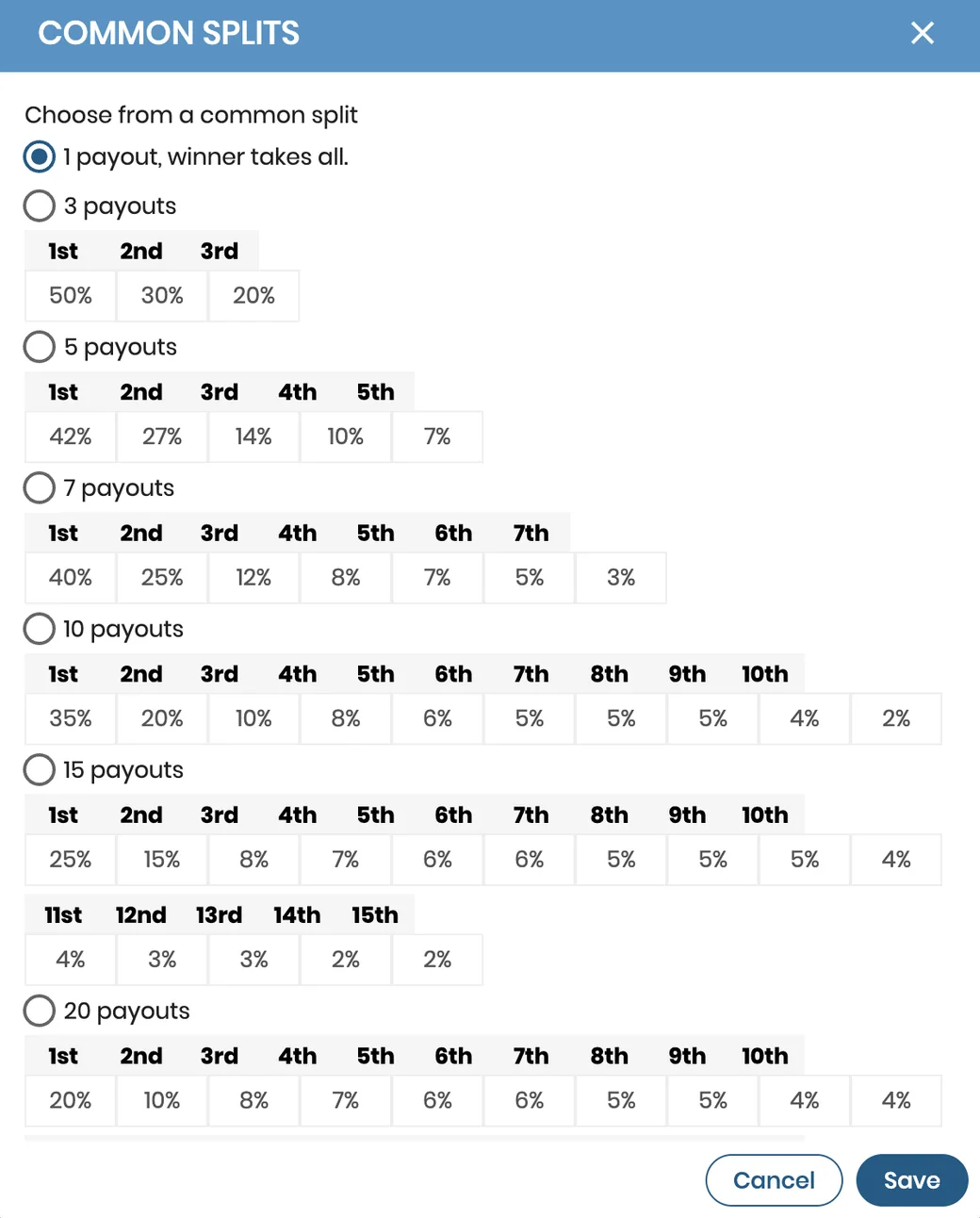
Common splits are also an option. When you select the "pick a common split" option the common splits window below will appear with a list of predetermined winning places and percentages. Simply choose the option that best suits your event and click save. Save will take you back to the payout settings page where you can review the details before continuing on.
To learn more about where the payout results will be displayed, please see this article.


Subscribe for early access to promotions, feature announcements & more.