Help Center
›
Getting Started with GolfPad
›
Getting a Round Started

How Do I Add a New Tee? How Do I Edit or Add a Tee to a Course?

Follow these steps to set or add a tee for a specific player:

First, start a round and select your course. Then, tap next to the player whose tee you want to set or edit.

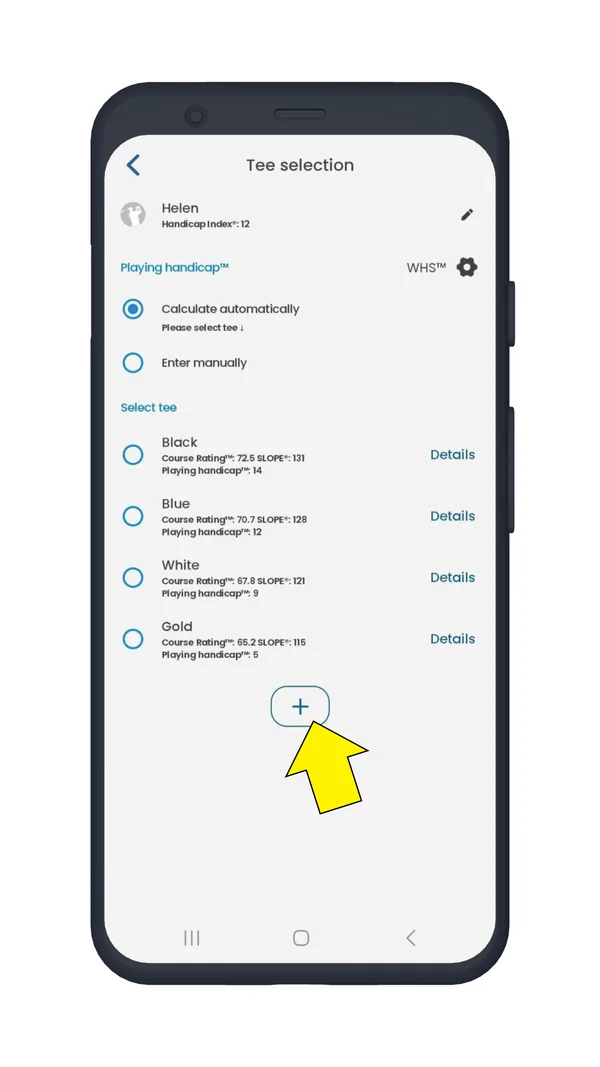
Next, tap the '+' symbol.
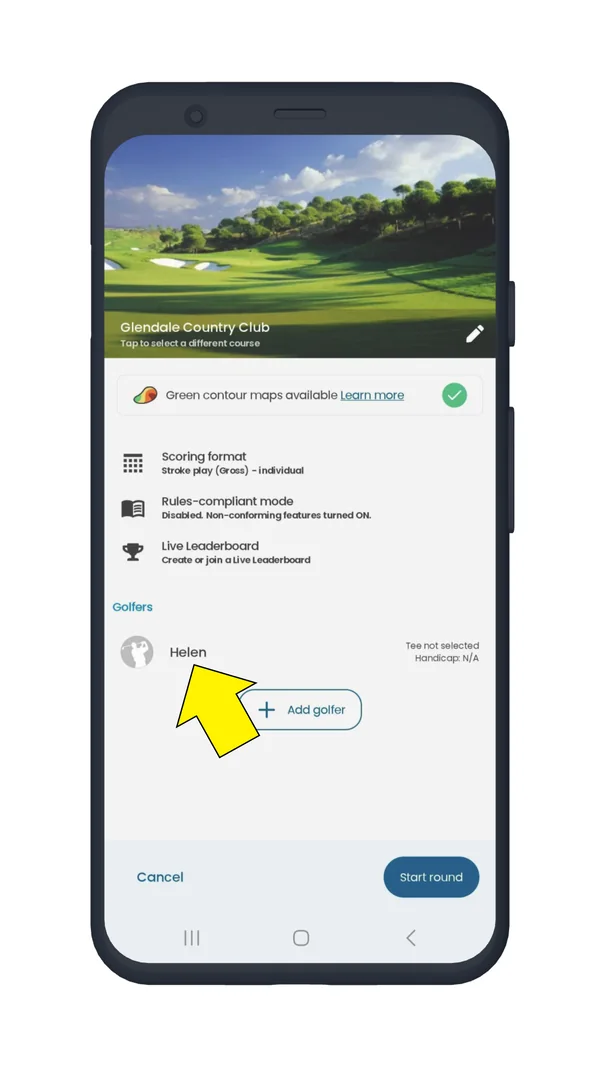
Round settings screen with a player highlighted to add a tee
Tap next to the player
Tee selection screen with the plus button highlighted
Tap “+”

Enter the name/color of the tee or select it from the list, save the changes.

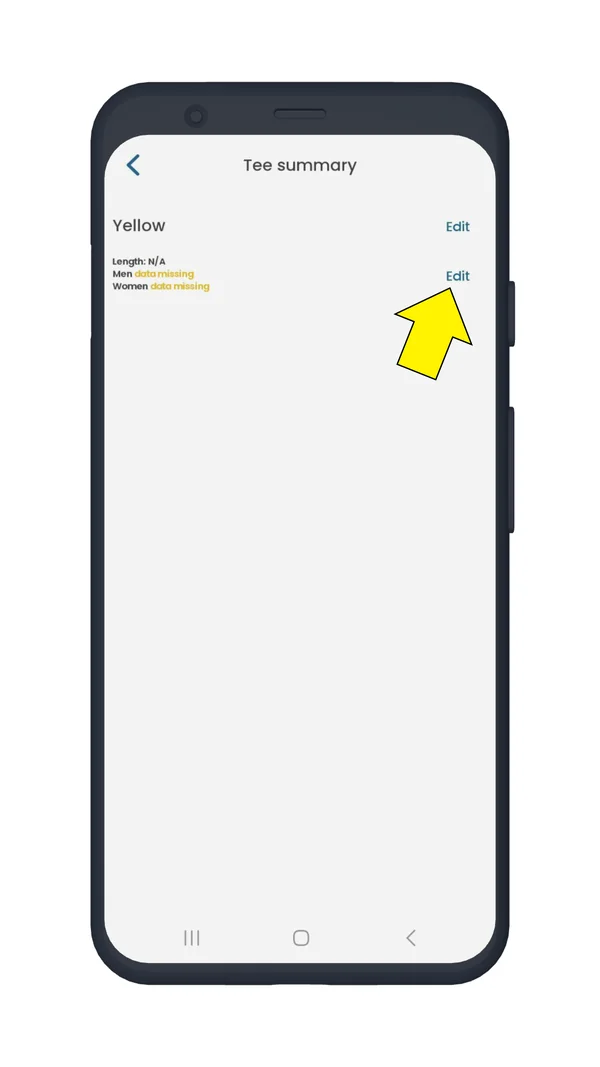
You will see the Tee summary page. Tap 'Edit'.
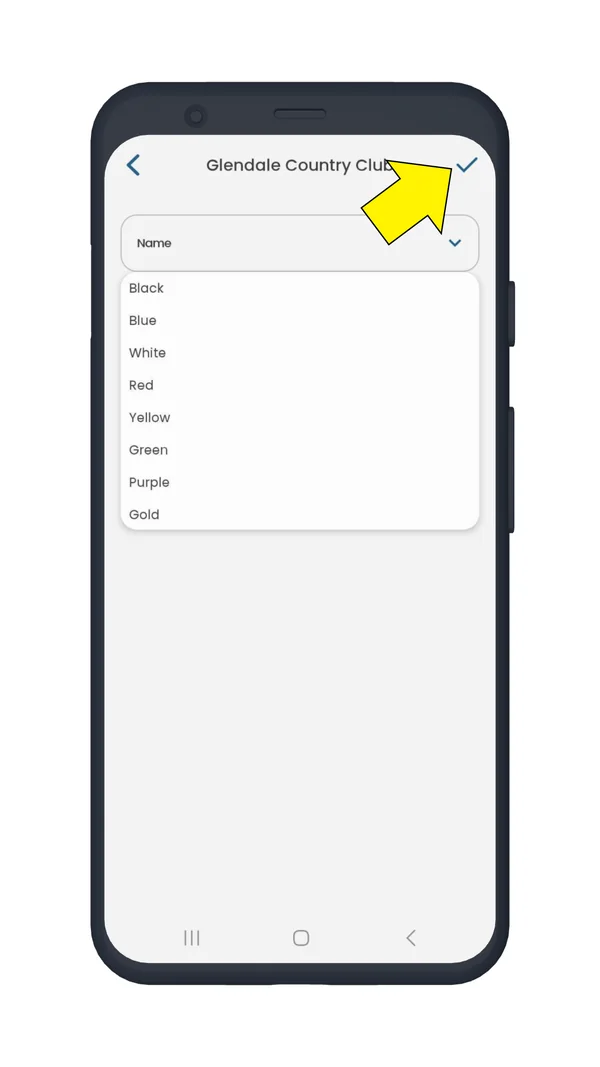
New tee screen with a list of tee names and colors
Name or color of the tee
Tee summary screen with the Edit button highlighted
Tap “Edit”

Tap 'Add' to enter tee details: total length, course rating and slope rating, tap 'Save'.
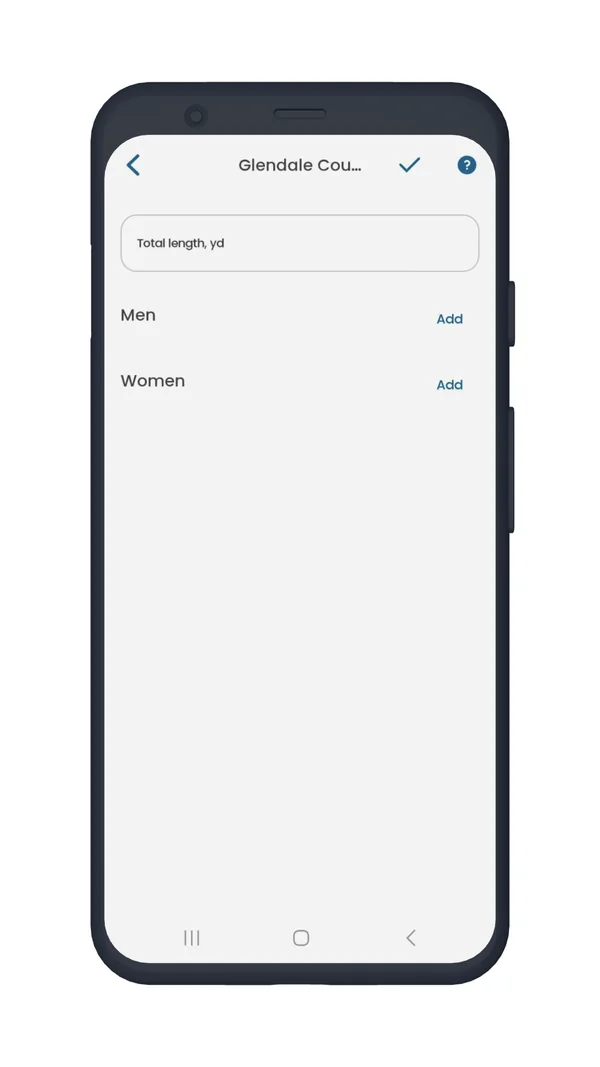
Tee details screen with Add buttons for men and women
Tap “Add”

Once a tee has been added, you can edit or select a tee using the same steps.

By the way, here's a video tutorial from our YouTube channel:

Rating and slope for 9-hole courses

When entering rating and slope for a 9-hole course, be sure to use the value provided by the course, usually found on the scorecard. If the course only provides rating and slope for 18-hole play, divide the rating by two, but use the full slope.

Was this article helpful?
Thank you for your feedback!

Sorry we couldn’t help

Tell us what was wrong, and our support team will look into it.

What was wrong?

Thank you! Your submission has been received!
Oops! Something went wrong while submitting the form.
how-do-i-add-a-new-tee-how-do-i-edit-or-add-a-tee-to-a-course
getting-a-round-started
getting-started
October 3, 2025

Didn’t find an answer?

Send us a message and our support team will reply by email.

Contact support
Data source for the script: all help articles (for More in…). Hidden on the live page.