Help Center
›
App features
›
Shot Tracking

How Do I Edit Shots?

Need to adjust your shots after a hole? No problem — Golf Pad makes it simple! Here’s how you can edit shots, add strokes, move shots, or update club and lie:

First, tap on the score box:
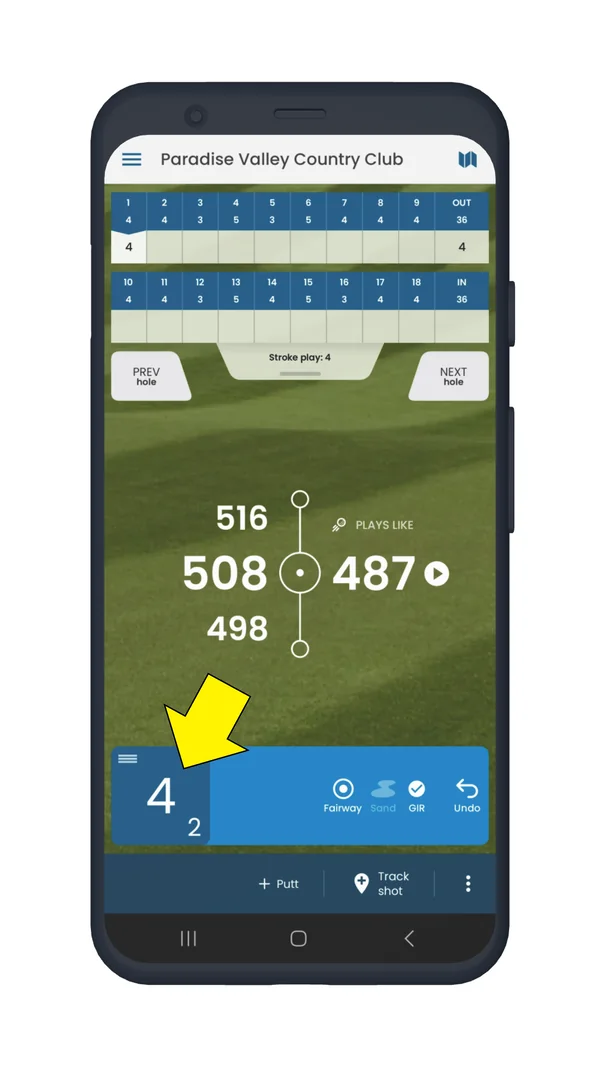
Golf Pad hole screen with the score box highlighted

Tap on the icon with three vertical dots on the right side of the shot you want to edit. From the menu you can set club/position/lie, move the shot up or down, delete it or move to another hole.
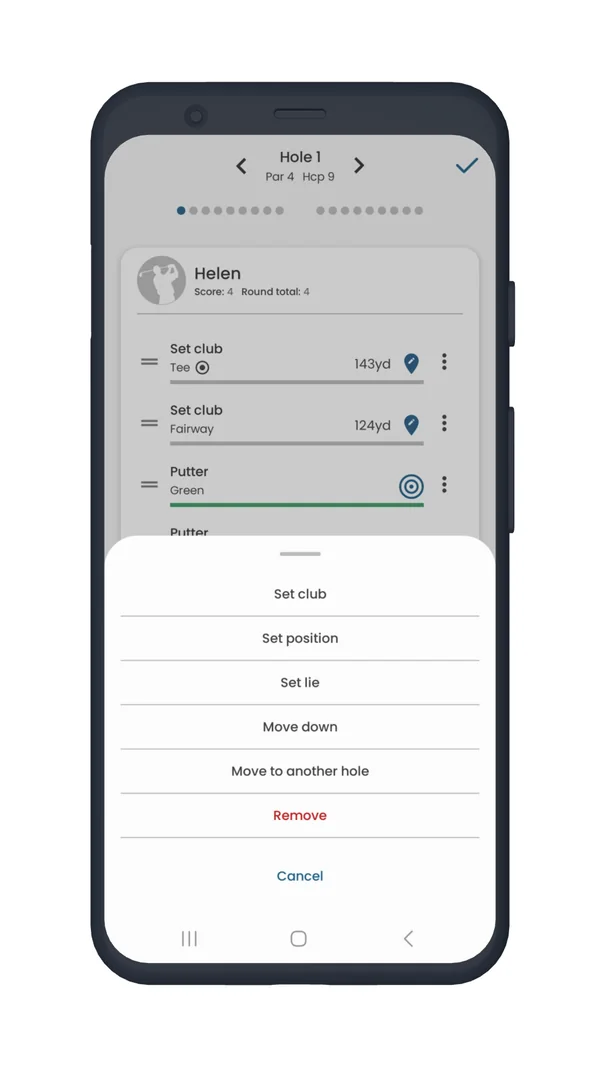
Golf Pad shot menu with Set club, Set position, Set lie, Move down, Move to another hole and Remove

Tip

You can also tap on the club name to set or change club and lie type, or tap on position icon to set or edit shot position, without going through the menu.

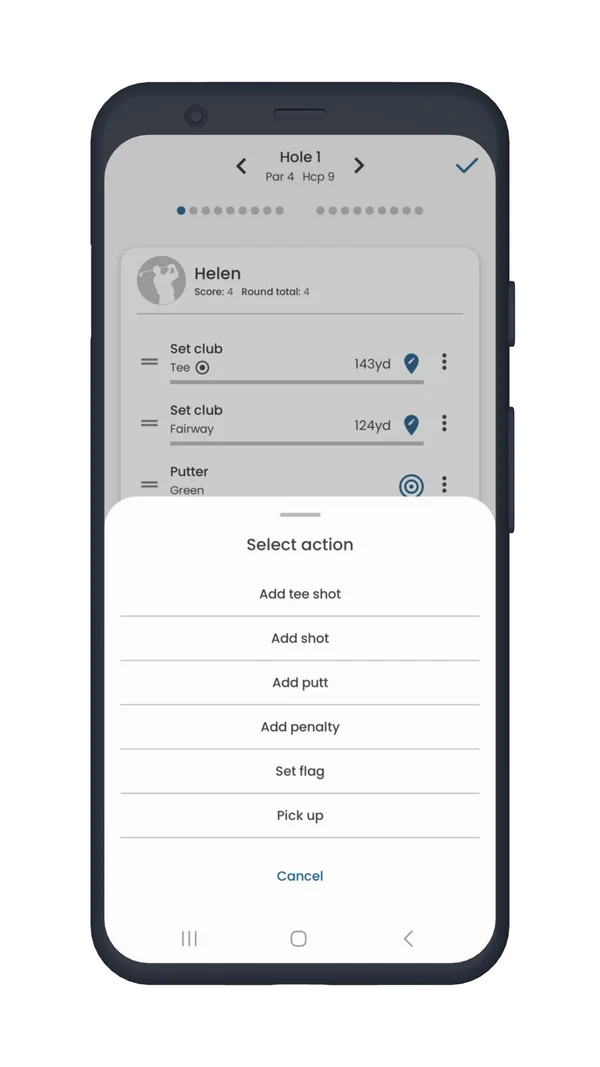
To add a stroke, use the plus icon at the bottom:
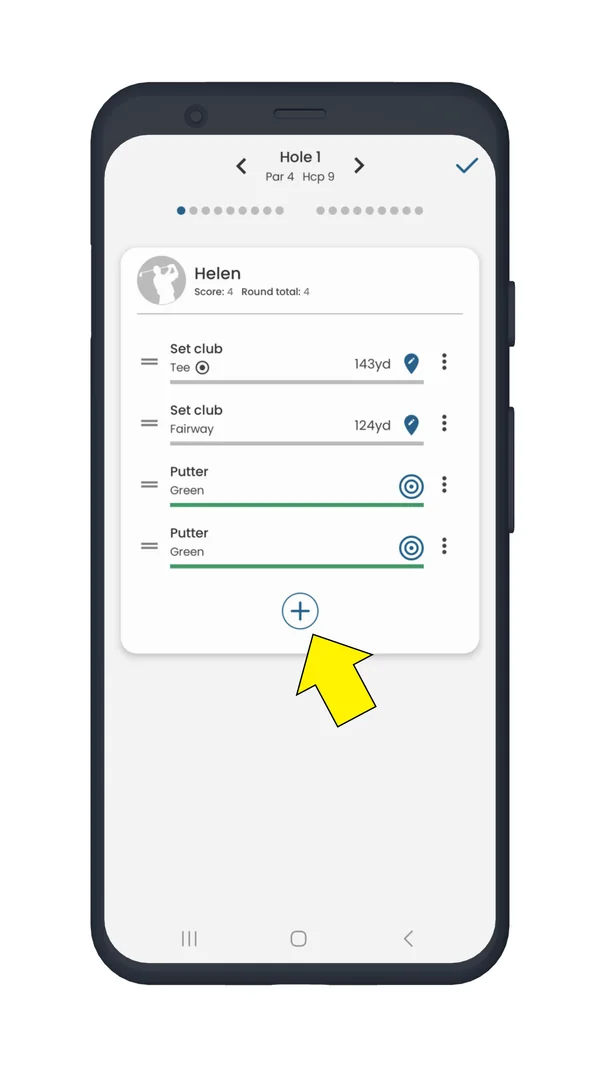
Golf Pad shot list with the plus icon highlighted
Golf Pad Select action menu to add a tee shot, shot, putt or penalty

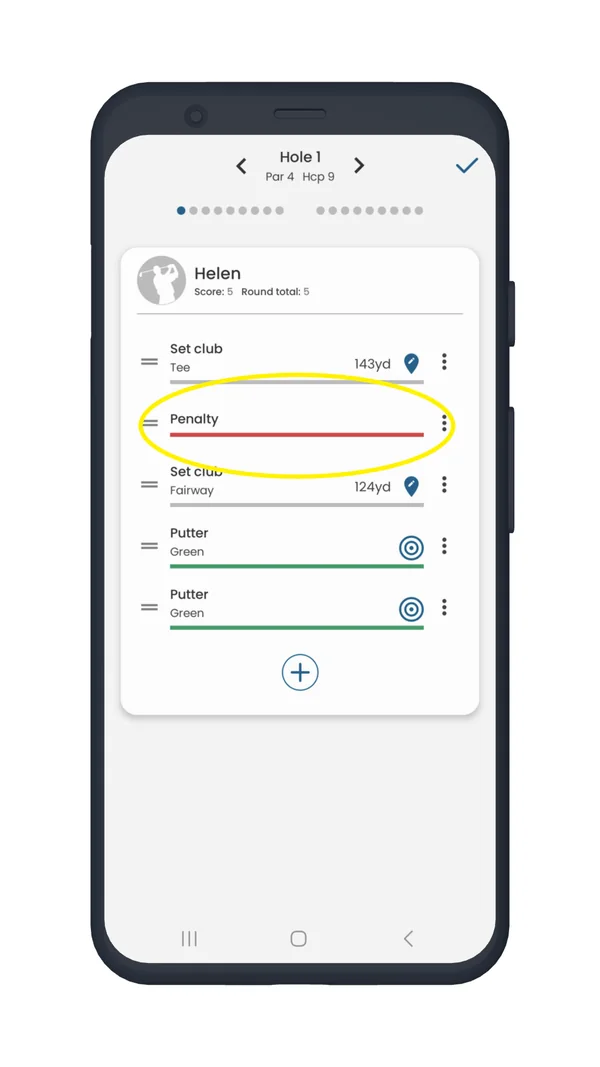
Change shot order by holding the two horizontal lines in the left and moving the stroke up or down.
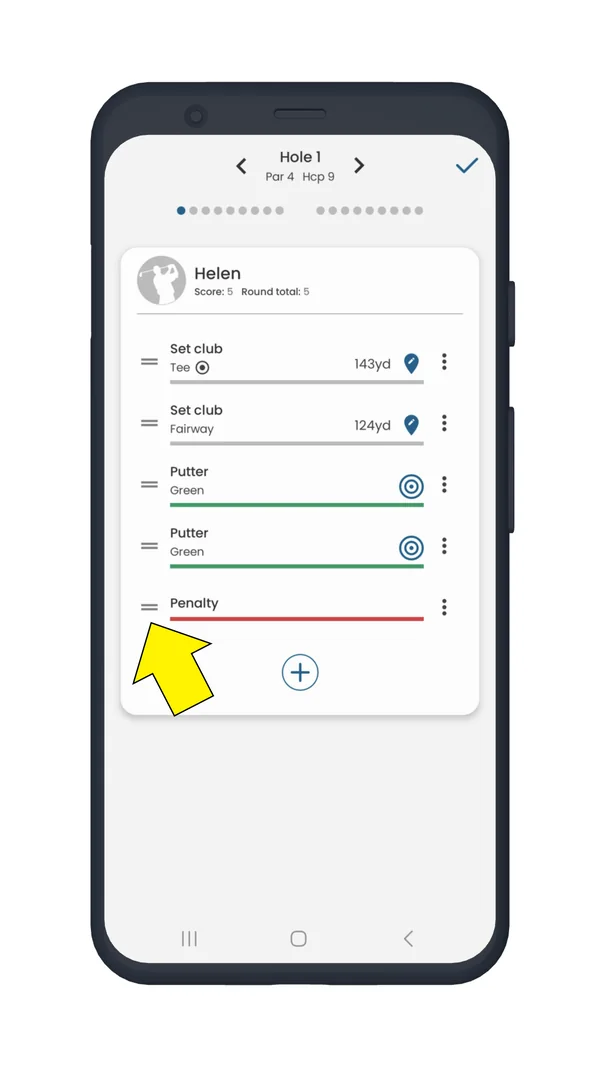
Golf Pad shot list with the drag handle of a penalty stroke highlighted
Golf Pad shot list with the penalty stroke moved up to second place

Need to change sand or fairway state for the hole? See this article for instructions.

Was this article helpful?
Thank you for your feedback!

Sorry we couldn’t help

Tell us what was wrong, and our support team will look into it.

What was wrong?

Thank you! Your submission has been received!
Oops! Something went wrong while submitting the form.
how-do-i-edit-shots
shot-tracking
app-features
September 11, 2025

Didn’t find an answer?

Send us a message and our support team will reply by email.

Contact support
Data source for the script: all help articles (for More in…). Hidden on the live page.