No items found.

NOTE: If you are looking for information on canceling your subscription rather than updating billing details, please visit this page for instructions.
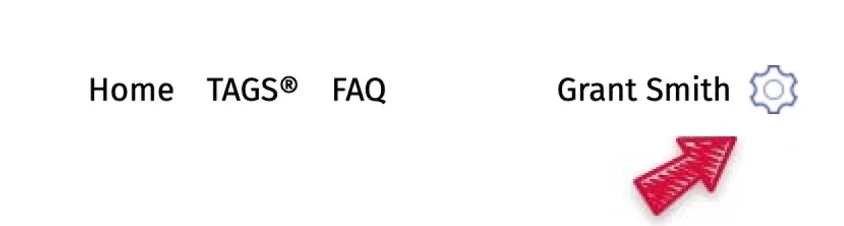
If you subscribed via our website/Player Dashboard, visit the site (dashboard.golfpadgps.com). Log in and click the settings icon in the upper right.
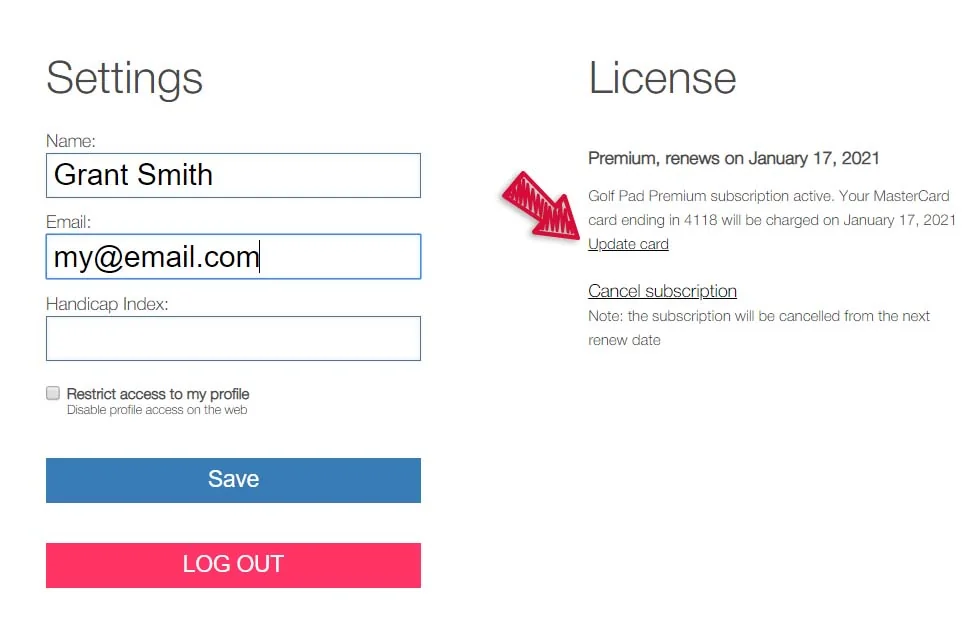
Next, update your credit card information using the link on the right.
If you subscribed via the Apple App Store or the Google Play Store, you will need to update your billing information via your account at those stores.
Here's a link to Apple's support page with directions on how to do this.
Here are the instructions from Google Play.
If you have a billing question not answered here, please click here to email our support team, so we can help you as quickly as possible.


Subscribe for early access to promotions, feature announcements & more.