Help Center
›
App features
›
Shot Tracking

How to Configure Your Clubs

This article describes how to select which clubs are included in the bag and will be available with shot tracking. You can (optionally) add detailed information for each club, including make, model, shaft, grip and more. And if you carry two clubs of the same type (like two different drivers), you can even add those and track their statistics separately.

Step-by-step instructions for configuring club settings

  1. Update your app

    First, make sure you have the latest version of the Golf Pad app installed to access all the newest features.

  2. Open Preferences

    From the start screen, tap the Preferences (gear) icon.
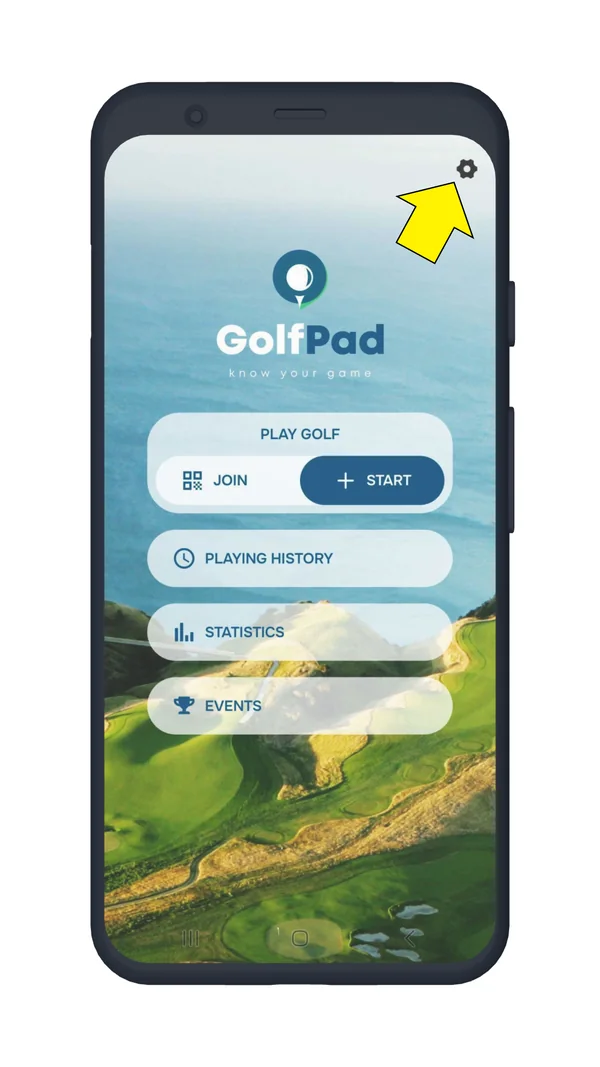
    Golf Pad start screen with the Preferences gear icon highlighted
  3. Go to Clubs settings

    In Preferences, select 'Clubs settings' to manage your golf bag.
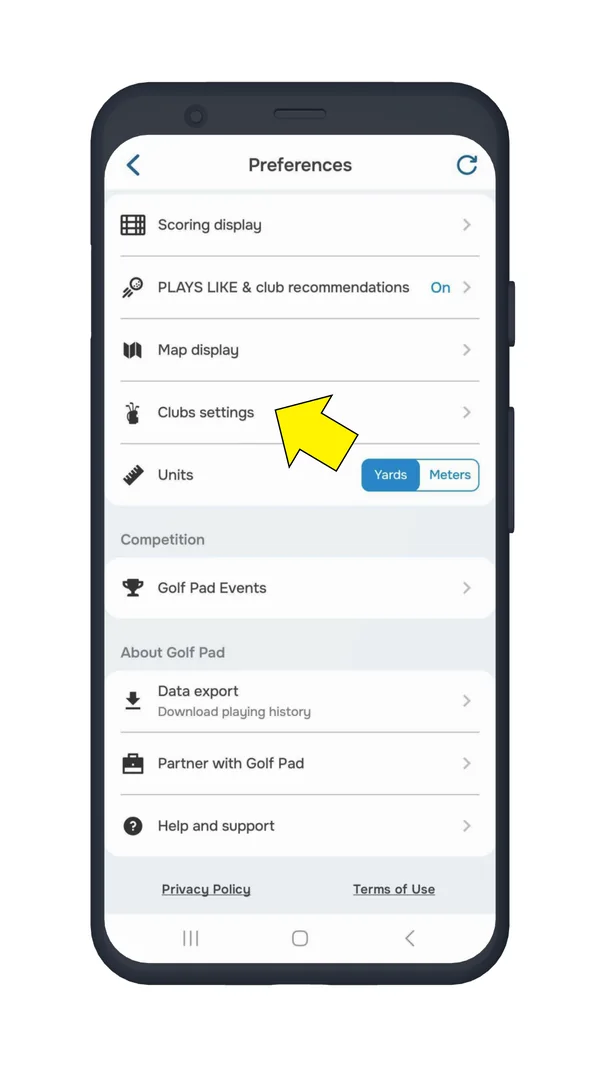
    Golf Pad Preferences with Clubs settings highlighted
  4. Edit existing clubs

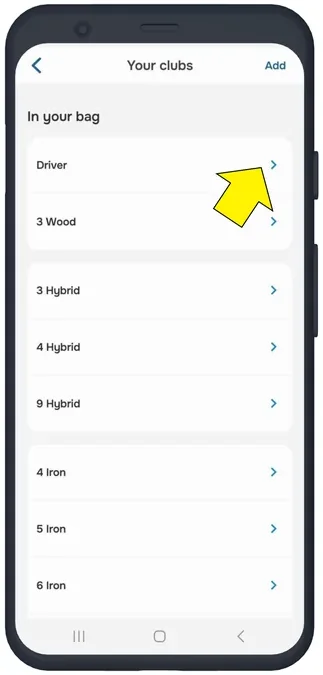
    You'll see a list of clubs currently in your bag. Tap any club to edit its details:

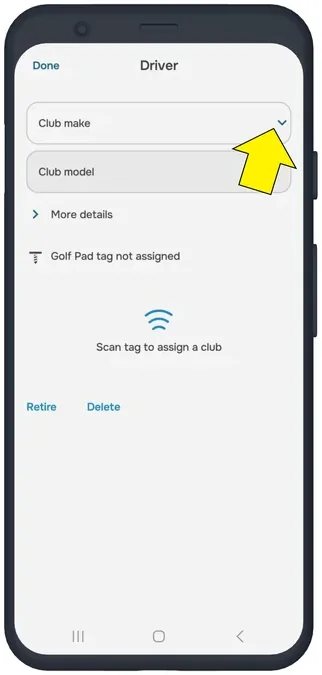
    • Select the make from the dropdown menu.
    • Enter the model, shaft, and grip details if you want.
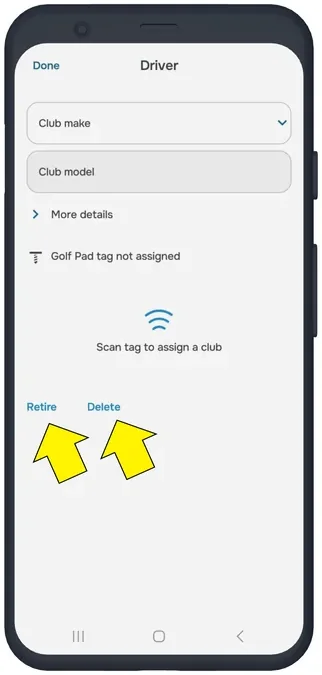
    • You can also retire or delete a club from your bag here.

    Note

    If your club's make or model isn't listed, simply type it in manually, then tap 'Done'.
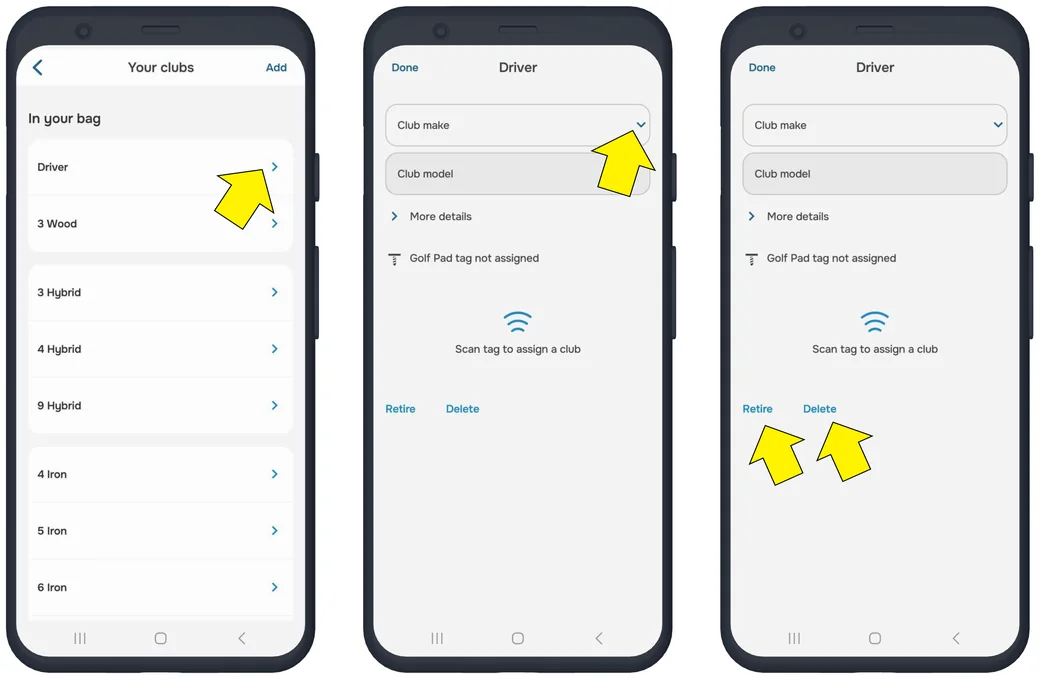
    Golf Pad Your clubs list, the Club make dropdown and the Retire and Delete options
    Your clubs list with Driver marked
    Driver settings with Club make marked
    Driver settings with Retire and Delete marked
  5. Add new clubs

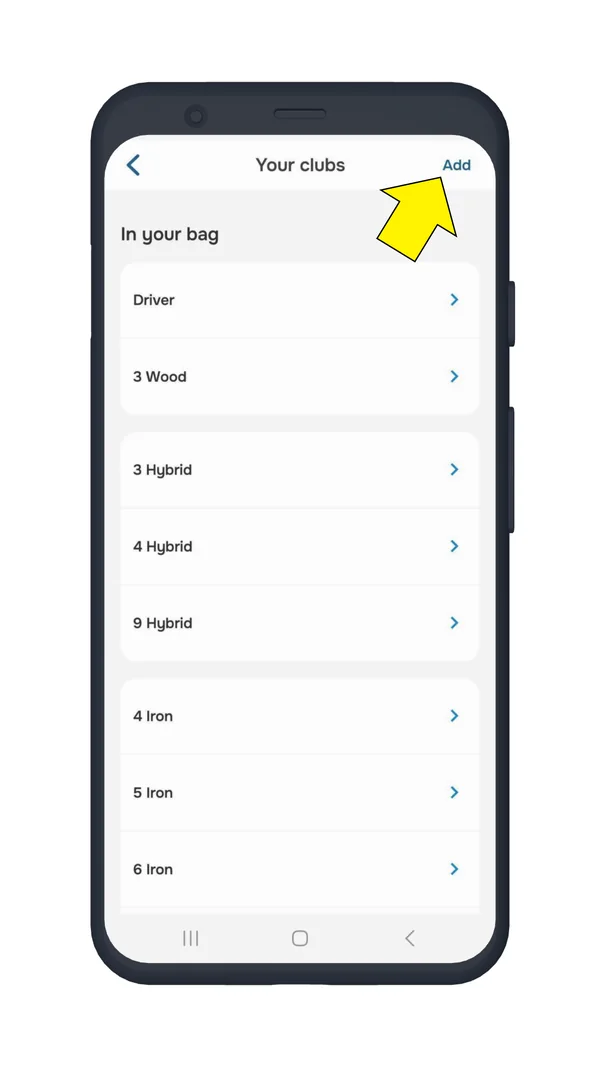
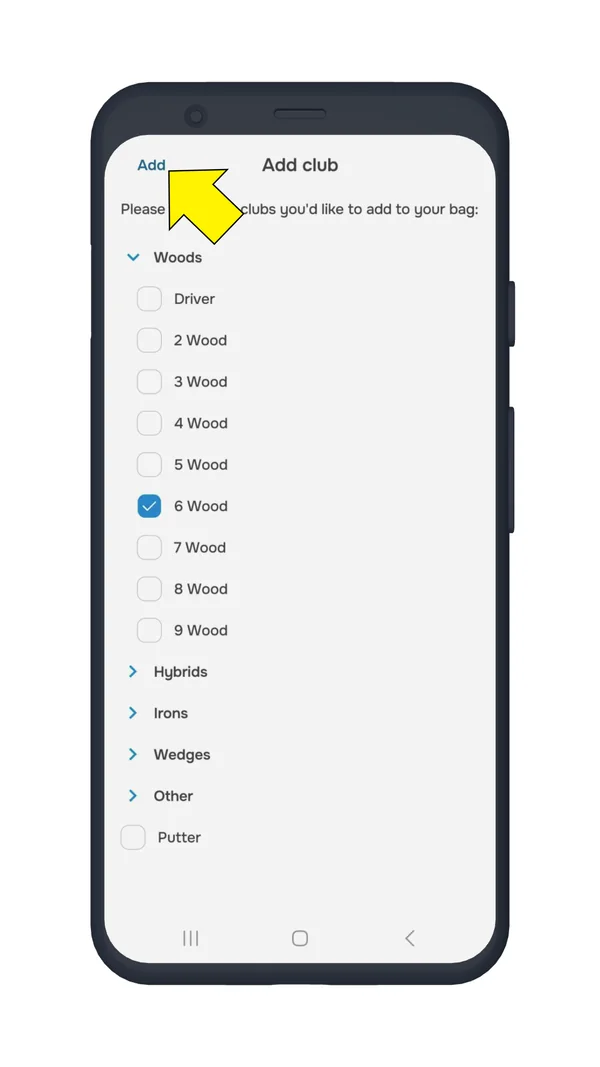
    • Tap 'Add' in the upper right.
    • Choose the type of club you want to add.
    • Tap 'Add'.
    • After adding, set the make, model, and any additional details for the new club just like you would for existing clubs.
    Golf Pad Your clubs list with Add highlighted
    Golf Pad Add club screen to choose the club type with Add highlighted

Pro Tip

If you carry two of the same club type (e.g., two drivers), you can add both separately and track stats for each one individually.

Was this article helpful?
Thank you for your feedback!

Sorry we couldn’t help

Tell us what was wrong, and our support team will look into it.

What was wrong?

Thank you! Your submission has been received!
Oops! Something went wrong while submitting the form.
how-to-configure-your-clubs
shot-tracking
app-features
November 13, 2026

Didn’t find an answer?

Send us a message and our support team will reply by email.

Contact support
Data source for the script: all help articles (for More in…). Hidden on the live page.