No items found.

There are two options when it comes to importing golfers. Importing from past events and importing from a spreadsheet.
Importing from past events.
This is the first option from the Import button drop down.
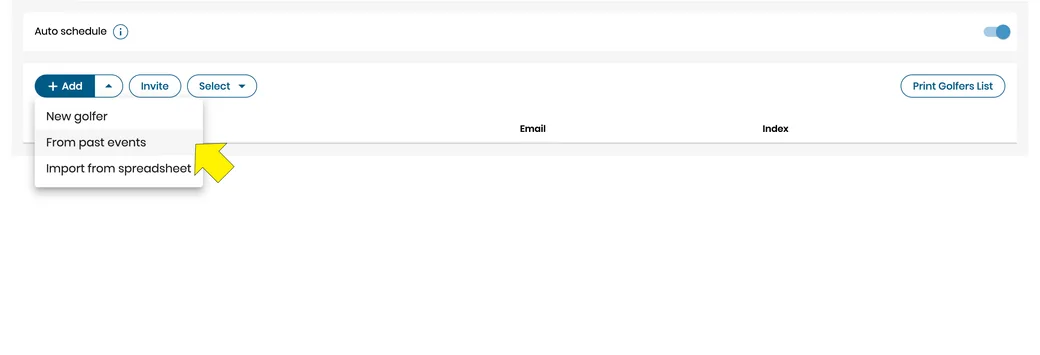
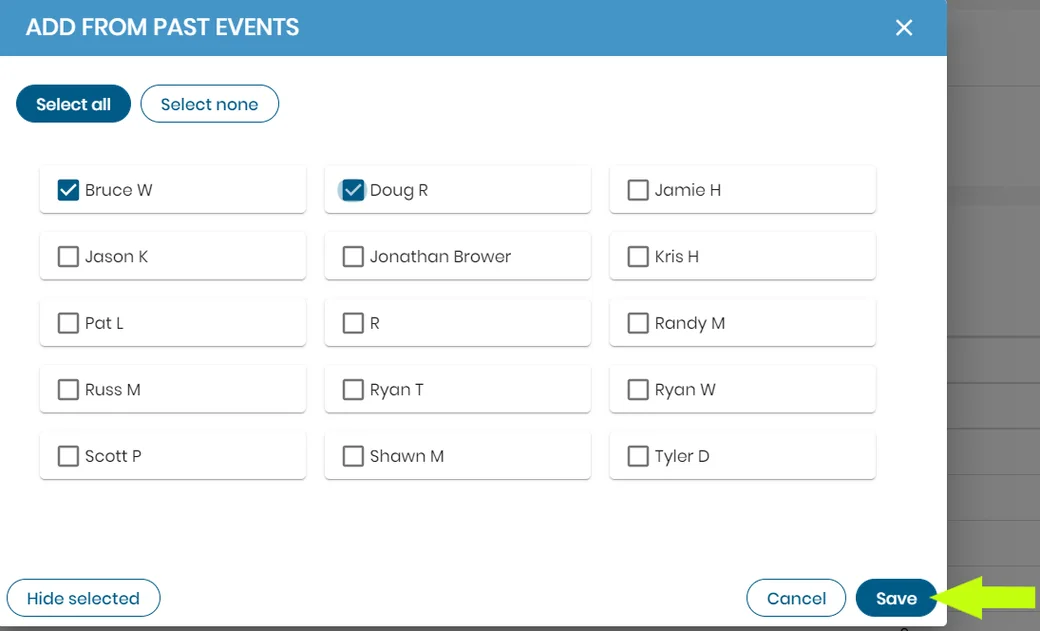
When you select this button it will pull up an ADD FROM PAST EVENTS PAGE, here you will see a list of all golfers from previous events by name. You can select all, some or individual golfers to be added to the current Event.
Importing from a spreadsheet.
This is the second option from the Import button drop down.
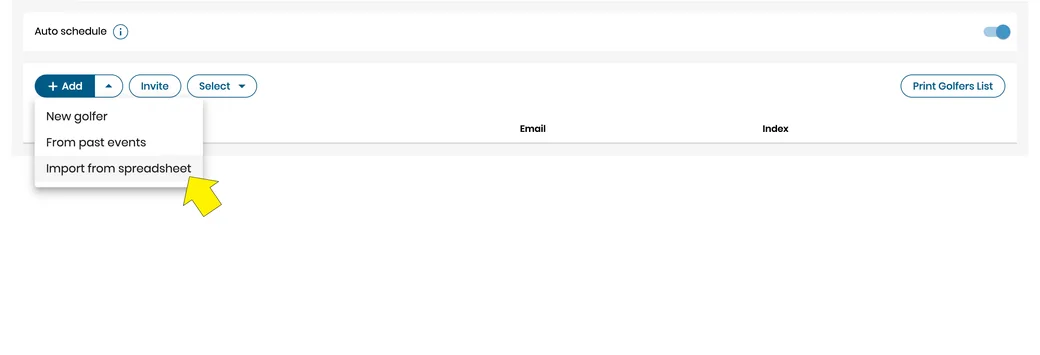
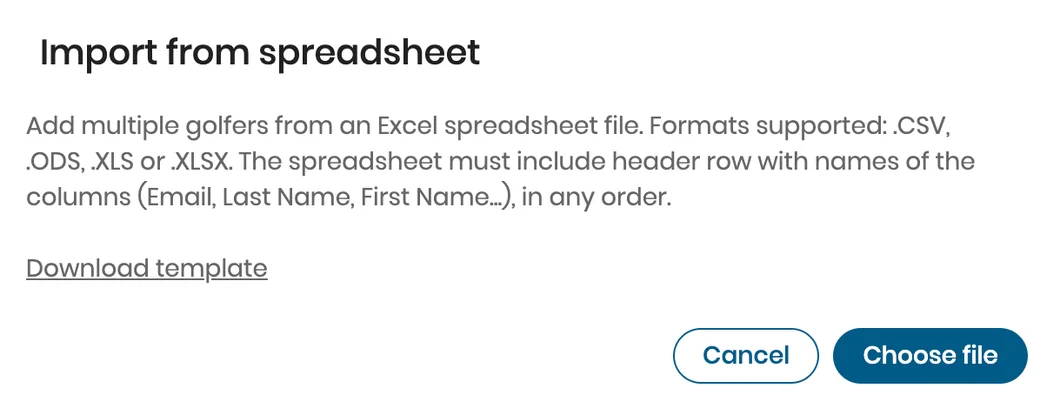
When you select this button it will pull up an IMPORT FROM SPREADSHEET window, here you will see the following instructions. Add multiple golfers from an Excel spreadsheet file. Formats supported: .CSV, .ODS, .XLS or .XLSX. The spreadsheet must include header row with names of the columns (Last Name, First Name, Index, Email, ...), in any order.
From this window you can also download a template spreadsheet to use for importing a list of golfers.
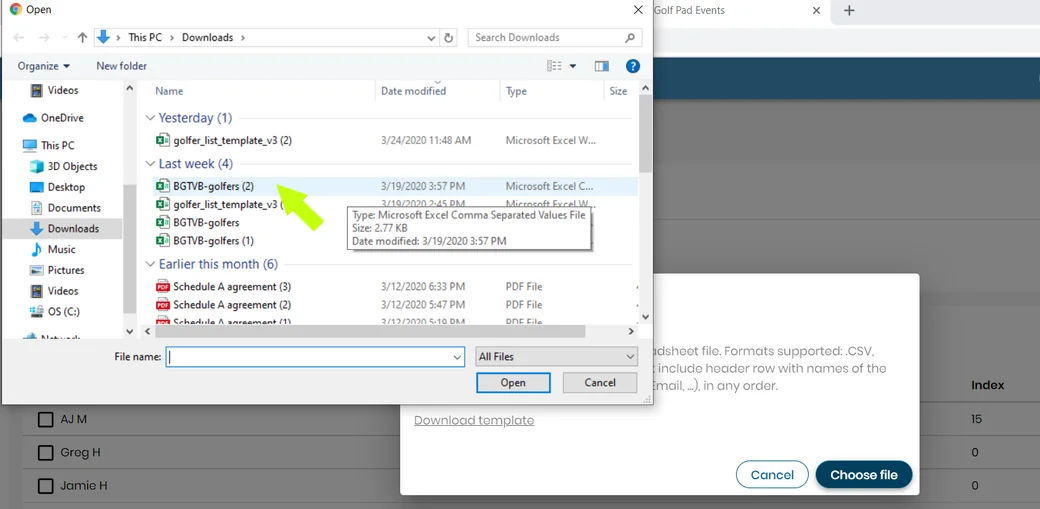
Select the choose file button to select your spreadsheet for import.
Choose file location.
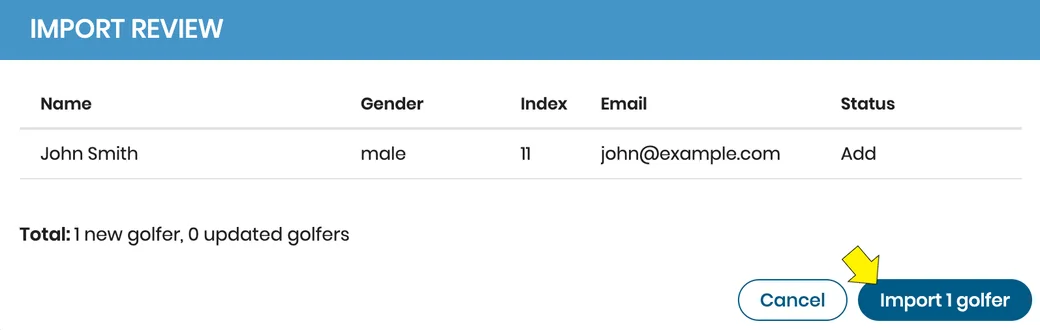
When the import is complete you will be directed to an Import review page that will provide you with a list of the golfers and their information. There is a total at the bottom of this list showing you New golfers, Updated golfers, and any incomplete golfers missing required information. See below for required golfer information.
Important
Required golfer information for importing are the golfer's Last name and their Gender.
When Importing golfers, any golfers missing this required information will be marked as such on the Import review page. You can choose to proceed with importing only the golfers with completed information. Or you can cancel the import, return to your spreadsheet and fill in the required fields, and then import the completed list from the spreadsheet.


Subscribe for early access to promotions, feature announcements & more.