Help Center
›
Smartwatch Sync
›
Android Wear OS

Make Golf Pad Auto-Display When You Raise Your Hand

When you're playing a round, you'll want Golf Pad on your Wear OS watch every time you raise your wrist. Here's how to set up your watch so it works that way.

Turn on Always On Display

Golf Pad supports Always On Display during a round. With it on, Golf Pad stays on your watch while your wrist is down (dimmed, showing your course name) and comes right back when you raise your wrist.
  • Samsung Galaxy Watch: Settings > Display > Always On Display
  • Google Pixel Watch: Settings > Display > Always-on screen

Keep the last app on screen (Samsung Galaxy Watch)

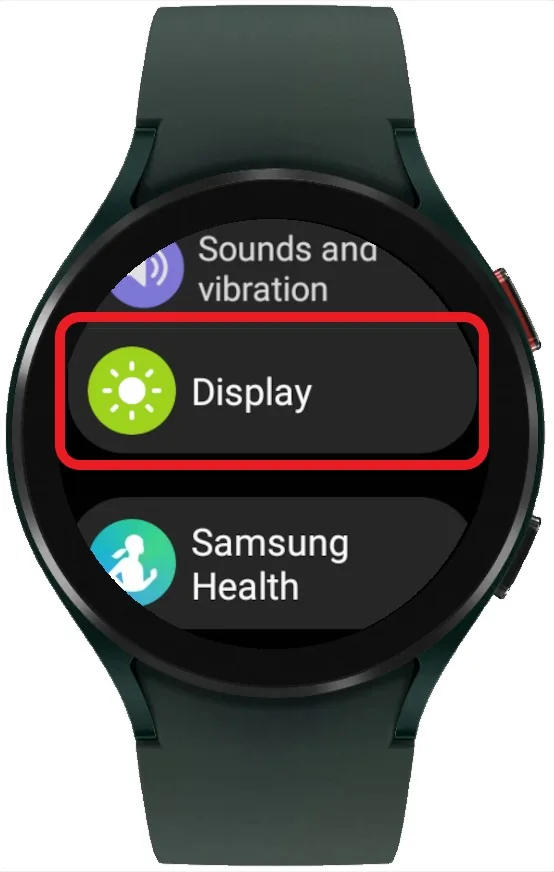
  1. Open Settings > Display.
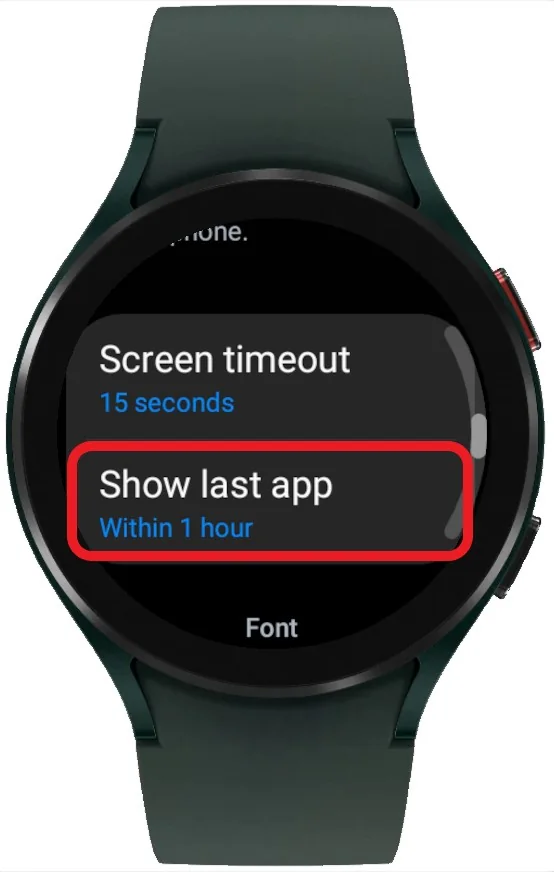
  2. Tap Show last app and choose the longest option available, for example Within 1 hour. Don't choose Never, because then the watch goes back to the watch face.
Galaxy Watch settings with Display highlighted
Step 1. Display
Galaxy Watch display settings with Show last app highlighted
Step 2. Show last app

The options differ between models, so if you don't see Within 1 hour, pick the longest one and turn on Always On Display as well.

Tap the Golf Pad icon to get back

During a round, Golf Pad shows a small Golf Pad icon on most watch faces. If you end up on the watch face, tap the icon to jump straight back to your round.

Allow notifications

Golf Pad uses an ongoing notification to keep your round running in the background, so notifications need to be allowed:

  1. Open Watch Settings > Applications > App list > Golf Pad
  2. Tap Permissions > Notifications > Allow

Still seeing the watch face instead of Golf Pad? Let us know your watch model and we'll help you set it up.

Was this article helpful?
Thank you for your feedback!

Sorry we couldn’t help

Tell us what was wrong, and our support team will look into it.

What was wrong?

Thank you! Your submission has been received!
Oops! Something went wrong while submitting the form.
make-golf-pad-auto-display-when-you-raise-your-hand
android-wear-os
smartwatch-sync
October 27, 2026

Didn’t find an answer?

Send us a message and our support team will reply by email.

Contact support
Data source for the script: all help articles (for More in…). Hidden on the live page.