To enable fee payments for a new tournament and set up additional fee options based on location, follow these steps:
Access Tournament Creation: Log in to your Golf Pad Events account and navigate to the section where you can create a new event.
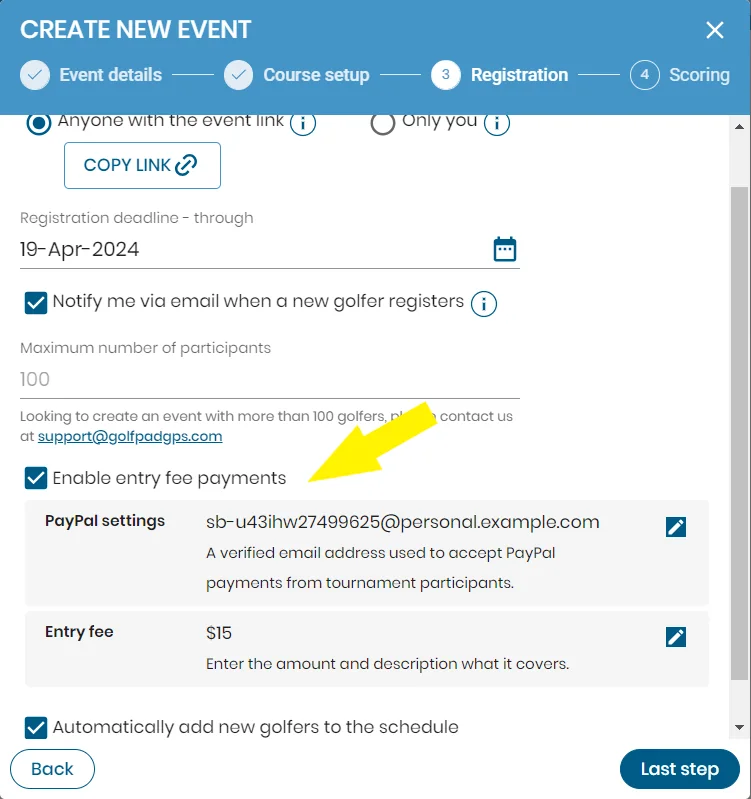
Navigate to Registration Tab: Once you're in the process of creating a new event, locate the "Registration" tab. This is where you can enable fee payments and configure related settings.
Enable Fee Payments Option: Within the Registration tab, you should find "Enable entry fee payments" and toggle it.
Enter Fee Amount and Details: After enabling fee payments, you'll typically see fields where you can enter the amount of the entry fee and specify what it covers. Provide clear information to participants about what the fee includes, such as event entry, access to certain features, or other benefits.
Additional Fees Based on Location: The entered amount is subject to PayPal fees based on location, therefore, the received sum may be less than the indicated amount.
Finalize Tournament Creation: Once you've entered all the necessary information review the event settings to ensure everything is accurate. Then, proceed to create the event.
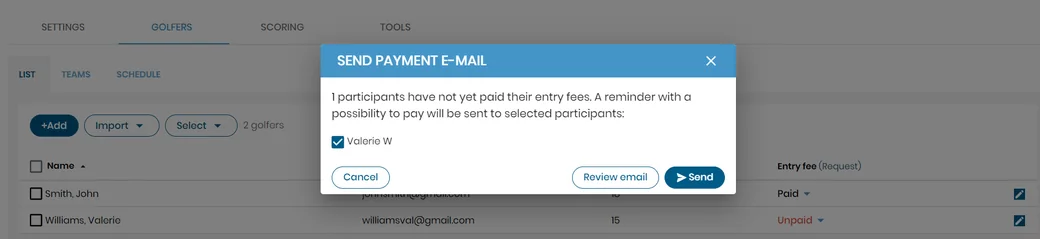
Payment Processing and Administration: If a golfer registers and pays the fee simultaneously, their status is denoted as "paid" with an appropriate marker affixed adjacent to their name on the golfers' list. Conversely, should a golfer opt not to remit the fee at the time of registration, their status shall remain as "unpaid," indicated likewise by an appropriate marker.
In instances where a golfer has registered but has yet to submit the fee, event organizers have the ability to select the golfers from the list and send payment links.
If the participants are imported from previous events, it is necessary to request the fee via email.