Help Center
›
Golf Pad Events
›
Multi-day Events

What is a Multi-Day Event

Introducing Multi-Day Events!

Events Pro feature

Organizing events spanning multiple days has never been easier, whether for individual players or teams in a fun game of golf.

Our streamlined creation process allows you to set up and customize your event in just a few minutes. Follow these simple steps to create your first Multi-Day Event:
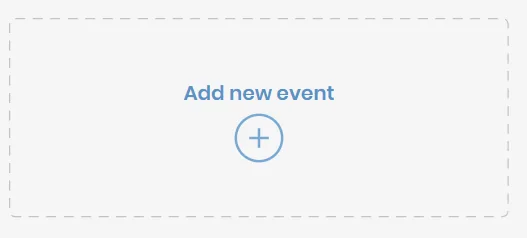
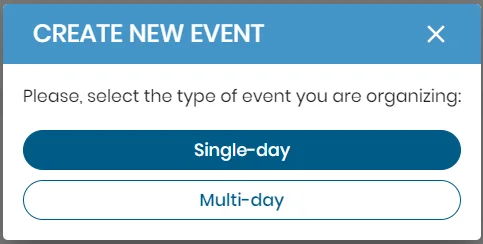
  • Start by clicking the "Add New Event" button and selecting the "Multi-Day" option.
Add new event card
Create new event window with the Single-day and Multi-day buttons
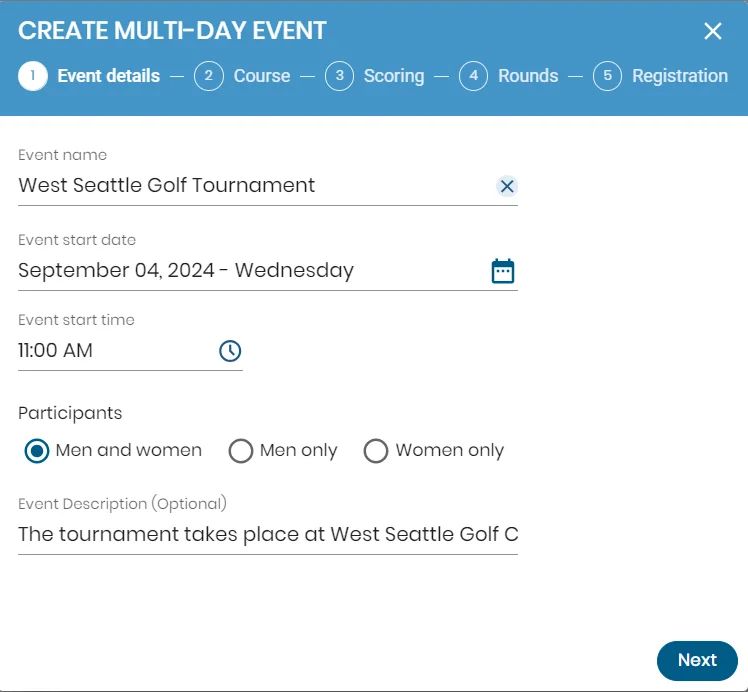
  • Choose the event name, start date (date of the first round), start time, and participants.
Create multi-day event, Event details step: name, start date, start time and participants
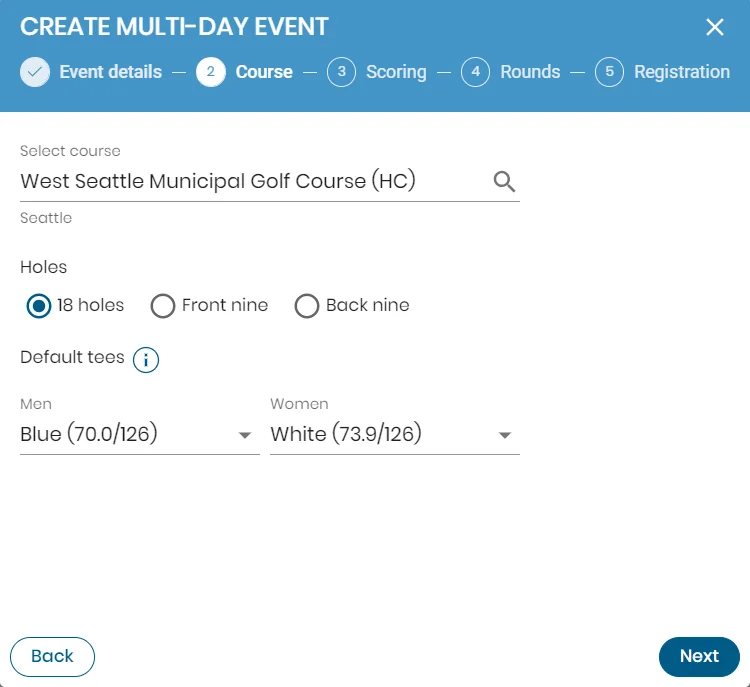
  • Select the course, configure it, and choose the tees.
Create multi-day event, Course step: course, holes and default tees
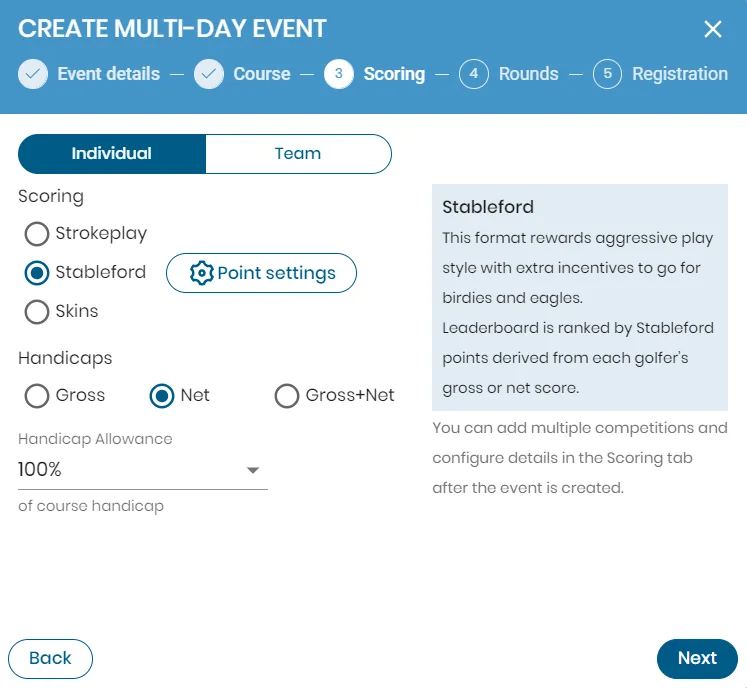
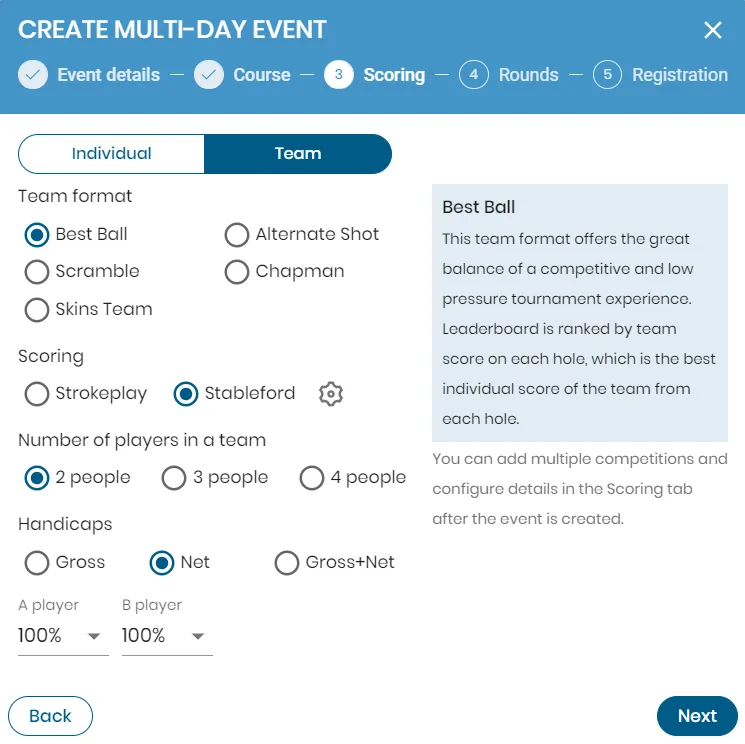
  • Determine the scoring formats for individual or team play.
Create multi-day event, Scoring step for an individual event
Create multi-day event, Scoring step for a team event
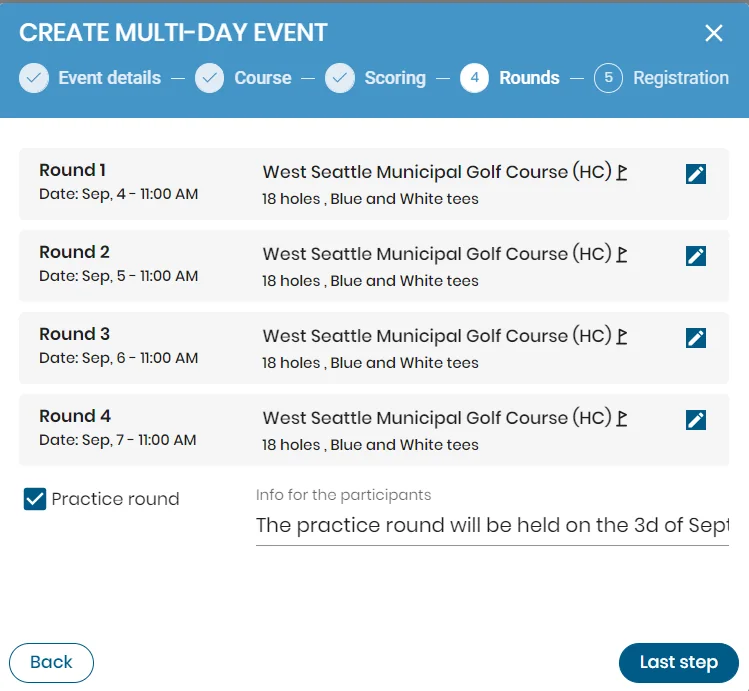
  • Create the rounds and assign their dates and start times. You can have up to four rounds, each configurable with different courses, start times, holes, and tees by selecting them in the rounds list.
Create multi-day event, Rounds step with four rounds and a practice round
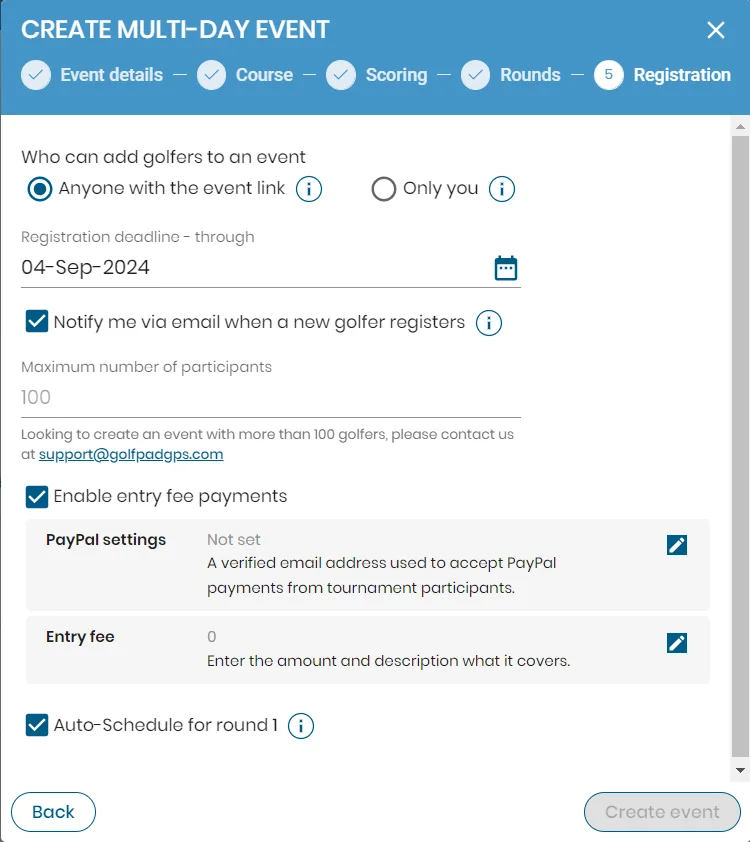
  • Set up the registration process, including the registration deadline, number of participants, and fees, which can be managed via PayPal.
Create multi-day event, Registration step with entry fee payments

After creating the event, you can modify the round configurations in the event's general settings.

The list of participants is maintained under the "Golfers" tab.
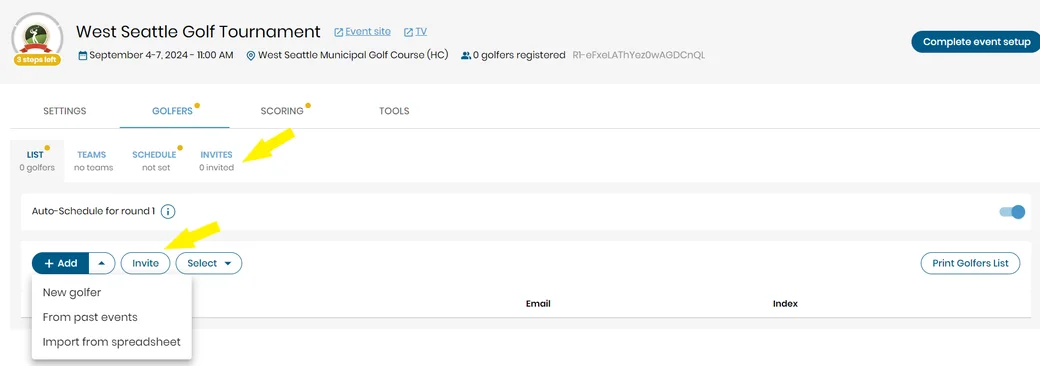
Golfers tab with the Invites tab and the Invite button

Golfers from previous events will be automatically notified via email. You can invite new participants using the "Invite" button, where you can enter email addresses, review the invitation content, and send them out. This form also allows you to copy and share the registration form link. Invited golfers will appear in the "Invites" list with their current status (invite sent, confirmed, declined). Once a golfer accepts the invitation, they will be added to the "List of Golfers."
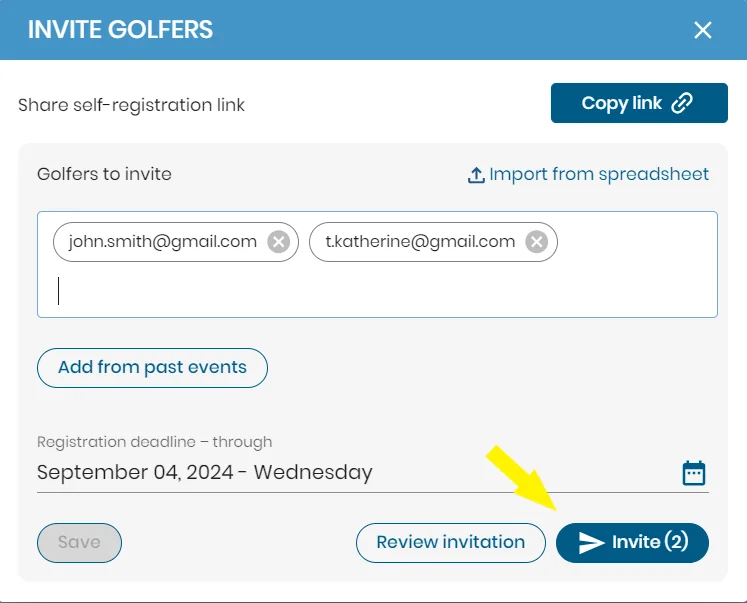
Invite golfers window with email addresses and the Invite button

In the Schedule section, you can modify tee times and assign participants or groups of golfers to each round.
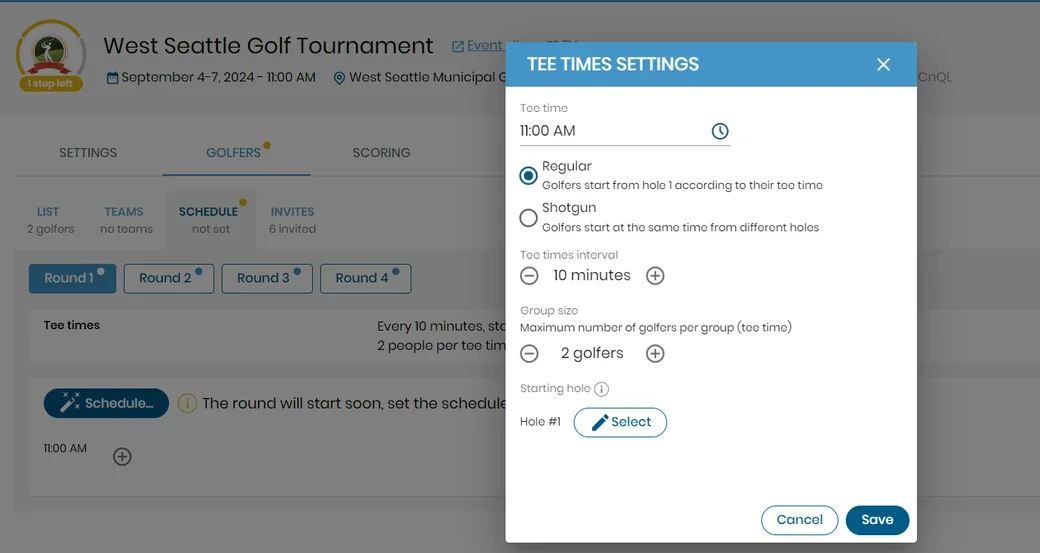
Tee times settings for a round of a multi-day event

The Scoring tab enables you to set up a competition and side games for all rounds as well. The total score will be displayed when you select the Total option.

Was this article helpful?
Thank you for your feedback!

Sorry we couldn’t help

Tell us what was wrong, and our support team will look into it.

What was wrong?

Thank you! Your submission has been received!
Oops! Something went wrong while submitting the form.
what-is-a-multi-day-event
multi-day-events
golf-pad-events
March 19, 2025

Didn’t find an answer?

Send us a message and our support team will reply by email.

Contact support
Data source for the script: all help articles (for More in…). Hidden on the live page.