Checking LINK Connection Status, Battery and GPS State

It's easy to check LINK status while playing.

LED lights on the LINK reader

For a quick check, you can rely on LINK's LED lights. They provide the Bluetooth connection state as well as GPS lock state.
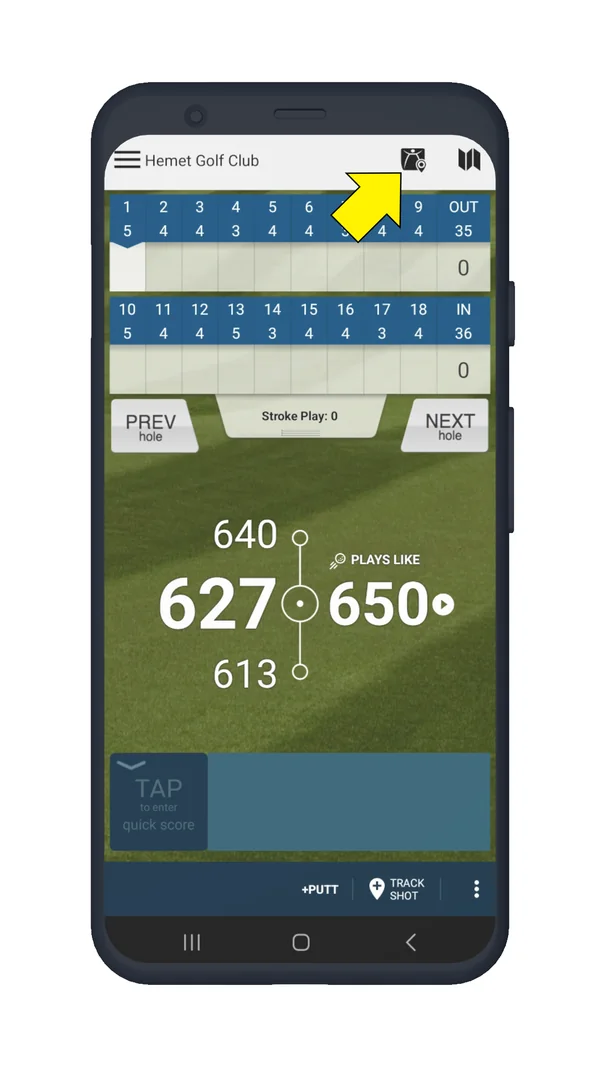
LINK status icon within the app

Golf Pad Classic map screen with the LINK status icon highlighted

Icon states:

LINK status icon: not connectedLINK is not connected
LINK status icon: waiting for GPS location lockLINK is connected, but waiting for GPS location lock
LINK status icon: connected with GPS location lockedLINK is connected and GPS location is locked

Don't see the icon during a round? Please be sure to enable Golf Pad LINK in preferences (see below).

In LINK settings

You can open LINK settings by tapping the LINK status icon (see above). Or using the following steps:

Tap the preferences icon:
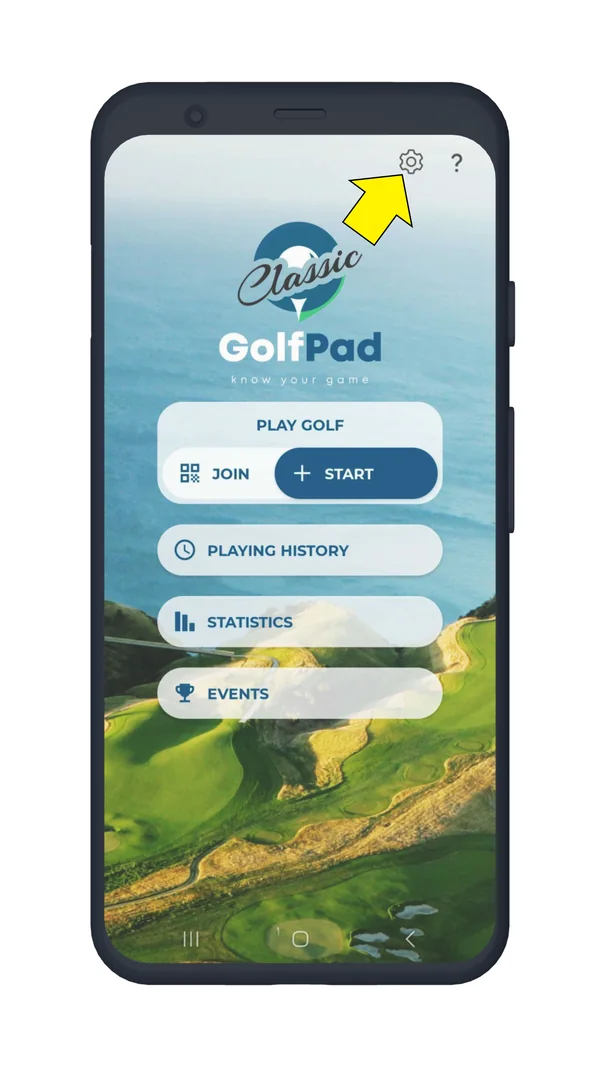
Golf Pad Classic start screen on Android with the Preferences gear icon highlighted

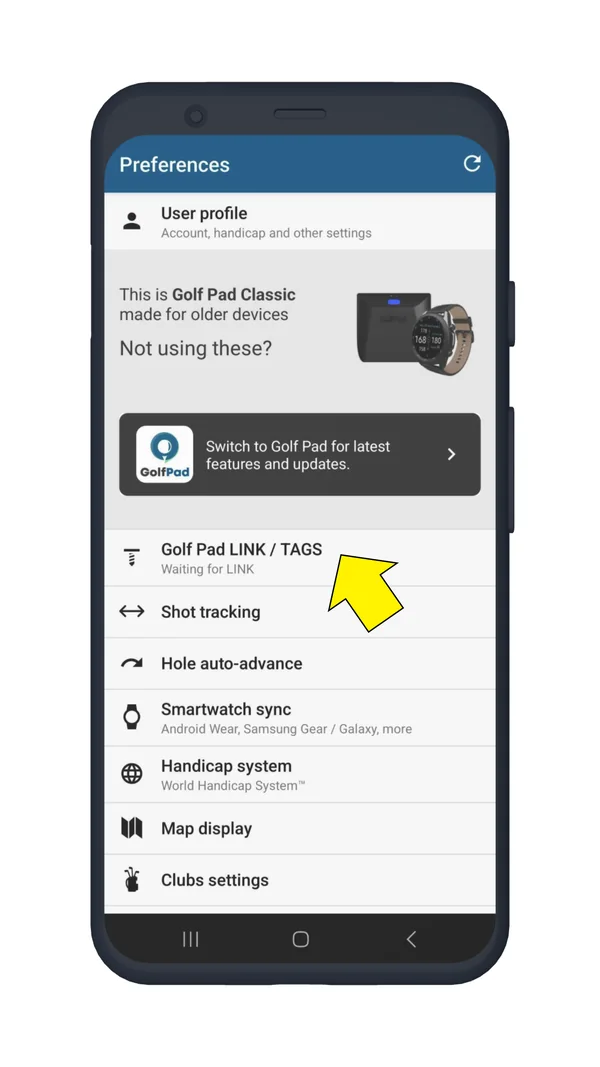
Select "Golf Pad LINK/TAGS":

Golf Pad Classic Preferences with Golf Pad LINK / TAGS highlighted

See the current status, battery level, GPS signal strength and firmware version.
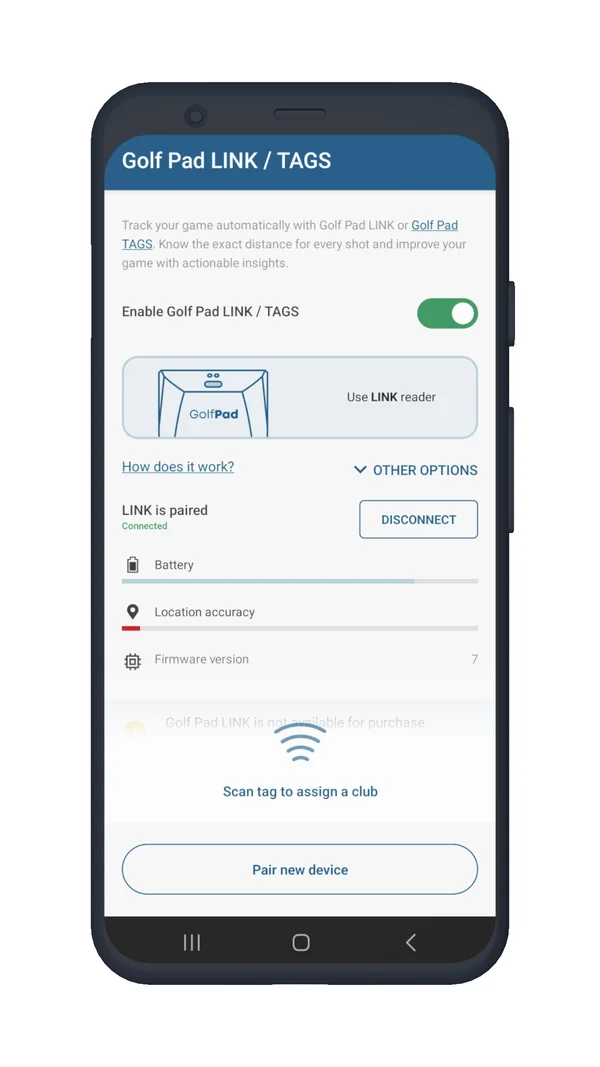
Golf Pad LINK / TAGS settings showing LINK status, battery, GPS and firmware version

You can also assign or re-assign tags to clubs by scanning the tag against the LINK reader while in this screen.

Was this article helpful?
Thank you for your feedback!

Sorry we couldn’t help

Tell us what was wrong, and our support team will look into it.

What was wrong?

Thank you! Your submission has been received!
Oops! Something went wrong while submitting the form.
checking-link-connection-status-battery-and-gps-state
link
golf-pad-classic
November 16, 2026

Didn’t find an answer?

Send us a message and our support team will reply by email.

Contact support
Data source for the script: all help articles (for More in…). Hidden on the live page.