No items found.

When you are invited to join a Golf Pad Live Leaderboard you will receive a message including the link to join.
If you do not already have the Golf Pad app on your device, please download it.
With Golf Pad on your device select the Live Leaderboard invitation link received.
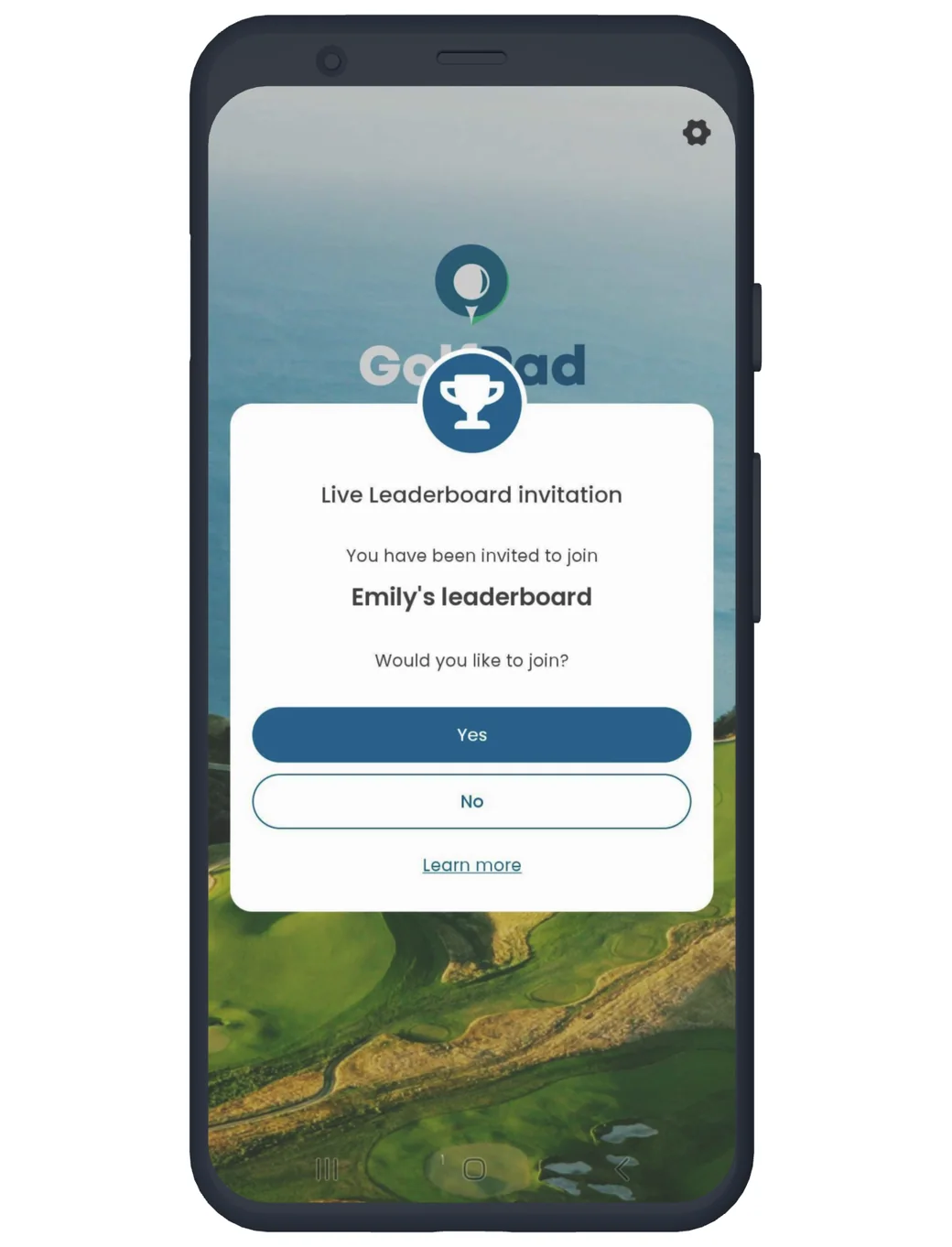
Selecting the link will launch the Golf Pad app and ask you to confirm joining the Live Leaderboard.
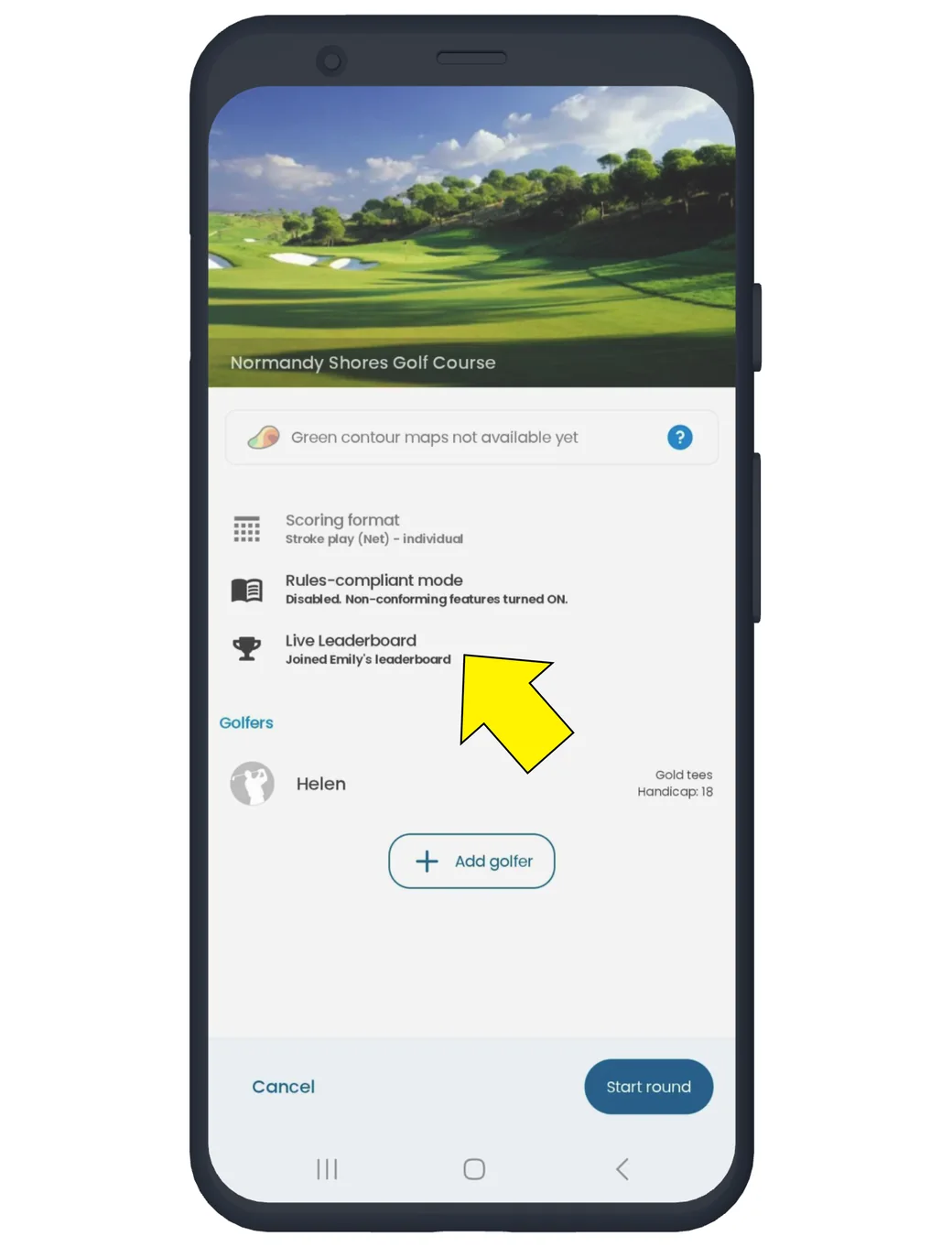
Selecting the Live Leaderboard option when joined, will allow the user to invite other golfers, or view the current standings. Standings and invite can also be found in the trophy menu once the golfer's round has been started.
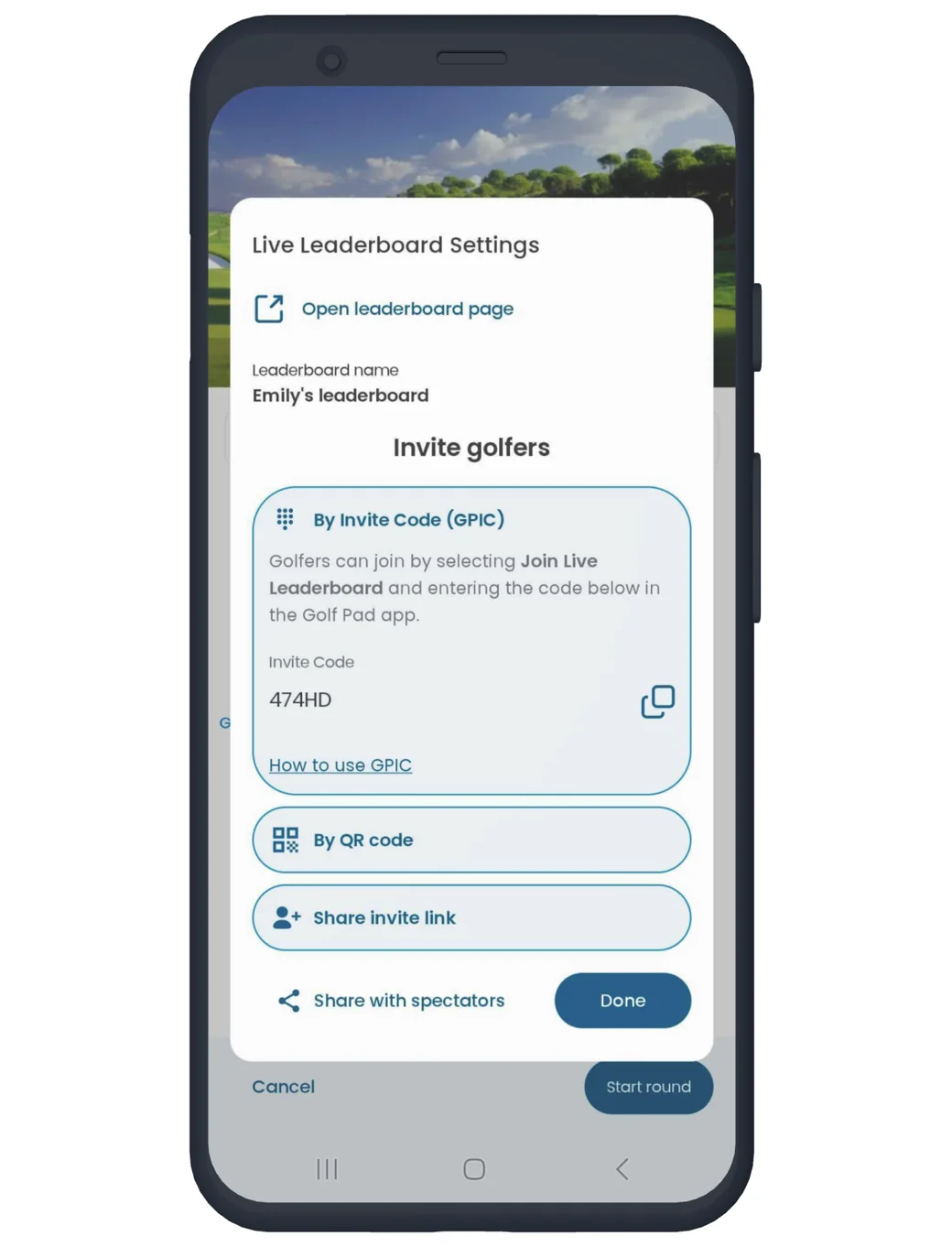
Details that can be found by selecting Live Leaderboard once joined. Select done to close this window and proceed.
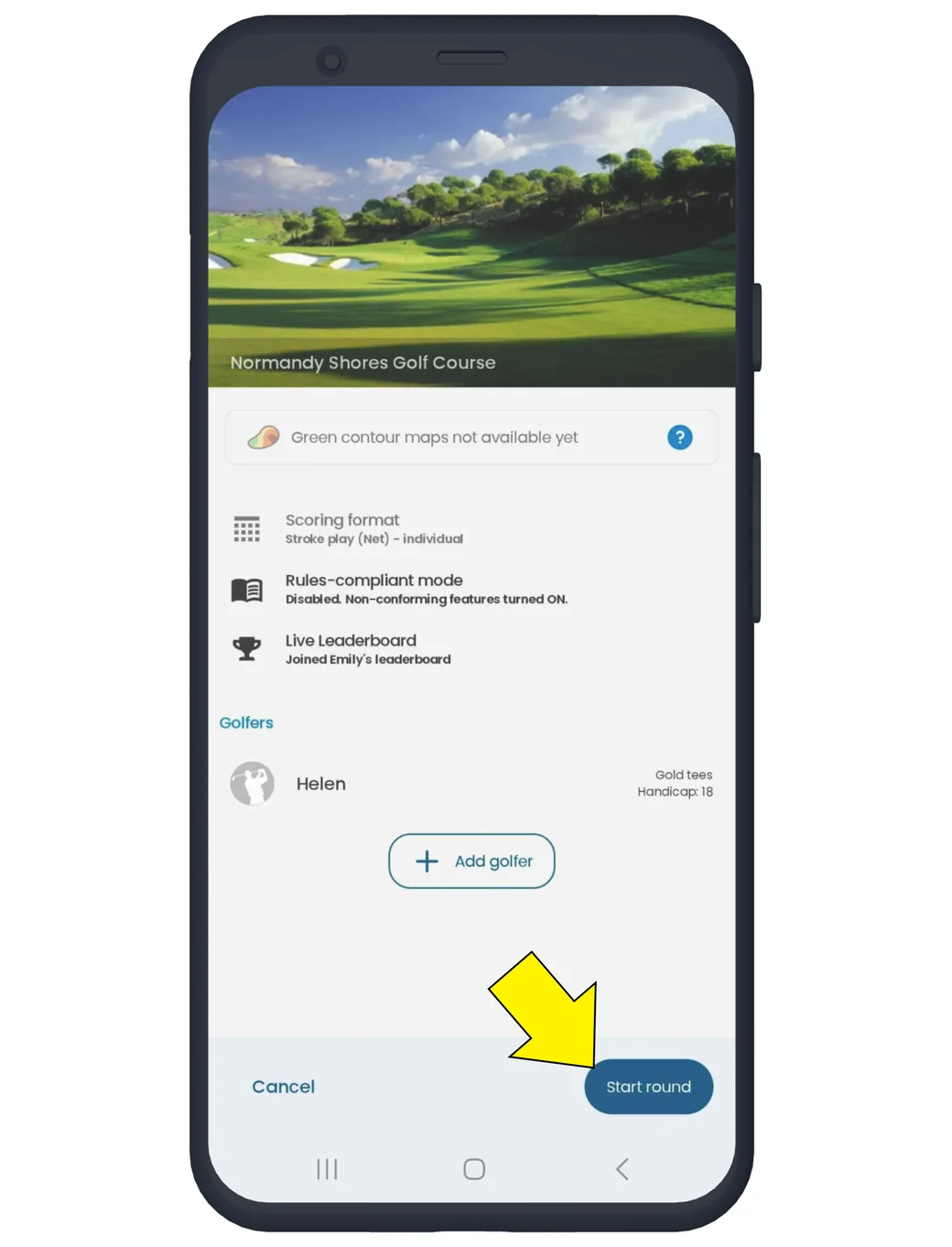
Select the "Start round" button on the bottom right-hand side to start your round.
For other options of joining Live Leaderboards and Events, please refer to the article: Golf Pad Invitation Codes (GPIC) and other joining options


Subscribe for early access to promotions, feature announcements & more.