No items found.

Golf Pad Events allows you the option to create teams. This can be done after you've added golfers to the event.
To learn more about adding golfers please see this article.
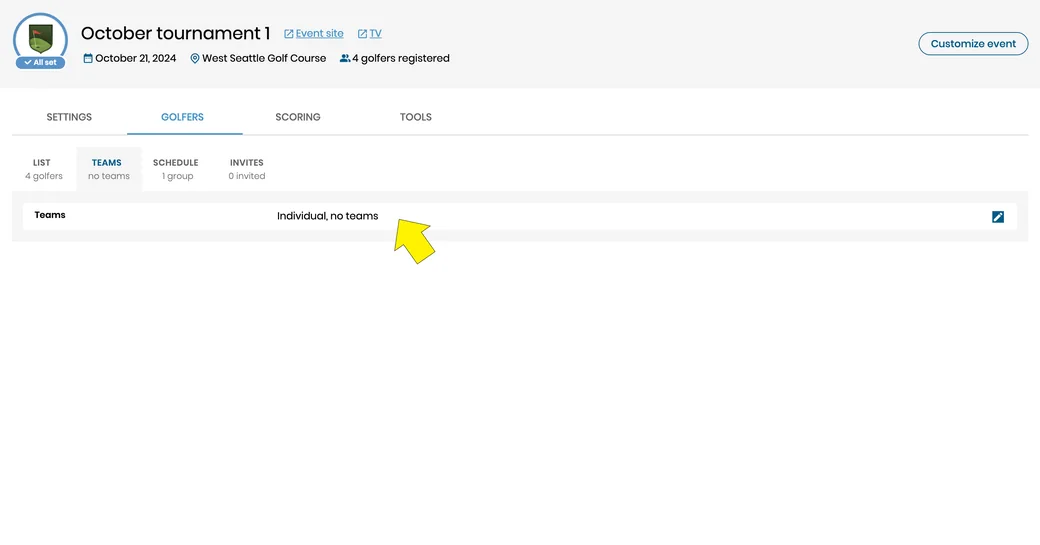
Teams location - From the golfers page select the teams tab, and then click on the teams info to launch team settings.
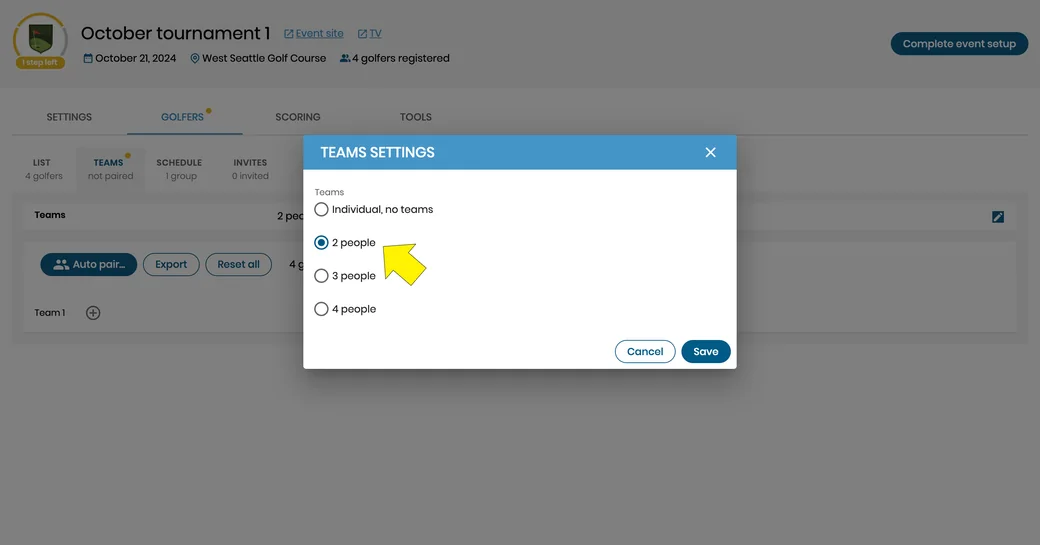
Team settings - Select the number of golfers per team, and save this setting.
Team pairings - There are 2 options for pairing teams. The Golf Pad Events auto-scheduling, or manually adding players to a team.
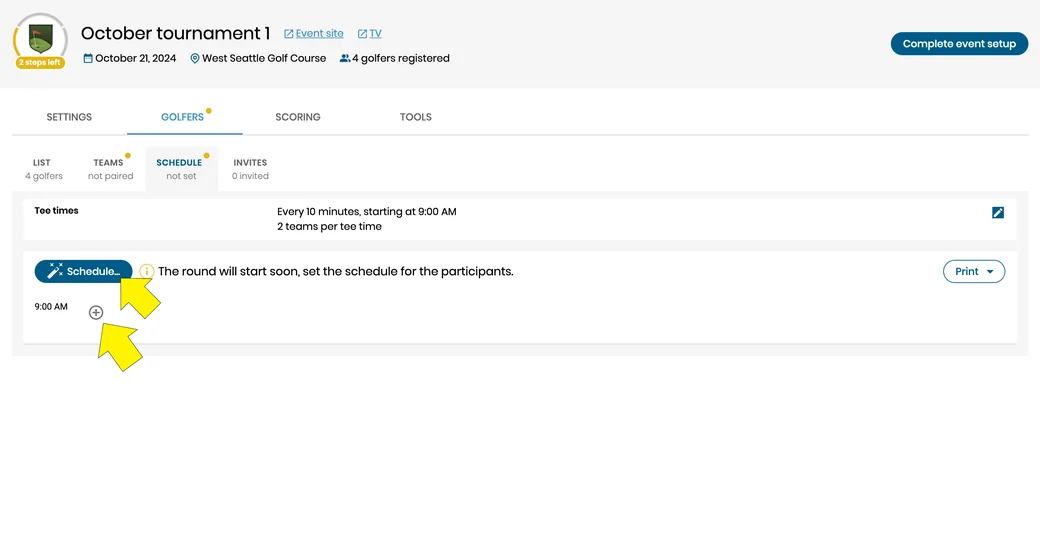
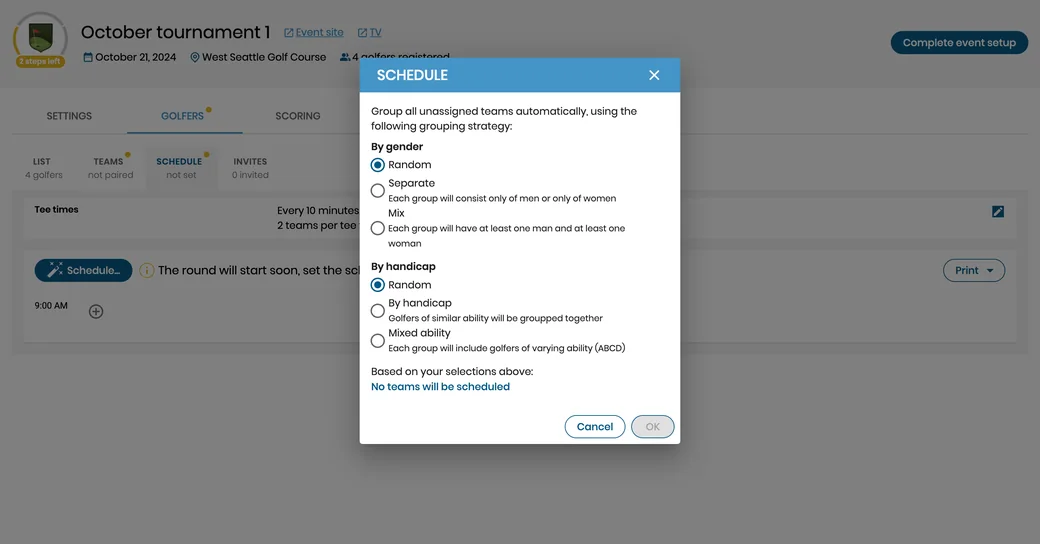
Option #1) Using the Golf Pad Events scheduling feature will allow you to auto populate teams based on one of the options shown below.
Option #2) Use the add button to manually generate your teams by selecting golfers.
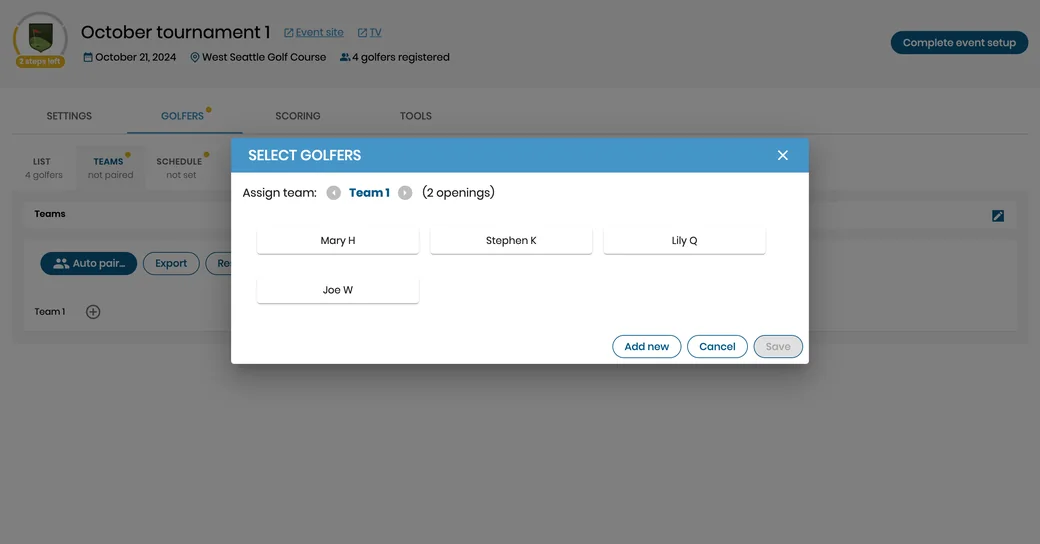
Adjusting teams - Once you have created your teams you can quickly make any adjustments by dragging and dropping golfers from one team to another.
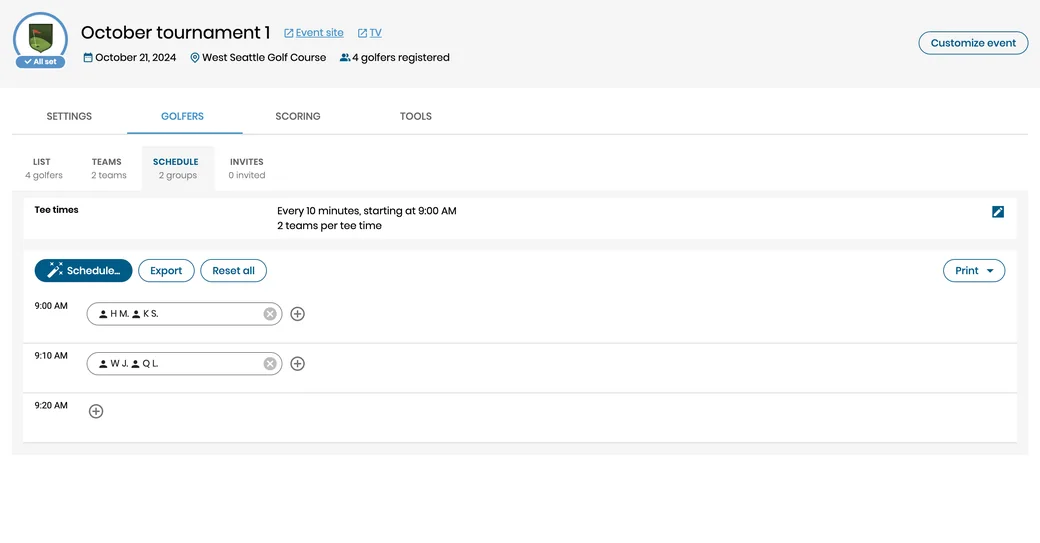
With your teams set you are now ready to create your schedule of tee times and groups.
To learn more about scheduling please see this article.


Subscribe for early access to promotions, feature announcements & more.