No items found.

Using Golf Pad Classic? Check out this article for setup instructions instead.
Tip
We recommend you set up TAGS and verify tracking works well at home, before you head to the golf course.
If you don't already have Premium features, you can activate the complimentary license code (optional) included in the Golf Pad TAGS welcome insert.
Open the box to locate the Welcome Insert. Your complimentary one year Premium code is printed on the bottom of the insert. If you already have Premium, save the code. Use it when your current subscription expires or give it to a friend. It's transferable and won’t expire until activated.
If you have trouble redeeming the code, click here for help.
Start Golf Pad app and open Preferences, then select Golf Pad TAGS.
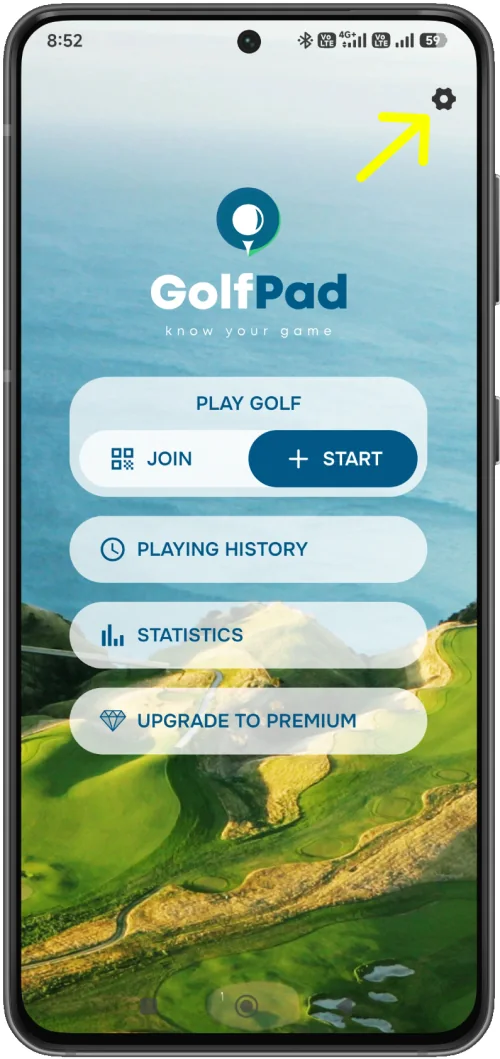
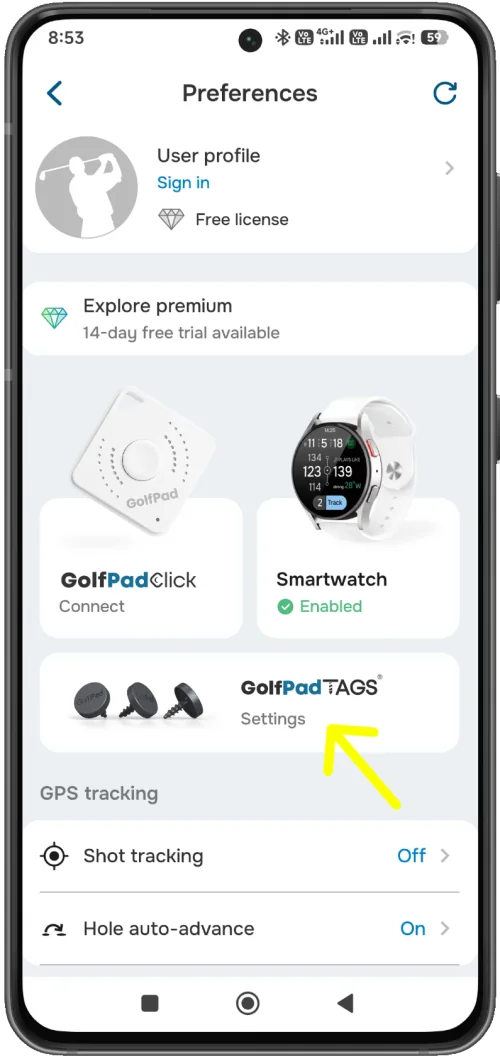
Once you open the Golf Pad TAGS settings, you will see the following screen:
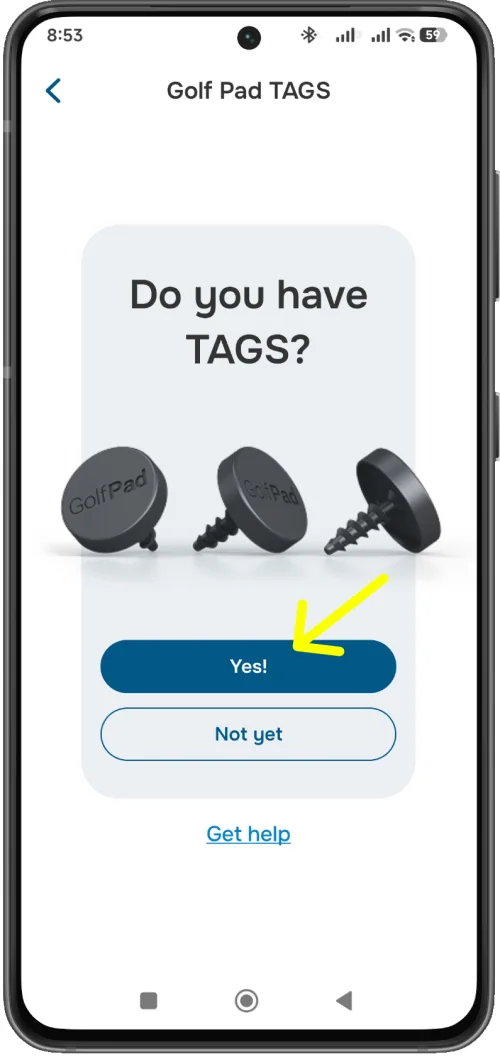
Tap "Yes!" to view the instructions.
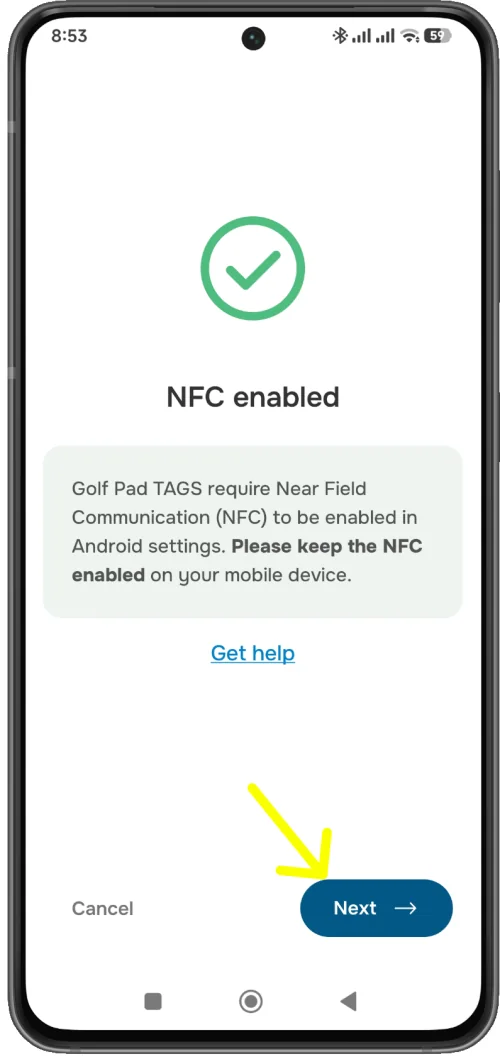
Make sure to enable NFC and grant permission for "Draw over other apps" in your phone settings.
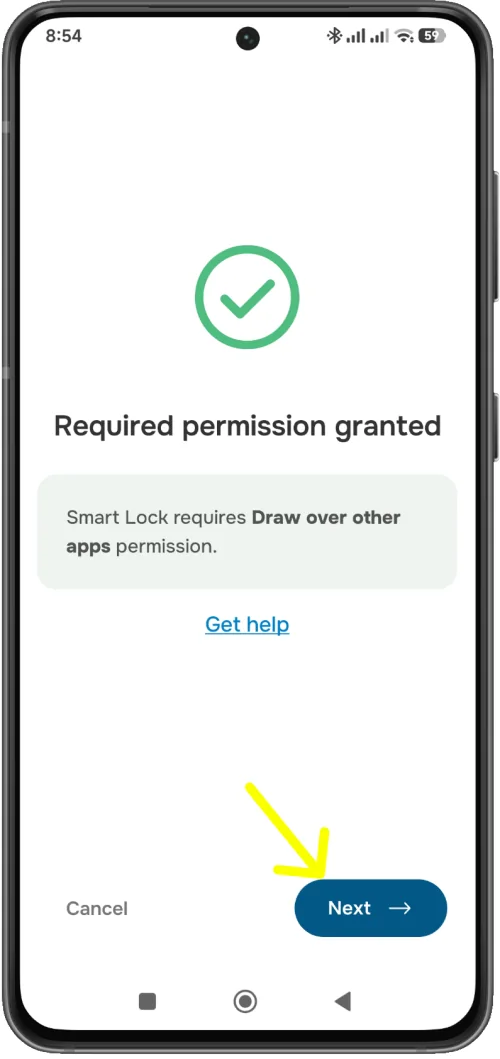
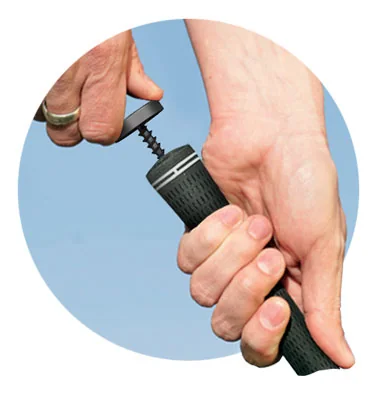
Attach TAGS to all clubs, including putter. Use a twisting motion to gently insert the post into the club grip. Do not over-tighten.
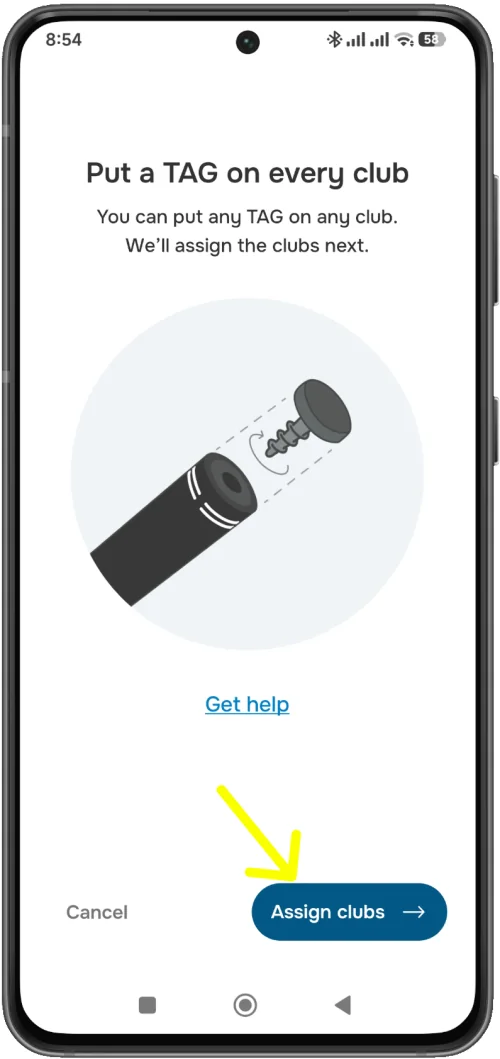
After attaching TAGS to your clubs, tap "Assign clubs" to proceed with the setup.
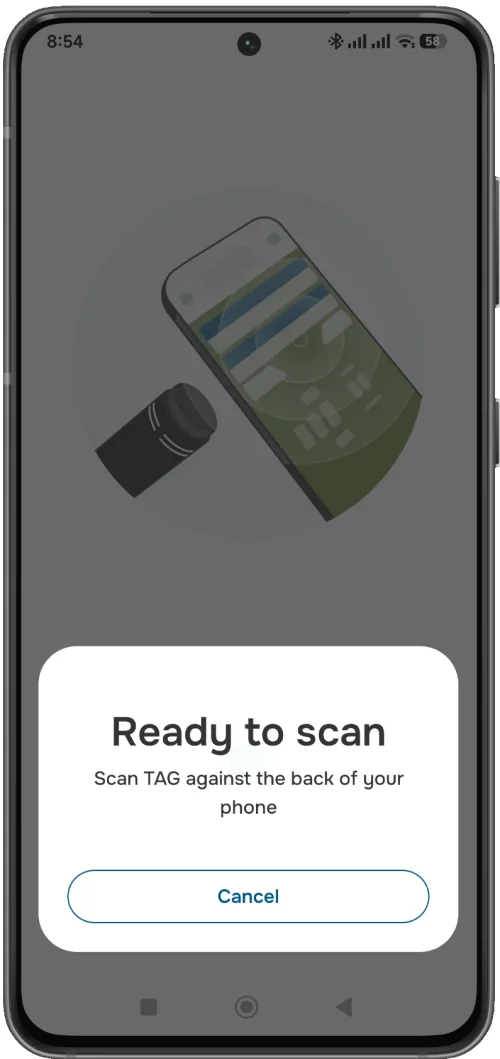
Once the "Ready to scan" screen appears, touch the TAG to the back of your phone (this is where the antenna is usually located). NOTE: the location of the NFC antenna varies on different phone models. Try scanning all around the back of the phone and against the top edge. Once you found the spot with the best scanning range, use it for tagging shots during a golf round.
Once your TAG has been successfully scanned, you will be presented with a screen with clubs to assign the TAG to. You can select a club from the list of available clubs or use the search tab to find the club you need. You can also go to the club settings to edit your clubs or add new ones.
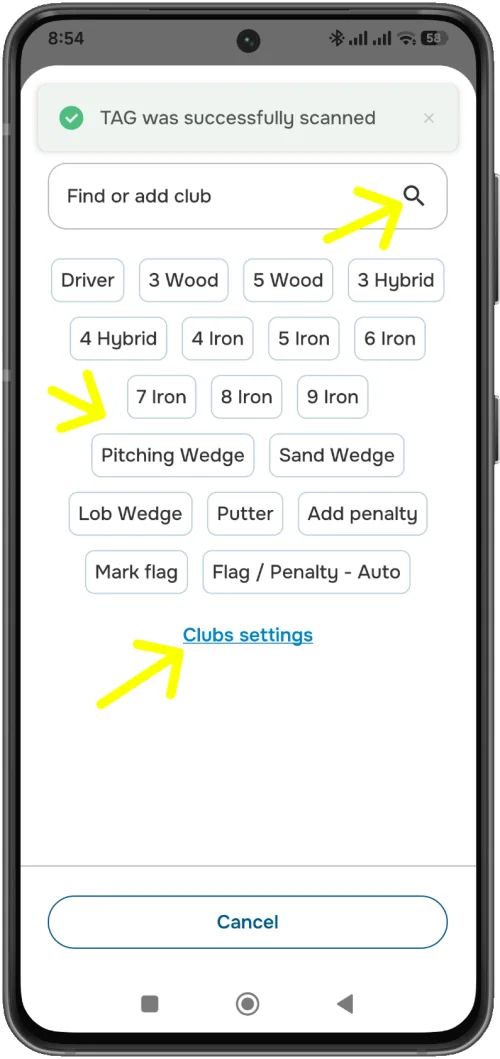
You can then continue assigning all TAGS to your clubs or finish the setup.
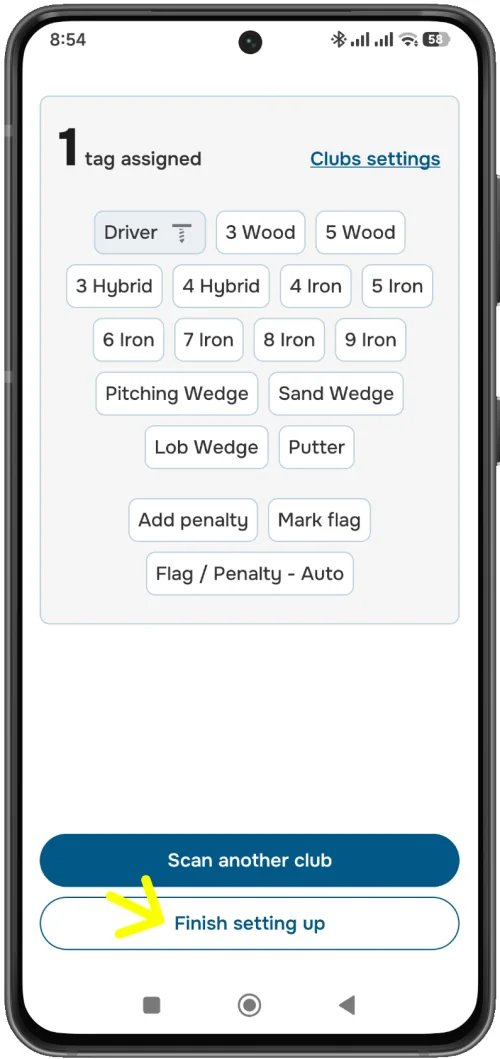
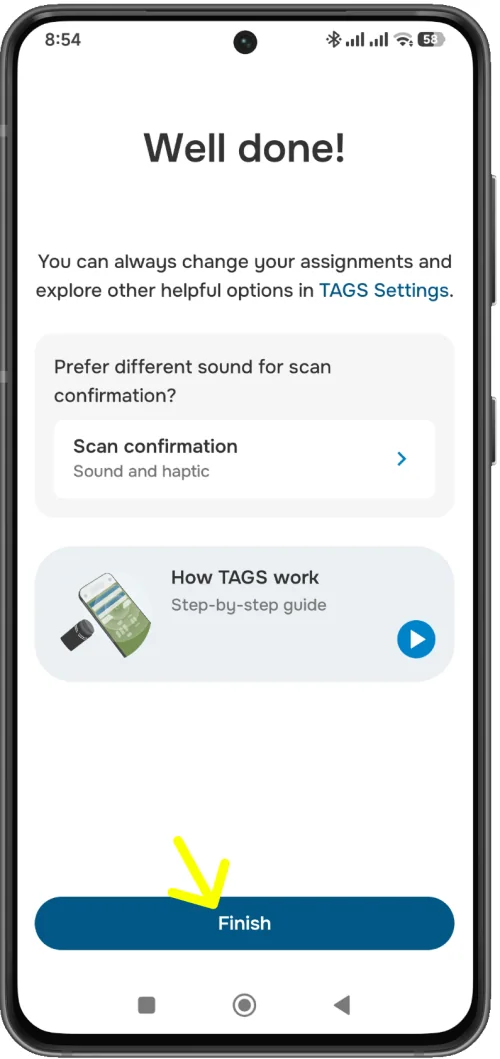
You are all set! Before you start your first round with TAGS, you can run the test mode to practice. See this page for instructions on how to use TAGS during a round.
Here's a detailed video on how to set up TAGS on Android:


Subscribe for early access to promotions, feature announcements & more.