No items found.

Don't have Golf TAGS yet? Learn more and get your set at www.golfpadgps.com/tags. Once you have the TAGS, please see this page for the initial setup instructions. We strongly recommend to set up tags and verify tracking works well at home, before you head out to the golf course.
Open the Golf Pad Classic app on your phone, start a new round and select a course.

Press the power button before you put the phone in your pocket or in your bag. It will switch to black 'SmartLock' screen mode and reduce brightness to the lowest level. In this mode you can still scan the tags, but accidental inputs are blocked and screen does not use much power. This is what it looks like:
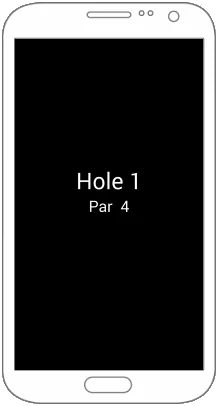
Can't see the SmartLock screen? Please make sure Golf Pad TAGS are enabled in Golf Pad preferences / Golf Pad LINK / TAGS.
Android 8 (and later) users - SmartLock works best if you use screen pinning for Golf Pad app.
Before making each shot, tap the club you are using to the back of the phone in your bag or pocket.
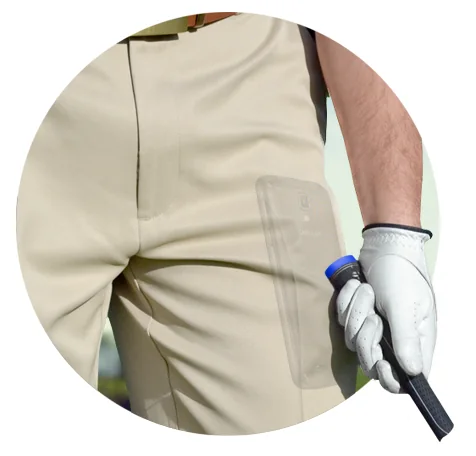
You will feel a vibration and an audible confirmation. Golf Pad app just recorded the position of the shot and the club you used. Repeat for each shot or putt you make. For example, if you play a par-4 hole, you will scan your driver on the tee box, the iron when you are in the fairway, and the putter every time you hit a putt on the green.
Golf Pad will even auto-advance to the next hole, so you can keep the phone away throughout the round.
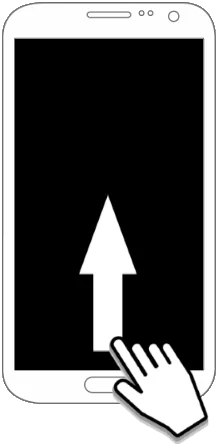
To resume the app, swipe up from the bottom-middle of the screen.
Note
If your phone has a fingerprint reader, you can touch the reader instead of swiping or use power button.
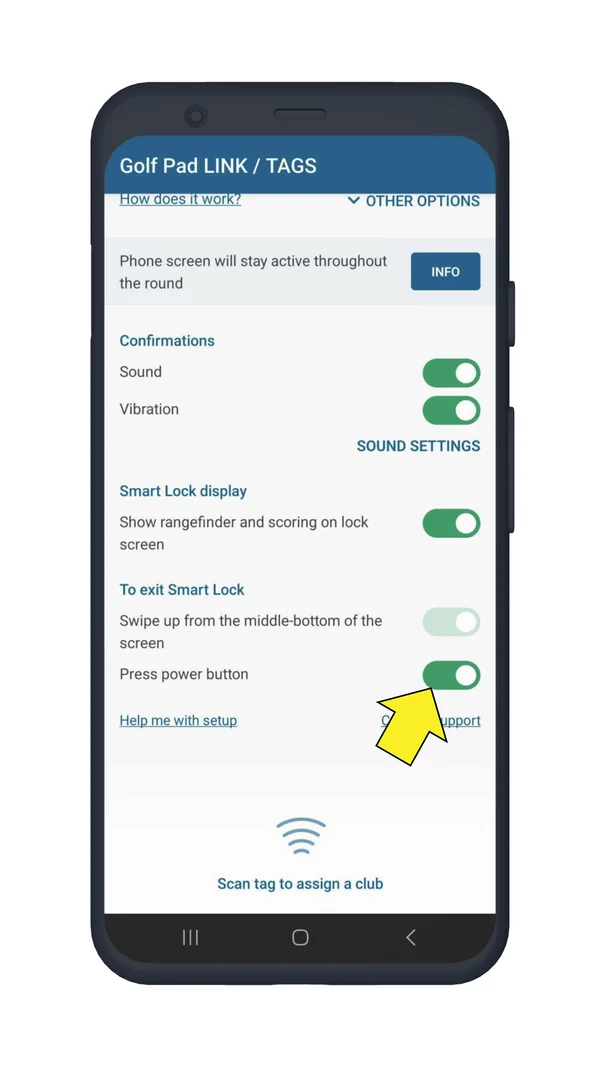
In order to use the power button to resume the app set this as an option in Golf Pad TAGS' settings.
Once unlocked, you can view the shots you just recorded on the map, including the distance for each shot. Just use the map icon in the upper right corner. If you need to edit shots, add a missing shot or a penalty, change clubs or shot positions, you can do that too. Just tap the score box in the lower left corner:
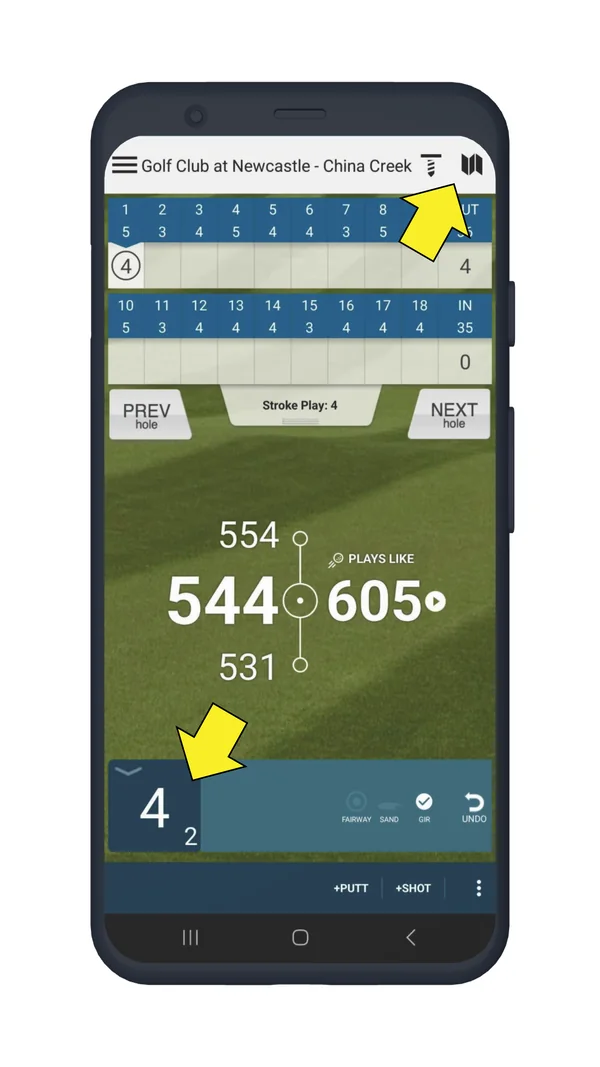
If you need to add/edit shots, see this article.


Subscribe for early access to promotions, feature announcements & more.