No items found.

This article is about using Golf Pad TAGS in Golf Pad on iPhone. Have an Android? Please see this page instead.
Using Golf Pad Classic on iPhone? Check out this article for step-by-step instructions.
If you haven't already, please enable and set up TAGS before your round. We strongly recommend setting up TAGS and verifying tracking works well at home, before you head out to the golf course.
Fully charge the phone before the golf round. See this article for more information on battery usage.
Open the Golf Pad app on your phone, start a new round as you usually do.
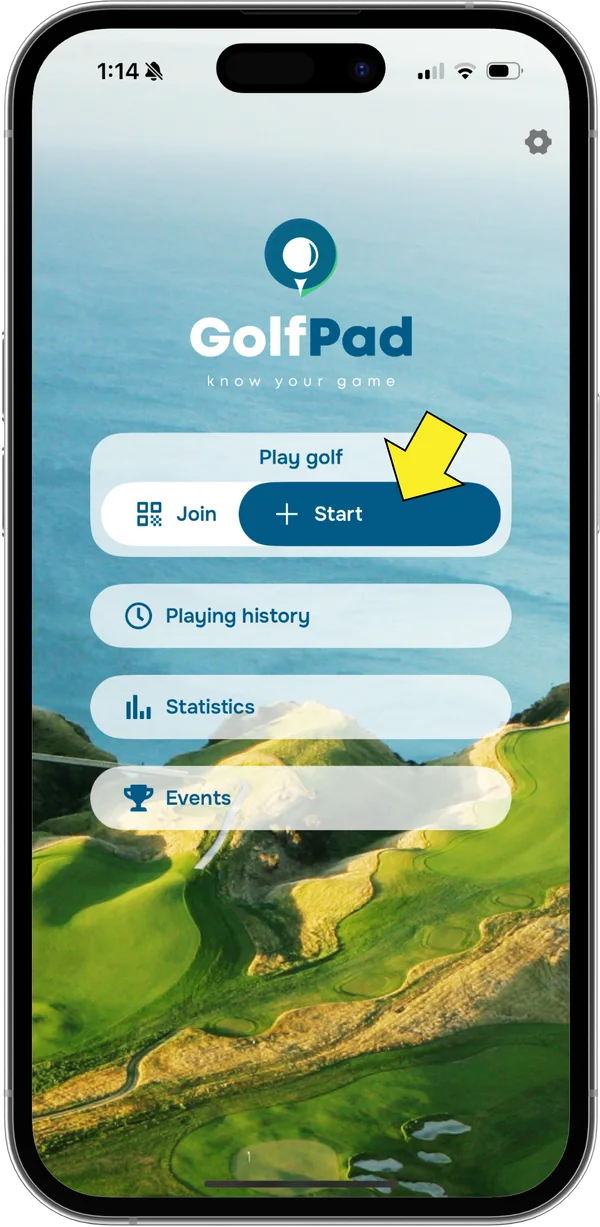
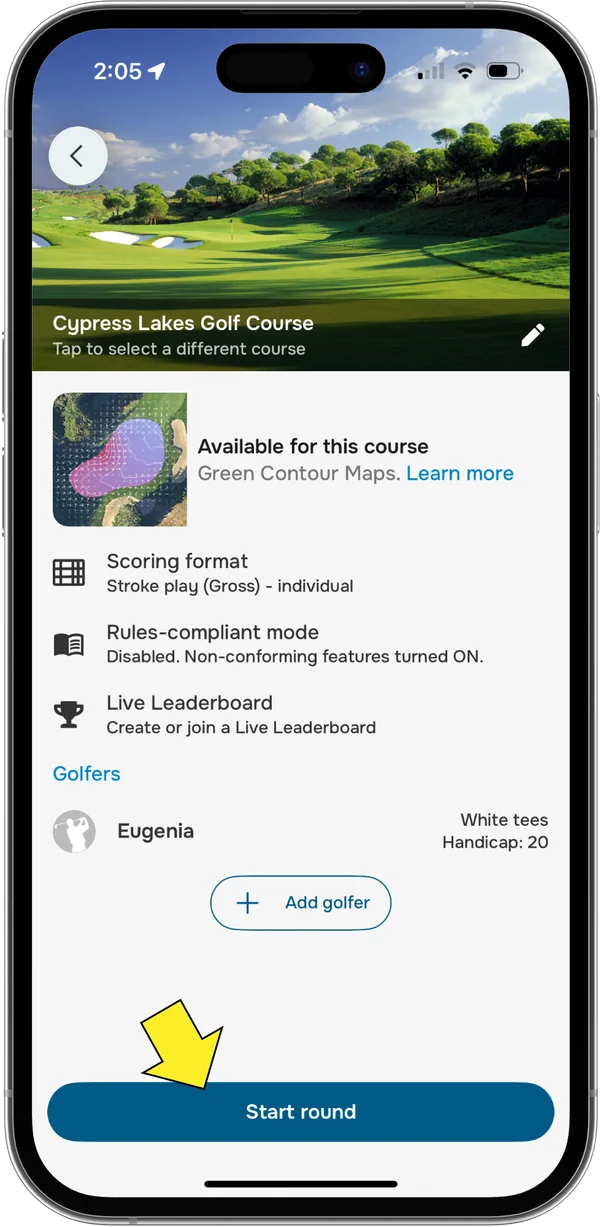
The first time you start a round with Golf Pad TAGS, you will have the option to use test mode to practice.
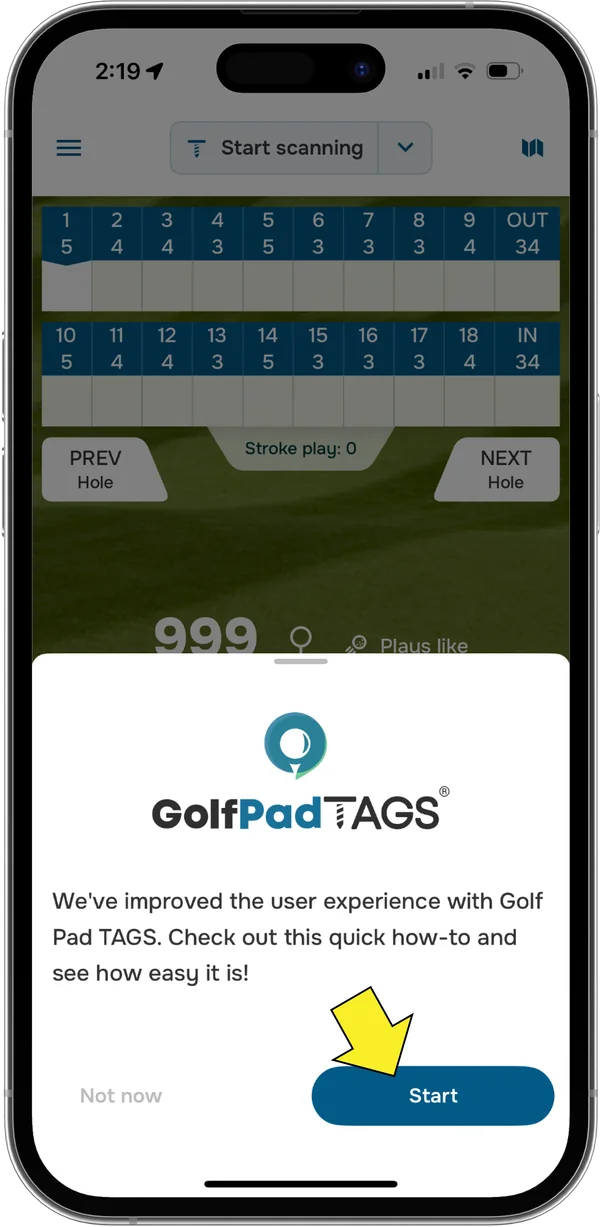
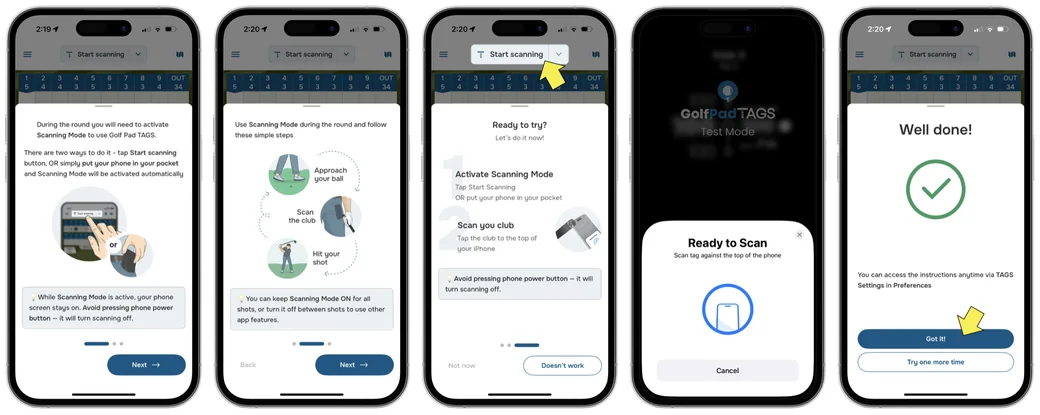
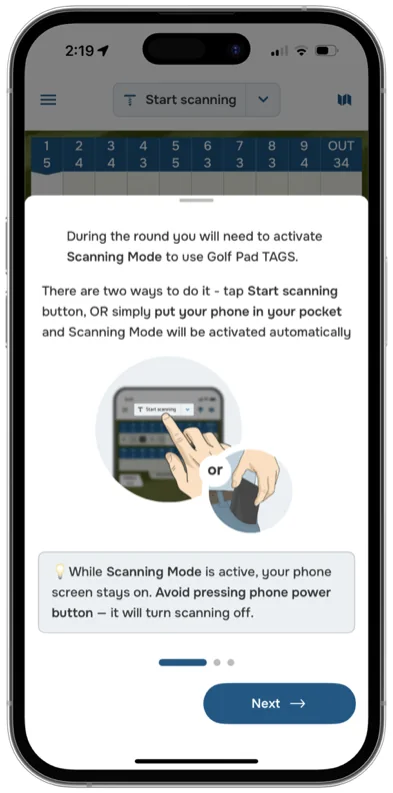
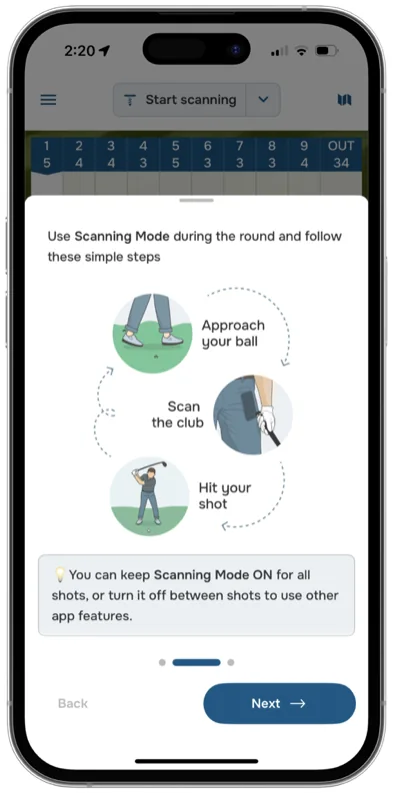
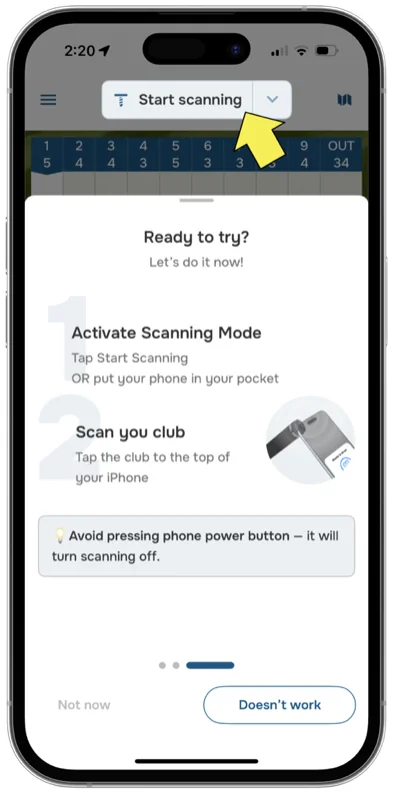
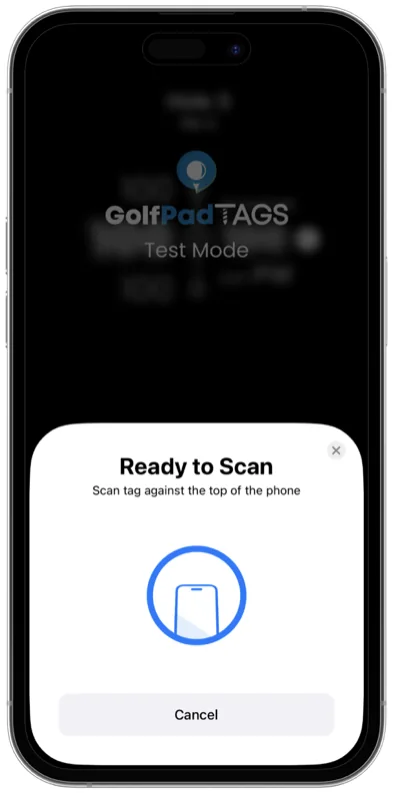
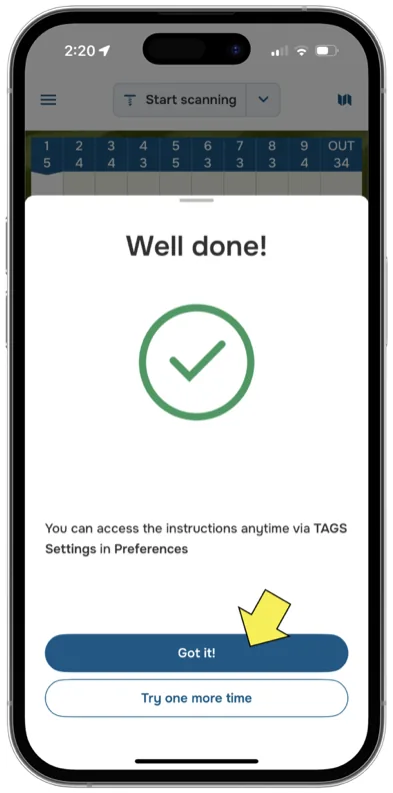
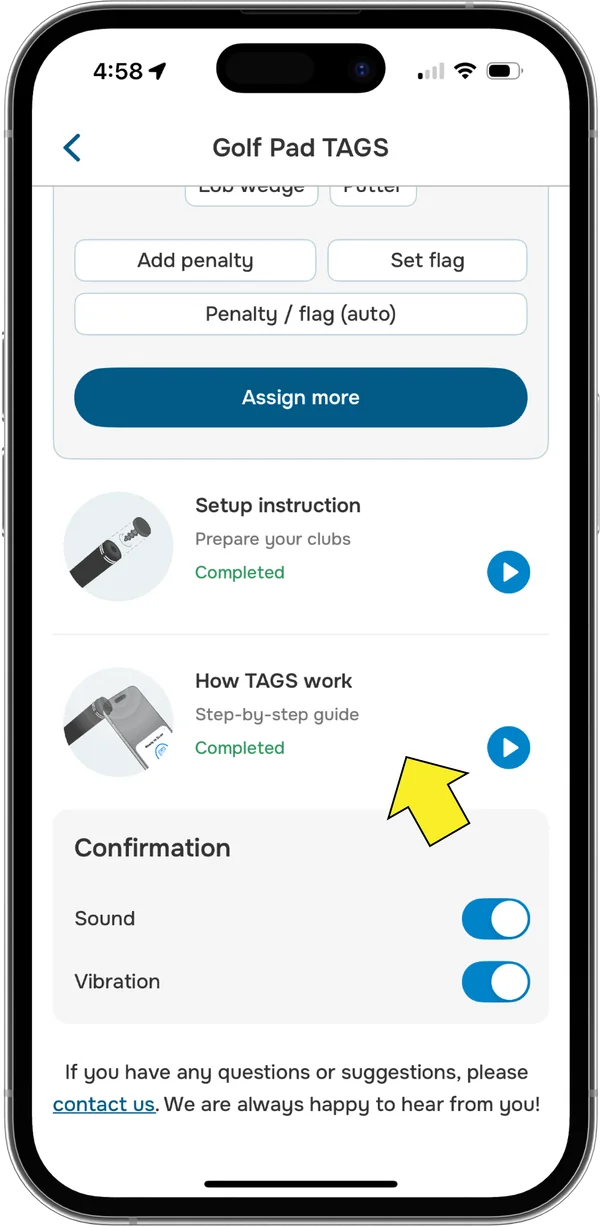
Please note that you can always access test mode and check the instructions anytime by going to Preferences > Golf Pad TAGS.
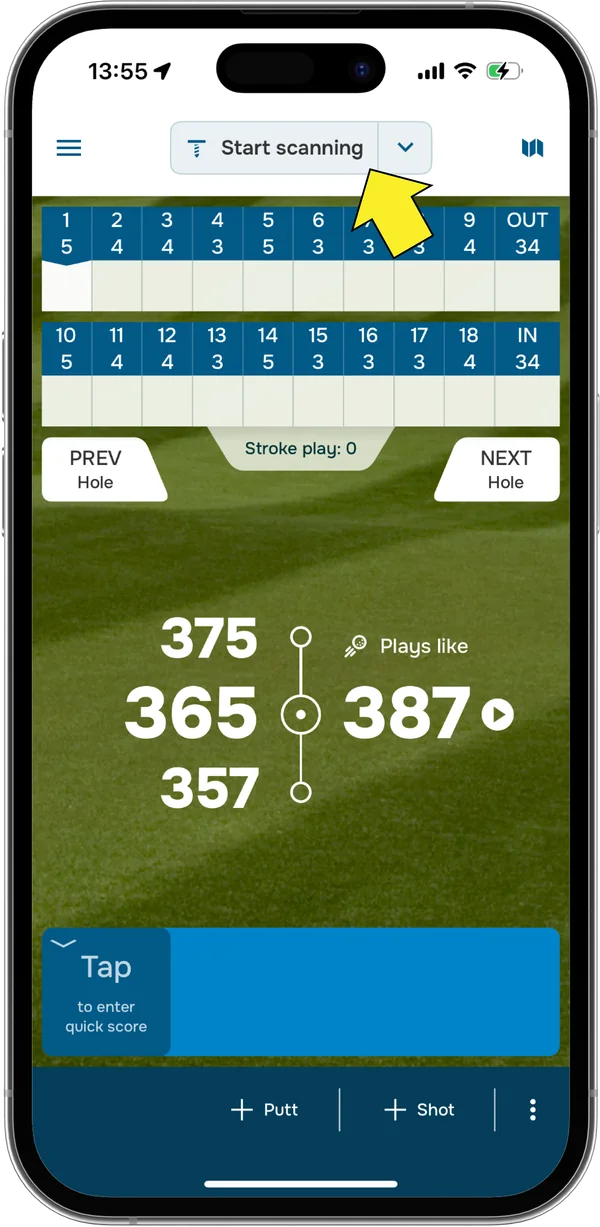
On the main scorecard, you can either tap "Start scanning" or just put your phone in your pocket – Scanning mode will be automatically activated. IMPORTANT: you don't need to manually activate Scanning mode before placing your phone in your pocket – it will start automatically.
Note
Unlike with Android phones, you can't scan a TAG while in scorecard view. Due to iOS system requirements, you must start the Scanning mode before scanning a TAG.
Scanning mode will start and you will be ready to scan.
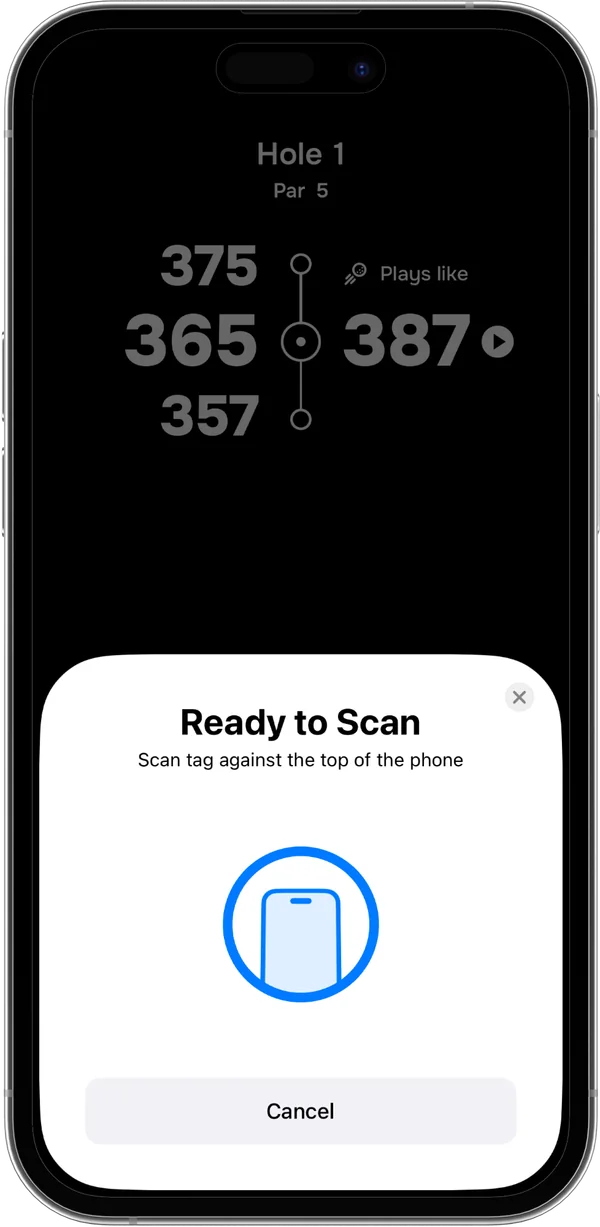
Screen must stay on for scanning to work. In this mode, you can scan the TAGS, but accidental inputs are blocked.
Before making each shot, tap the club you are using against the phone in your pocket or in your bag. NFC antenna is located at the top edge of iPhone.
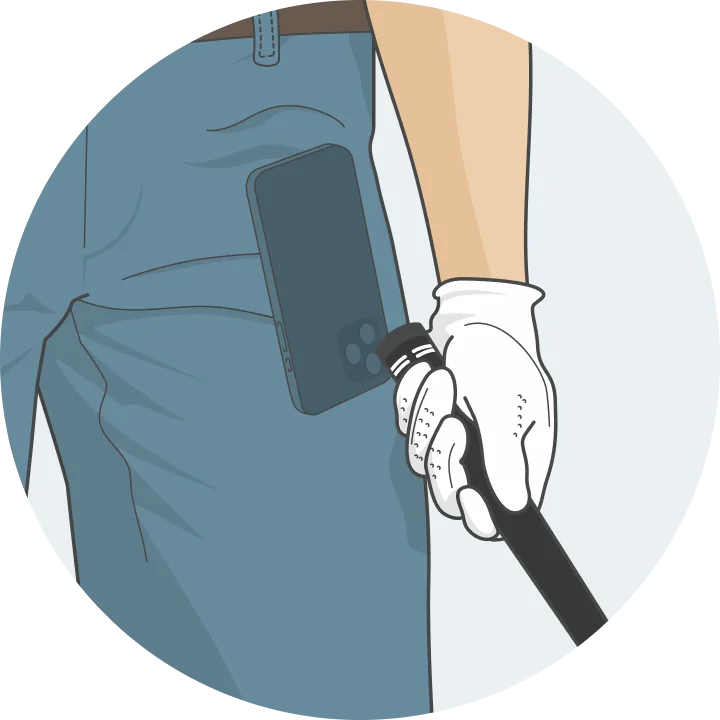
You will feel a vibration and an audible confirmation. Golf Pad app just recorded the position of the shot and the club you used. Repeat for each shot or putt you make. For example, if you play a par-4 hole, you will scan your driver on the tee box, the iron when you are in the fairway, and the putter every time you hit a putt on the green.
Golf Pad will even auto-advance to the next hole, so you can keep the phone away throughout the round.
To resume the app, cancel scanning by tapping "Close":
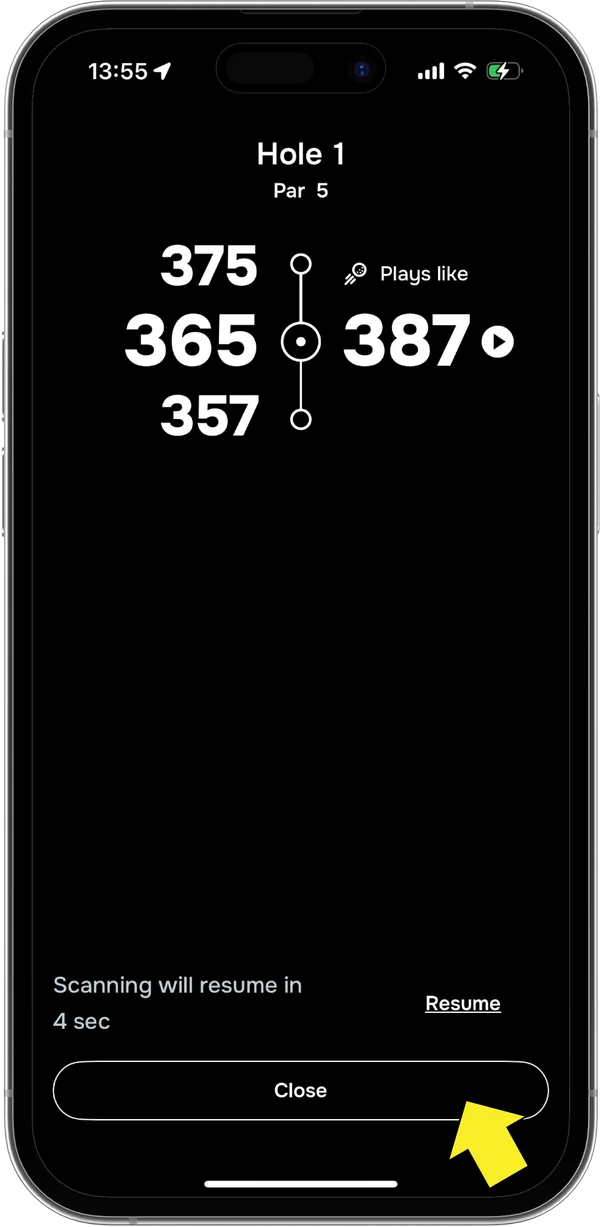
Once unlocked, you can view the shots you just recorded on the map, including the distance for each shot. Just use the map icon in the upper right corner. If you need to edit shots, add a missing shot or a penalty, change clubs or shot positions, you can do that too. Just tap the Quick score box in the lower left corner:
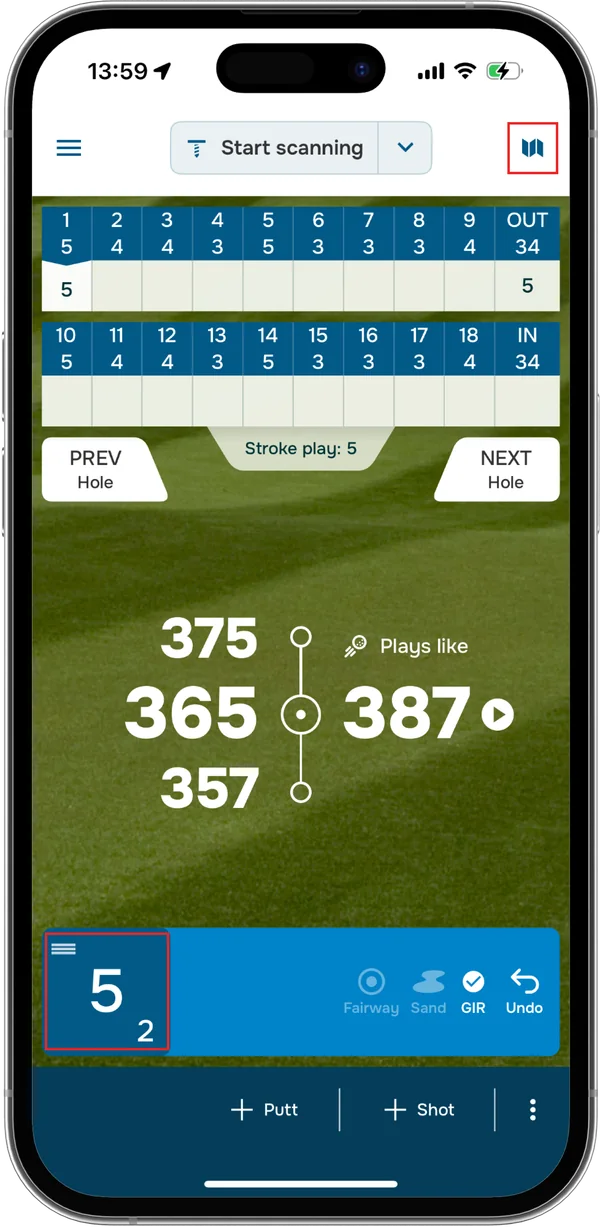
You can share the round with friends and family (after you finish, or live as you play), analyze statistics like club distances, strokes gained and shot dispersion, and review your round on the map at any time on the website or within the app.
If you need to add/edit shots, see this article.


Subscribe for early access to promotions, feature announcements & more.