No items found.

Green contour maps are now available on both Android and iPhone as part of our Premium subscription! These maps help you analyze the slope of the green and make critical decisions based on visual data. We're confident that with the contour maps you will improve your game even further!
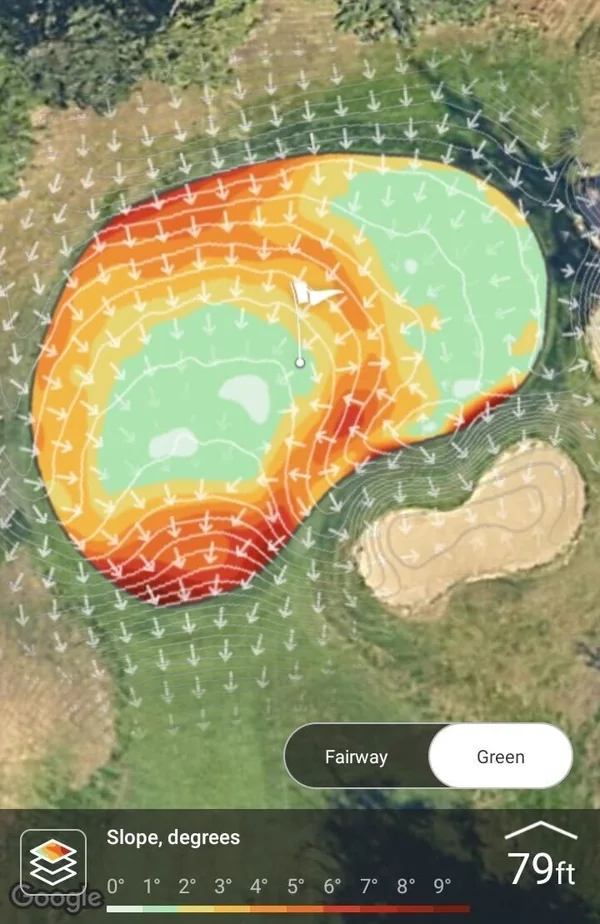
There are 13,000 courses in the United States with contour maps now, and more courses around the world are in progress. Learn more about how to check if your course has green contour maps: How to check if contour maps are available for my course?
To view green contours, please follow these steps:
Upgrade to Premium if you haven’t already. Click here for upgrade instructions.
Select a course and start a new round as you usually do.
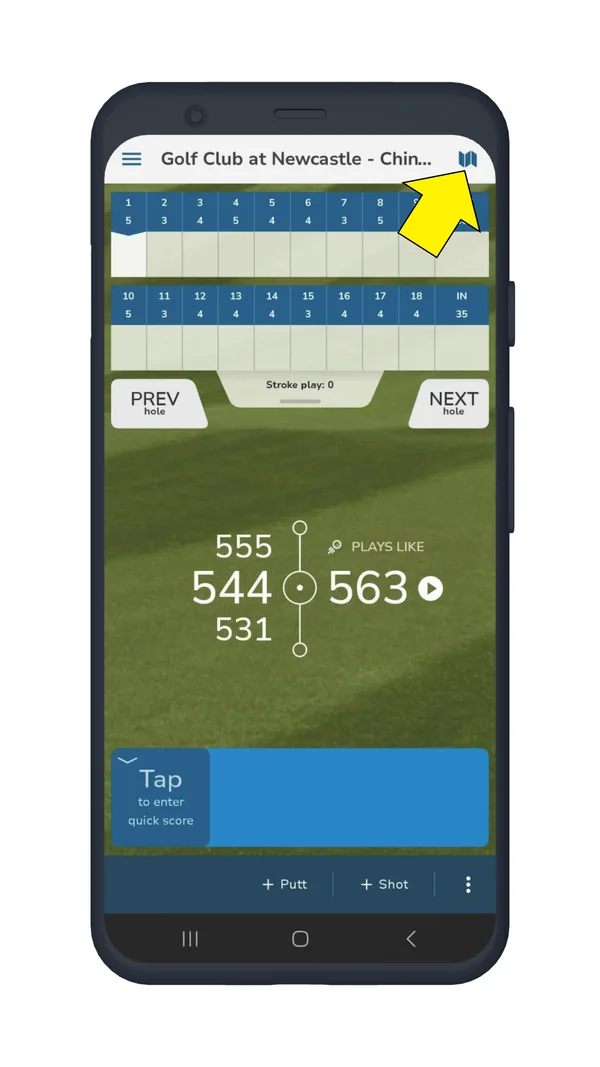
Open the map view.
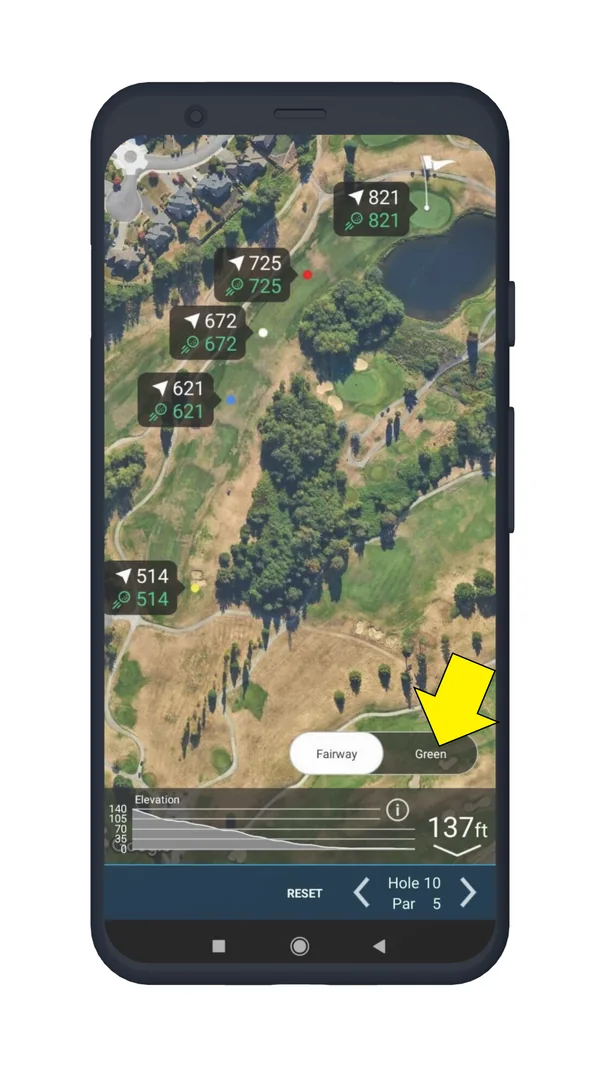
Tap the toggle to switch from Fairway to Green.
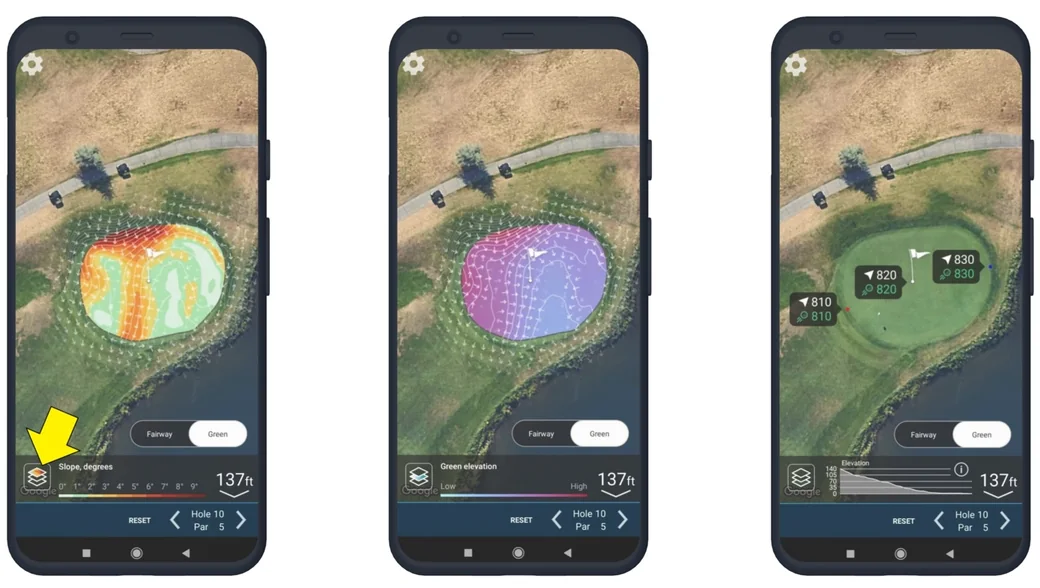
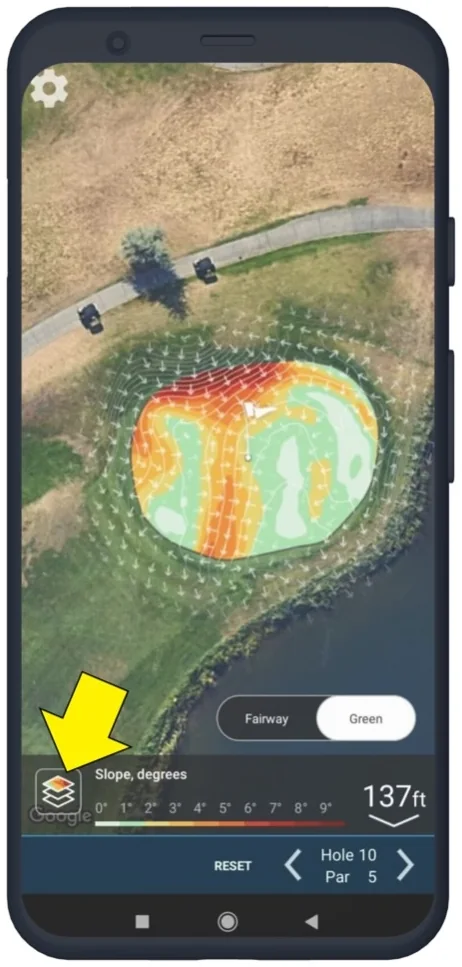
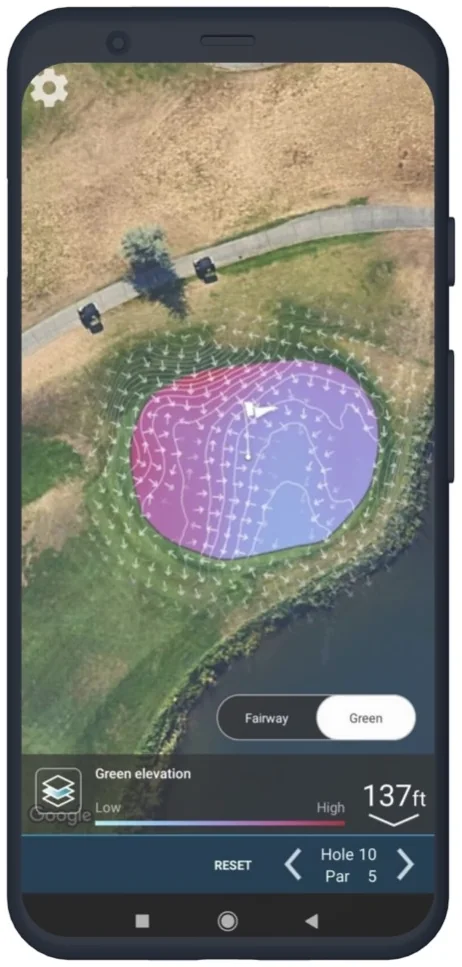
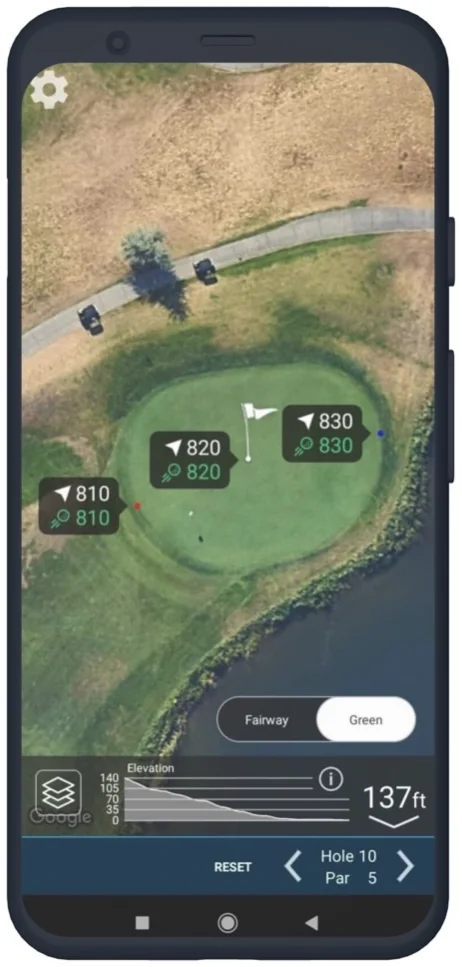
You will see the green slope in degrees. You can also switch to green elevation mode or elevation mode by tapping the icon on the left.
The first (slope) map shows the undulations and slopes on the green, with the color indicating the steepness of the slope and the arrows showing the direction of the slope. The second (elevation) map displays elevation changes. The higher the elevation, the darker the area on the map.
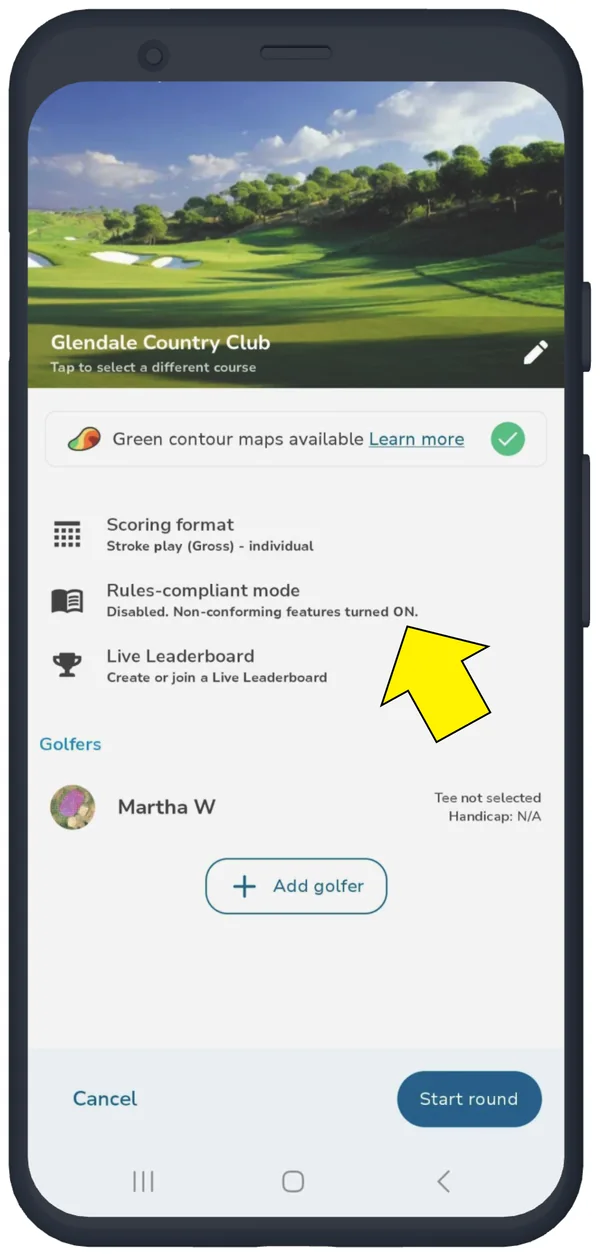
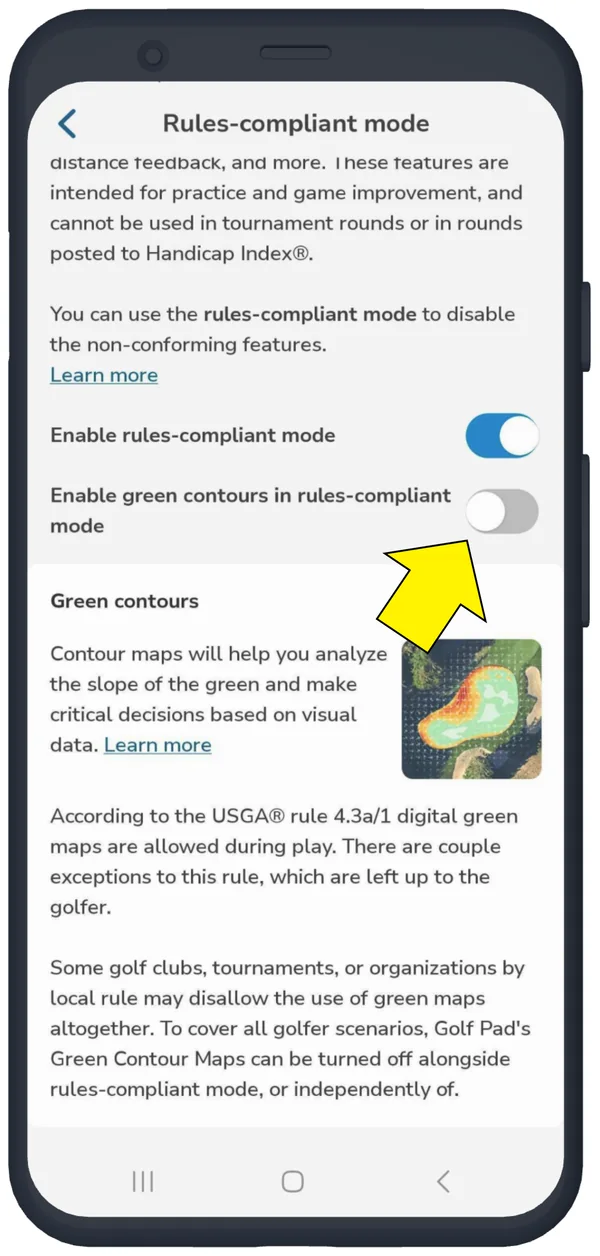
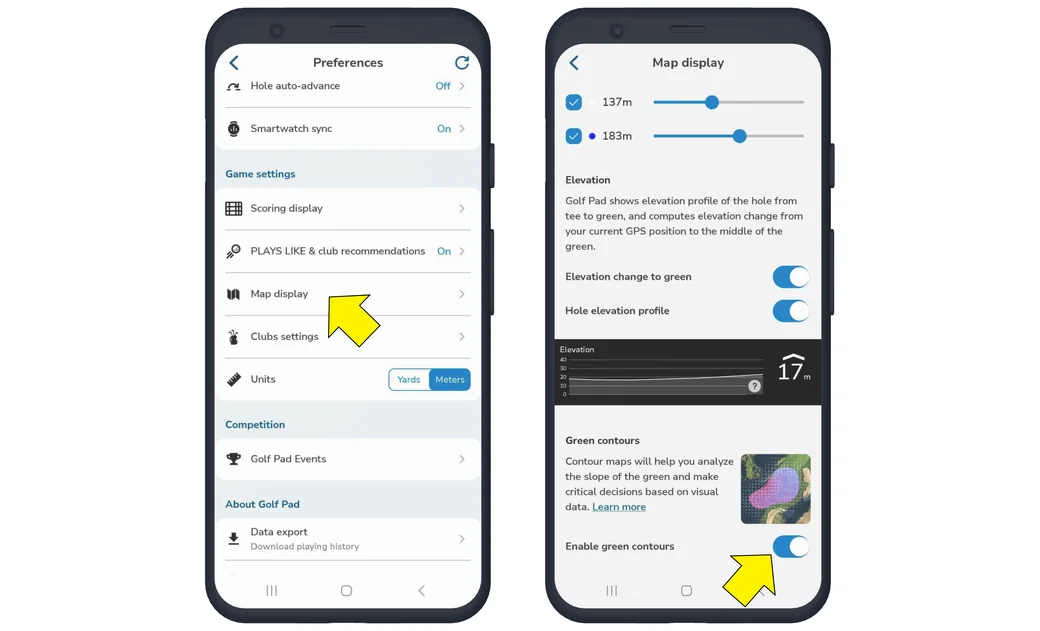
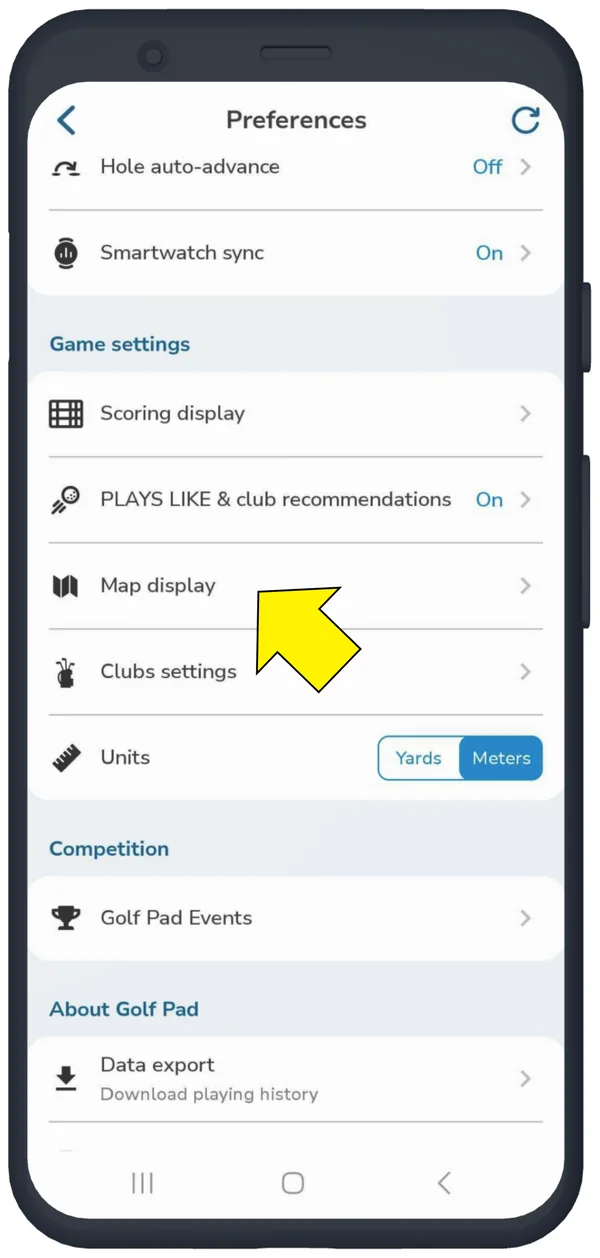
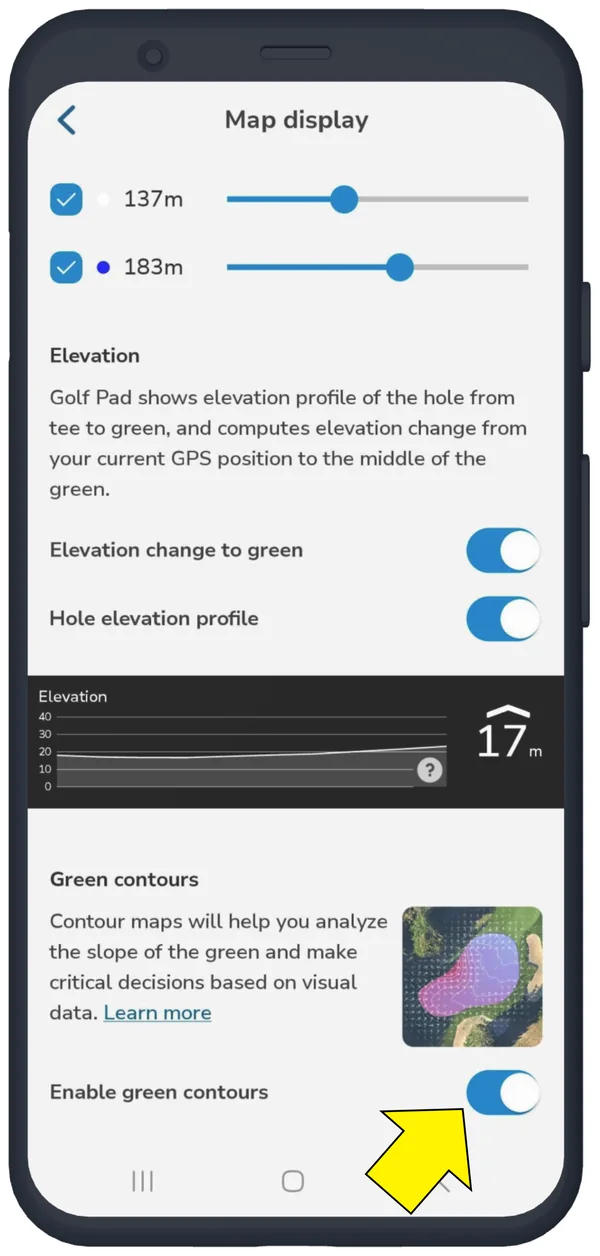
If you need to turn off green contours, you can do it in two ways: in Round Settings or in Preferences.
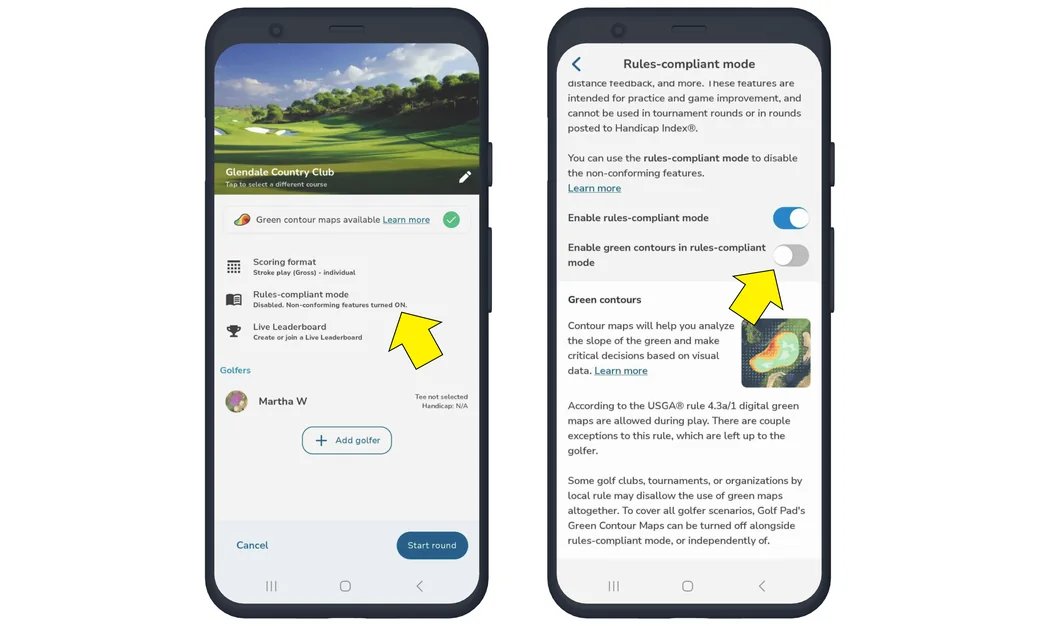
Please tap "+ Start" on the main screen of the app, you will see the Round Settings page. Select Rules-compliant mode and disable green contour maps there.
Open Preferences (the gear icon in the top right corner of the main screen), select "Map display" and disable green contours.
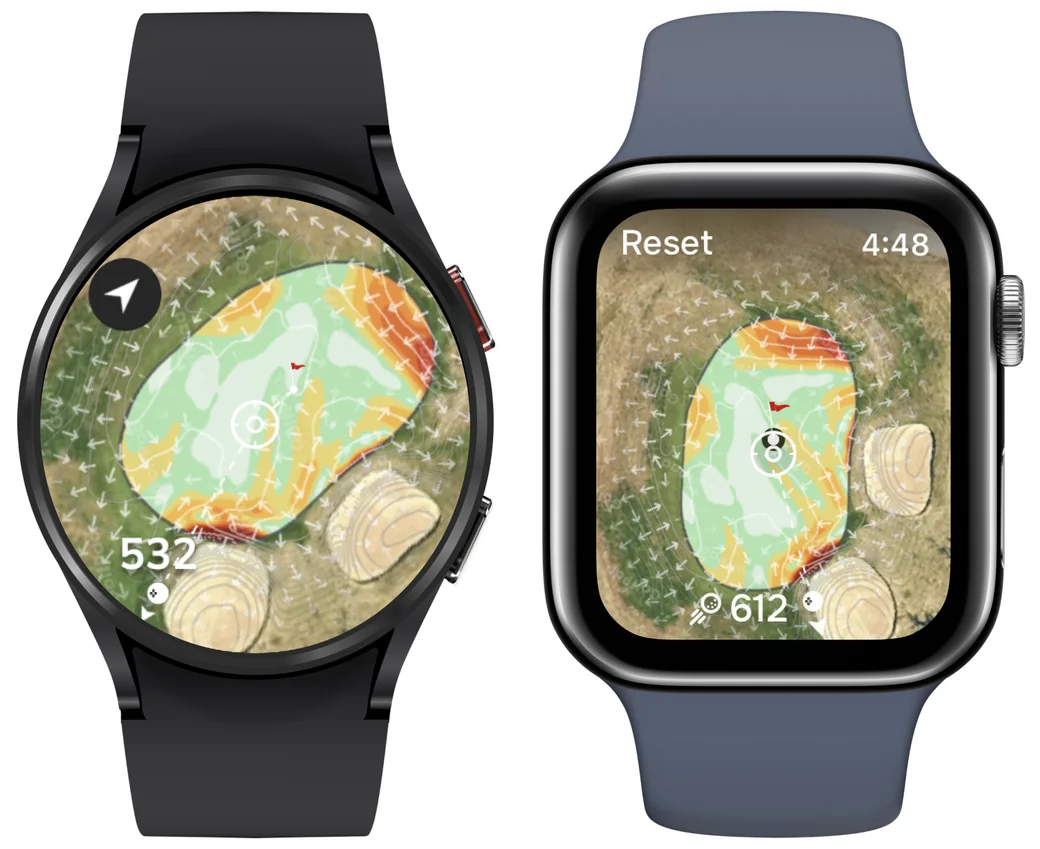
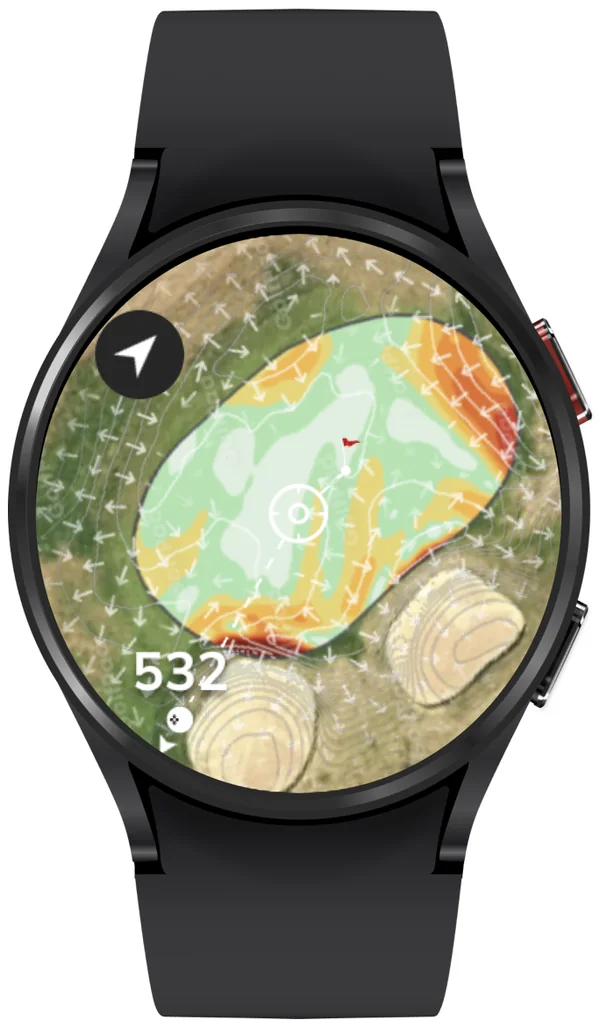
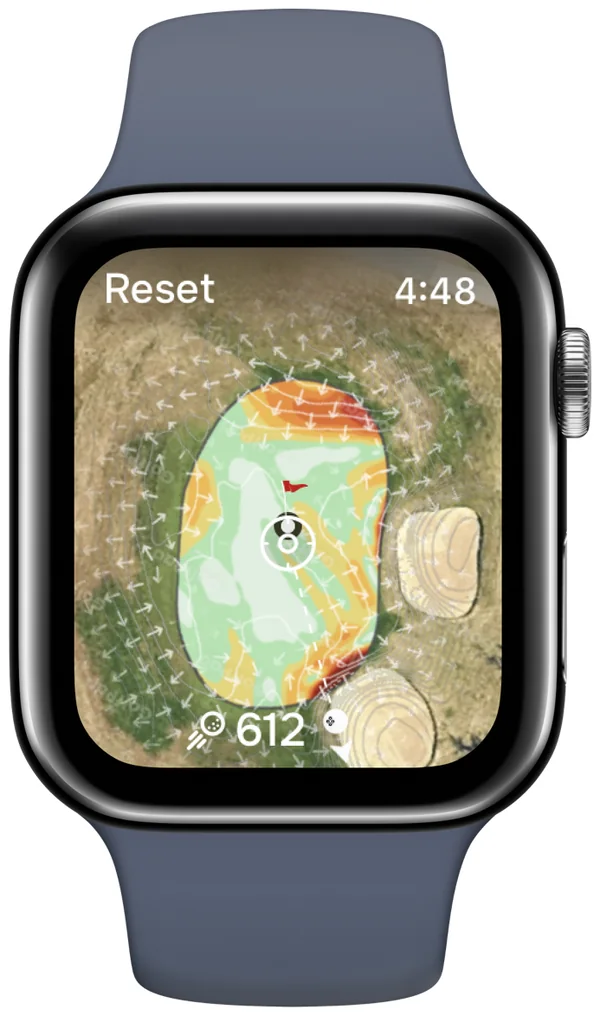
As of version 20.1.12 on Android and version 20.1.14 on iPhone, green contour maps are now available on your watch! To access green maps on your smartwatch, simply switch to map view and tap on the green area. More information can be found here.
If you have questions, please submit a support ticket here. We'll be happy to help.


Subscribe for early access to promotions, feature announcements & more.