Below is a step by step guide to help you set up your first event.
If you have not yet created your account, use this getting started article to set up your account before continuing.
- Once you're logged in, the first step will be to create your upcoming event. Please click here, and follow the steps to create your new event. You will set up the date(s), course, tees, handicap and gender for the event.
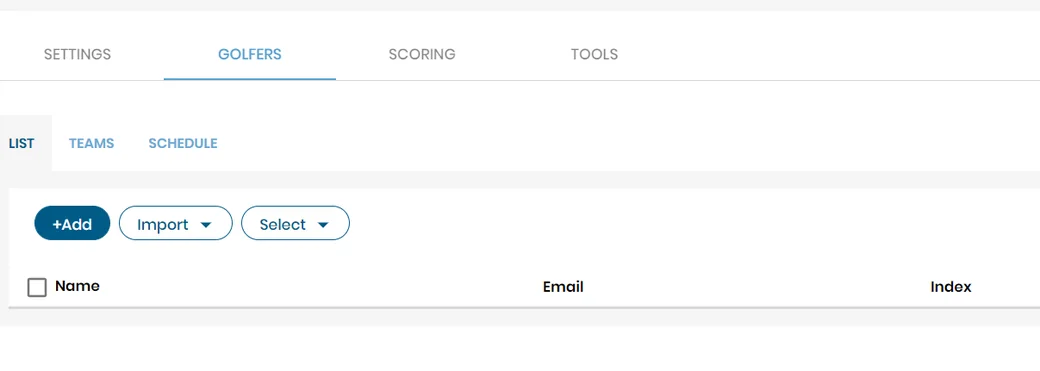
- Golfers - With your event settings in place it is now time to add your golfers to the event. Adding golfers to your event can be done a couple of different ways.
- Add golfers - You can manually add individual golfers by using the add golfer button. To learn more click here.
- Import golfers - You also have the option of importing golfers from a spreadsheet or a previous event. To learn more about the importing process click here.
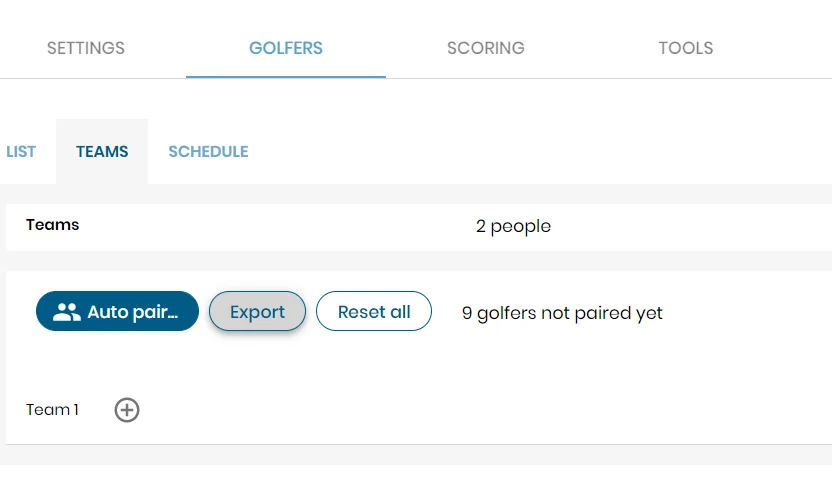
- Teams - (If not using teams, proceed to the next step) If your event has teams, you can modify these settings on the teams tab. Here you can set the size of the teams, and pairings. You can pair teams manually or use our automatic pairings feature.
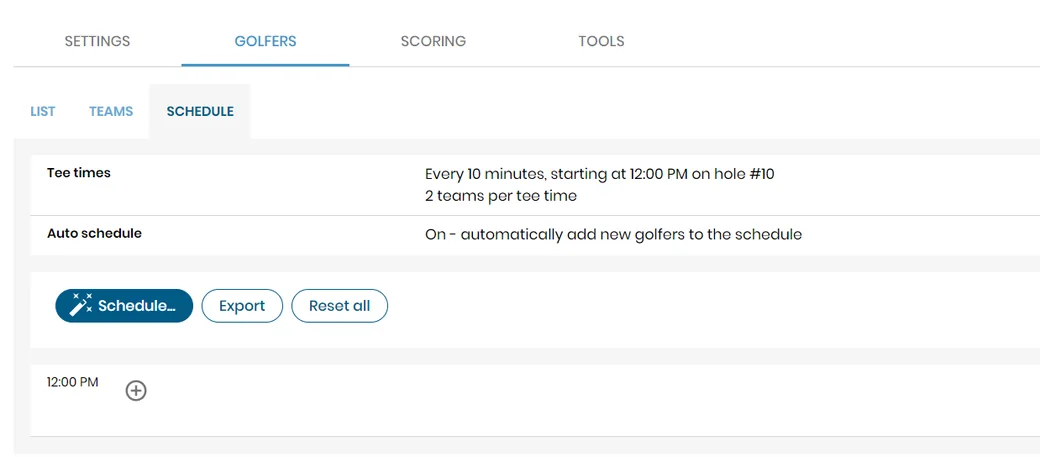
- Schedule - Edit the tee time information to reflect your starting details. You can choose from regular or shotgun start, choose tee time interval, teams or individuals per group, and hole assignment. You can add teams or individuals to the schedule or use the auto pairings feature, that generates groups based on handicap and gender.
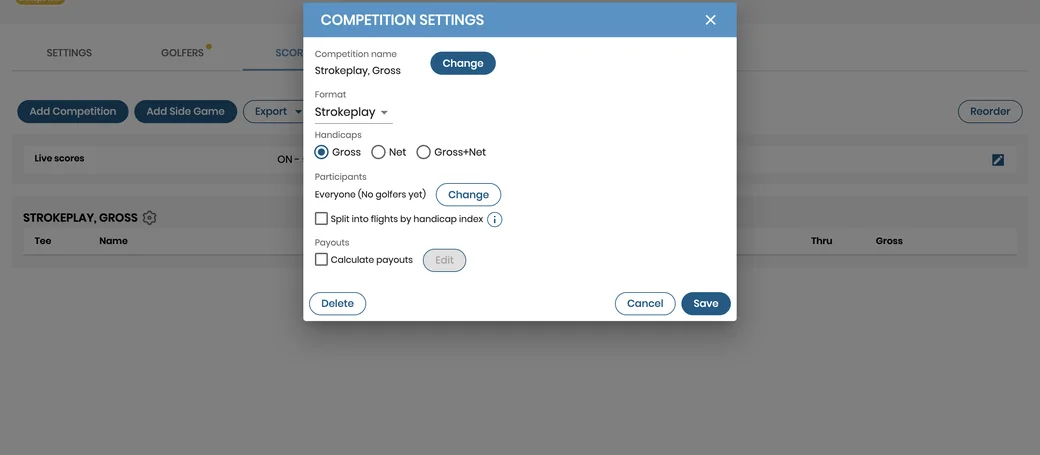
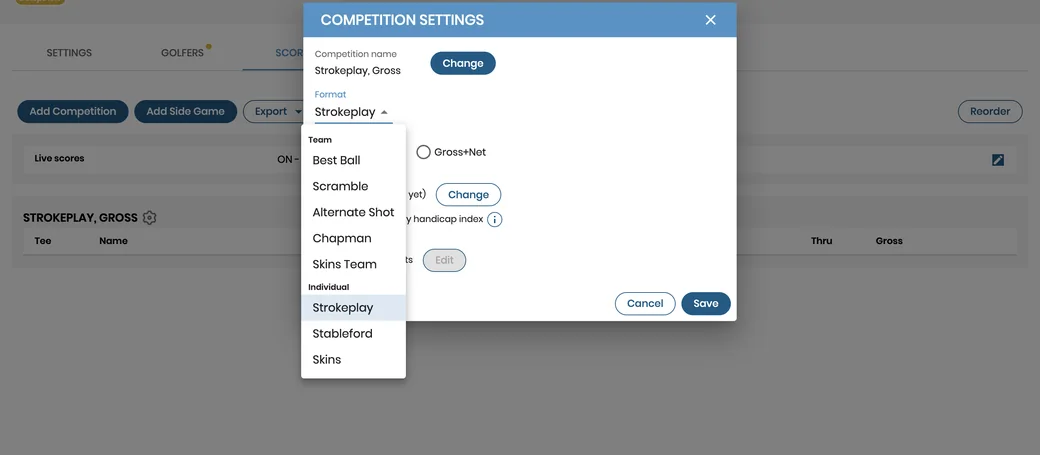
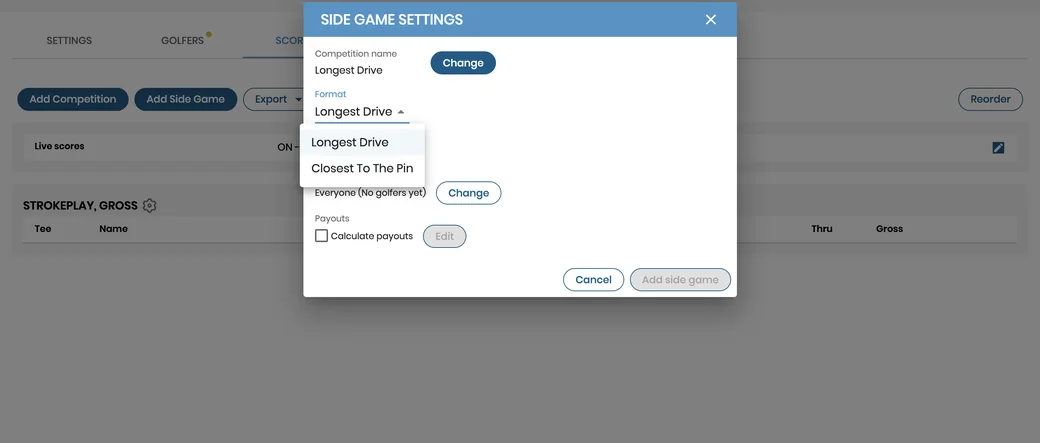
- Scoring - This is where you add the competition or multiple competitions. You can also add side games including closest to the pin, or longest drive.
- Add competition - The competition settings window will allow you to choose the format, handicap details, participants, and any payouts settings.
- Add side game - The side game window will allow you to choose the type of side game and specify the holes, participants, and any payouts settings.
- Tools - The tools tab is where you will find helpful items (that can be printed) for your event. The following are available under the tools tab: Scorecards, Schedule, Results, Golfers List, Cart Signs, Money List.
Now that you have your tournament field, pairings, and competitions set, the only thing left to do is play!